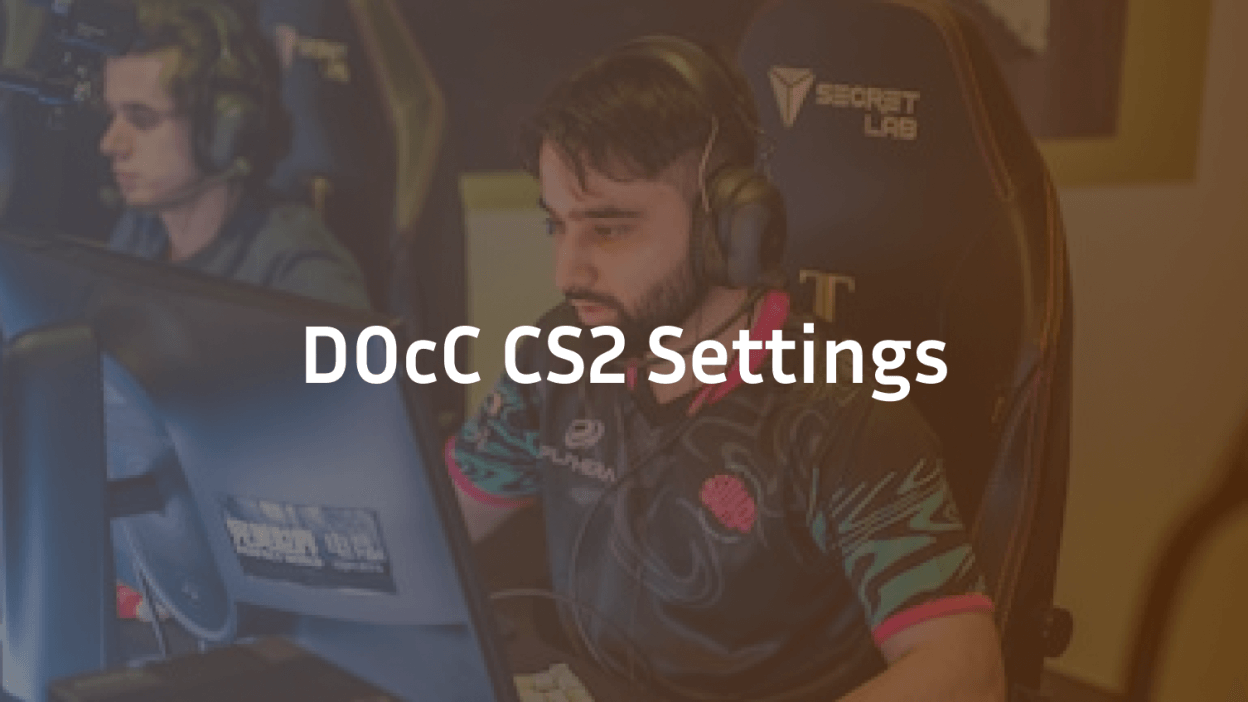
Crafting the perfect in-game setup can be the difference between clutching rounds and falling short. In this comprehensive guide, you’ll find every detail of professional player d0cc’s Counter-Strike 2 settings—down to the last pixel—so you can replicate his config, understand the rationale behind each choice, and adapt them to your own playstyle.
Why d0cc’s Settings Matter
- Consistency & Muscle Memory: Pro-level sensitivity and viewmodel settings build reliable muscle memory for flicks and tracking.
- Visual Clarity: Optimal video and crosshair choices reduce distractions, helping you spot enemies faster.
- Network & Performance: Launch options and network tweaks minimize input lag and ensure smooth gameplay.
Hardware & System Specs
| Component | Model/Spec |
| Mouse | Logitech G Pro Wireless |
| Mousepad | SteelSeries QcK |
| Keyboard | SteelSeries Apex Pro |
| Monitor | BenQ Zowie XL2546K, 240 Hz |
| Resolution | 1920 × 1080 (16:9) |
| Refresh Rate | 240 Hz |
| Windows DPI | 6/11 (default) |
| Polling Rate | 1000 Hz |
Mouse & Sensitivity
- DPI: 800
- In-Game Sensitivity: 1.65
- eDPI: 1320
- Windows Sensitivity: 6/11 (system default)
- Raw Input: On
- Acceleration: Off
Tip: At 800 DPI, your hand movements remain consistent across other mice and setups.
Crosshair Configuration
cl_crosshair_drawoutline “1”
cl_crosshair_outlinethickness “1”
cl_crosshair_dynamic_maxdist_splitratio “0.35”
cl_crosshair_dynamic_splitalpha_innermod “1”
cl_crosshair_dynamic_splitalpha_outermod “0.5”
cl_crosshair_dynamic_splitdist “7”
cl_crosshair_sniper_show_normal_inaccuracy “0”
cl_crosshairalpha “999”
cl_crosshaircolor “5” // Custom color (RGB: 255 0 255)
cl_crosshaircolor_b “255”
cl_crosshaircolor_g “0”
cl_crosshaircolor_r “255”
cl_crosshairdot “0”
cl_crosshairgap “-2”
cl_crosshairsize “2”
cl_crosshairstyle “4”
cl_crosshairthickness “1”
cl_crosshair_outlinethickness “1”
cl_crosshairusealpha “1”
- Style: Classic static (Style 4)
- Size & Gap: Small size with slight inward gap for precision
- Color: Magenta for maximum contrast on all maps
Video & Graphics Settings
| Setting | Value |
| Resolution | 1920 × 1080 |
| Aspect Ratio | 16:9 |
| Display Mode | Fullscreen |
| Global Shadow Quality | Low |
| Model/Texture Detail | Low |
| Effect Detail | Low |
| Shader Detail | Low |
| Multisampling Anti-Aliasing | 2× MSAA |
| Texture Filtering Mode | Bilinear |
| FXAA Anti-Aliasing | Off |
| Wait for Vertical Sync | Off |
| Motion Blur | Off |
Why Low Settings? Reducing visual clutter and eliminating unnecessary effects allow for smoother performance and quicker enemy spotting.
Launch Options
-novid
-no-browser
-nojoy
-high
+fps_max 0
-tickrate 128
-refresh 240
- -novid: Skips intro video
- -nojoy: Disables joystick support for slight performance gain
- +fps_max 0: Removes frame cap
- -tickrate 128: Ensures offline lobbies run at 128 tick
Network & Rate Commands
rate 786432
cl_updaterate 128
cl_cmdrate 128
cl_interp 0
cl_interp_ratio 1
cl_lagcompensation 1
- High Rate: Maximizes packet flow for minimal lag
- Interpolation: With cl_interp_ratio 1 and cl_interp 0, packet interpolation delay is minimized
Key Bindings & Binds
| Action | Key |
| Use | E |
| Reload | R |
| Inspect | F |
| Jump | Mouse4 |
| Crouch | L-Ctrl |
| Voice Chat | K |
| Push-to-Talk | Mouse5 |
Jump Throw Bind:
alias “+jumpthrow” “+jump;-attack”
alias “-jumpthrow” “-jump”
bind “alt” “+jumpthrow”
- Mapping jump throw to a single key ensures consistent grenade throws.
Radar & HUD Settings
cl_hud_color 2
cl_radar_always_centered 0
cl_radar_scale 0.3
cl_radar_icon_scale_min 0.6
cl_hud_radar_scale 1.15
- Radar Scale: Compact but readable
- HUD Color: Green for high contrast
Viewmodel & FOV
viewmodel_offset_x 2.5
viewmodel_offset_y 0
viewmodel_offset_z -2.0
viewmodel_fov 68
viewmodel_presetpos 0
- FOV 68: Balances weapon visibility and peripheral awareness
- Offset: Slides model slightly right for clearer center view
Audio Settings
- Audio Mix: Studio
- Dynamic Range: Loud
- Headphones Config: Enabled
- Voice Enable: Disabled (reduces clutter)
Tip: Studio mix emphasizes footsteps and in-game cues, giving vital sound advantages.
Practice & Warm-Up Routine
- Aim Training: 10 minutes in Aim Lab or training map
- Recoil Control: Spray patterns on training maps (e.g., recoil master)
- Grenade Practice: 5–10 throws for popular smokes and flashes
- Deathmatch: 15 minutes on 128 tick servers
Customizing for Your Playstyle
While d0cc’s settings are a proven foundation, adapt them to your comfort:
- DPI/Sensitivity: Adjust in small increments (±0.1 sensitivity or ±100 DPI).
- Crosshair Color: Change to green, cyan, or yellow if magenta blends into certain map textures.
- Audio Mix: If footsteps seem too sharp, try “Headphones” mix instead of “Studio.”
Conclusion
By meticulously applying d0cc’s CS2 settings—spanning hardware choices, in-game sensitivity, video optimizations, key binds, and more—you’ll establish a pro-level baseline primed for honing your skills. Remember, consistency is key: stick with one configuration long enough to develop true muscle memory before making tweaks.