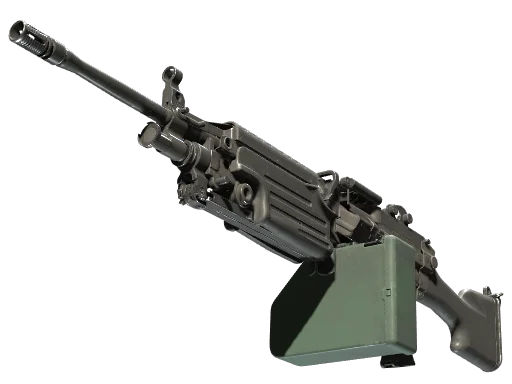
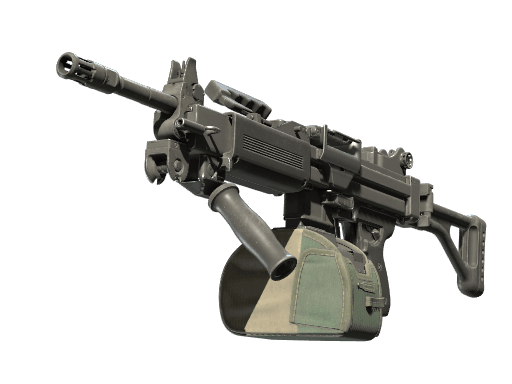
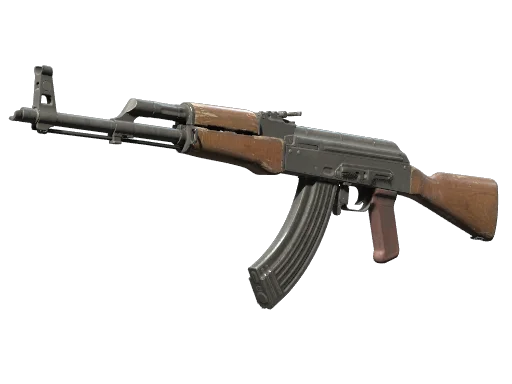
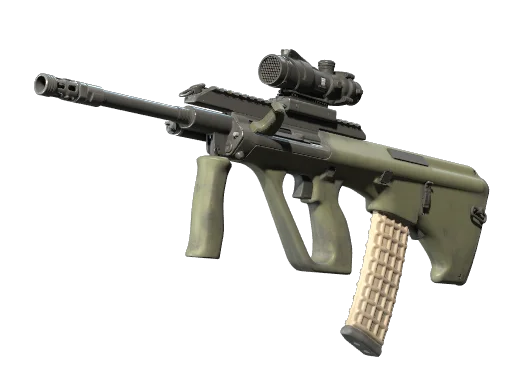
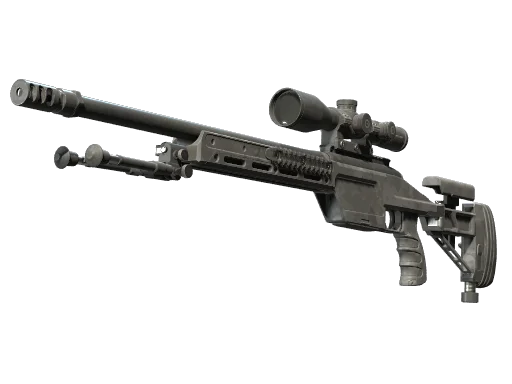
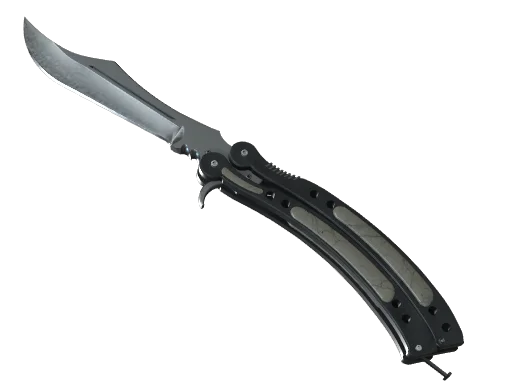
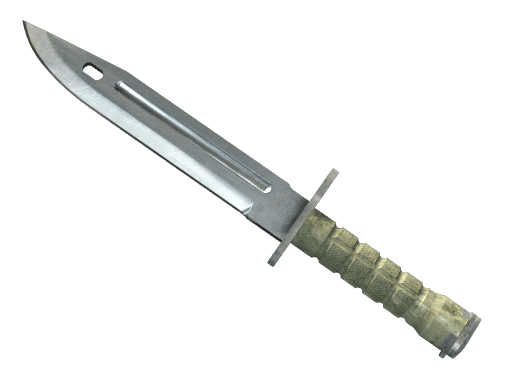
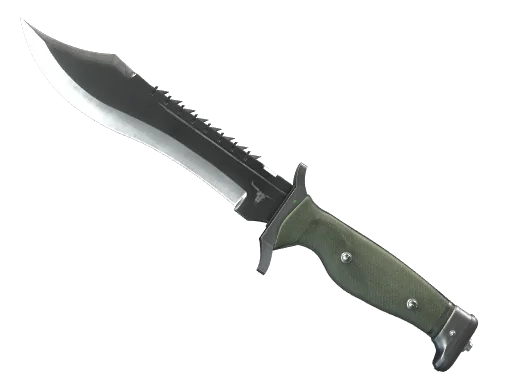
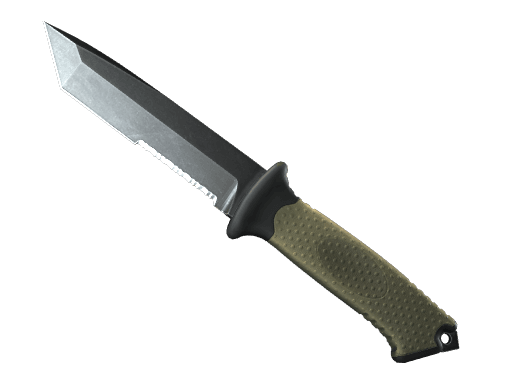
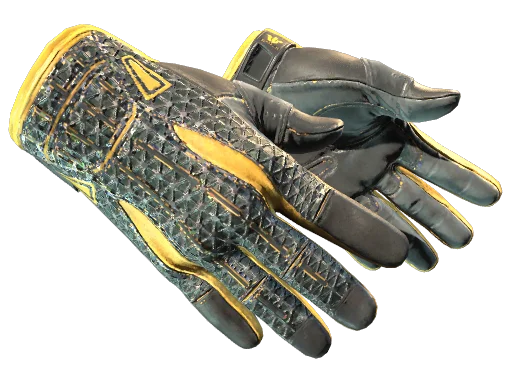
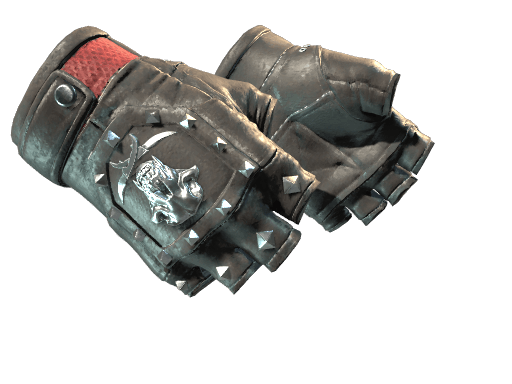
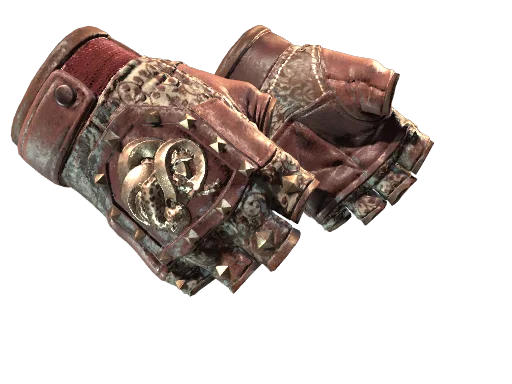






















































Want to copy the exact EliGE CS2 settings used by one of the most consistent riflers in North American Counter-Strike history? Jonathan “EliGE” Jablonowski runs a low-sensitivity, high-precision setup built for surgical spraying and hard-clutch scenarios. Below, we break down his full config — sensitivity, crosshair, viewmodel, video, and launch options — so you can load it up and try it yourself.
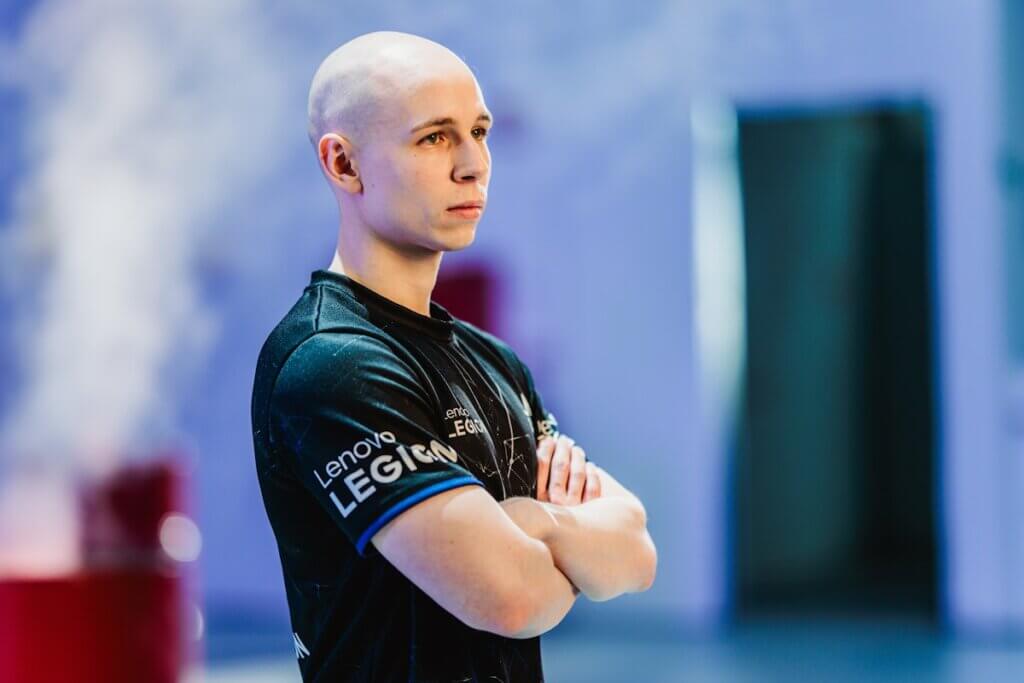
Who Is EliGE?
EliGE is a veteran American professional Counter-Strike player who rose to fame with Team Liquid, one of the most storied organizations in CS history. Known for his aggressive rifling, insane work ethic, and encyclopedic game knowledge, he’s been a top-tier rifler for nearly a decade.
If you’re benchmarking against pros, his setup is a great starting point — especially if you’re a rifler who likes tapping and bursting with the ak-47 or m4a4.
EliGE CS2 Mouse Settings & Sensitivity
EliGE runs a low-sensitivity setup — a common trait among top aimers who prioritize crosshair precision over flick speed.
| Setting | Value |
|---|---|
| DPI | 800 |
| Sensitivity | 1.35 |
| eDPI | 1080 |
| Zoom Sensitivity | 1.00 |
| Hz (Polling Rate) | 1000 |
| Windows Sensitivity | 6 |
| Raw Input | On |
| Mouse Acceleration | Off |
Key takeaway: With an eDPI of ~1080, EliGE uses big arm-based movements. If you’re used to flicking with your wrist, this will feel slow at first — but it forces better crosshair placement.
EliGE CS2 Crosshair
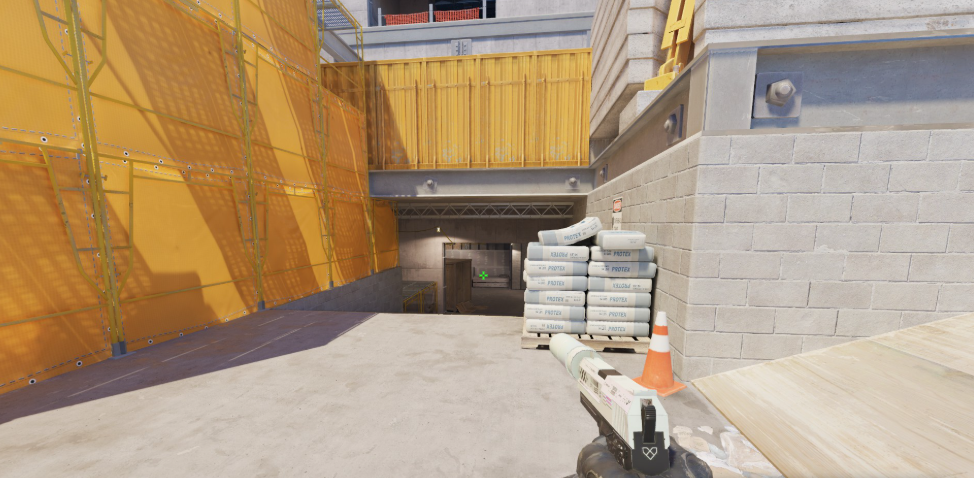
EliGE’s crosshair is small, static, and cyan — designed to sit precisely on head-level pixels without covering targets at range.
cl_crosshairstyle 4cl_crosshaircolor 5
cl_crosshaircolor_r 0
cl_crosshaircolor_g 255
cl_crosshaircolor_b 255
cl_crosshairsize 1.5
cl_crosshairthickness 0.5
cl_crosshairgap -3
cl_crosshairdot 0
cl_crosshair_drawoutline 0
cl_crosshairalpha 255
Crosshair share code:
CSGO-JQKvT-6TTsA-KsjKD-jUJnh-nvSDNPaste this into CS2’s crosshair menu (Game Settings → Crosshair → Share/Import) to load it instantly.
EliGE CS2 Viewmodel Settings
He uses a classic centered viewmodel — no offset gimmicks, just clean and readable.
viewmodel_offset_x 1viewmodel_offset_y 2
viewmodel_offset_z -2
viewmodel_fov 68
viewmodel_presetpos 3
cl_bob_lower_amt 5
cl_bobamt_lat 0.1
cl_bobamt_vert 0.1
cl_bobcycle 0.98
cl_viewmodel_shift_left_amt 0.5
cl_viewmodel_shift_right_amt 0.25
The max FOV of 68 gives him the widest peripheral view CS2 allows, which is a big plus when peeking common angles like Firebox on the mirage collection maps.
EliGE CS2 Video Settings
EliGE runs on high-end hardware but still tunes his video settings for maximum framerate and clarity, not visual fidelity.
| Setting | Value |
|---|---|
| Resolution | 1280×960 |
| Aspect Ratio | 4:3 |
| Scaling Mode | Stretched |
| Display Mode | Fullscreen |
| Refresh Rate | 240+ Hz |
| Boost Player Contrast | Enabled |
| Wait for Vertical Sync | Disabled |
| MSAA Mode | 8x MSAA |
| Global Shadow Quality | High |
| Model / Texture Detail | Low |
| Texture Filtering | Bilinear |
| Shader Detail | Low |
| Particle Detail | Low |
| Ambient Occlusion | Disabled |
| High Dynamic Range | Performance |
| FidelityFX Super Resolution | Disabled (Highest Quality) |
Why 4:3 stretched? Two reasons: enemy models appear slightly wider (easier to hit), and it’s what he grew up playing. Many pros stick with what feels muscle-memory-locked.
If you’re new to tweaking these values, we cover the full breakdown in our cs2 graphic settings guide.
EliGE CS2 Launch Options
-novid -tickrate 128 -freq 240 +fps_max 400-novidskips the Valve intro-tickrate 128(legacy — CS2 uses subtick, but harmless)-freq 240matches his monitor refresh rate+fps_max 400caps FPS to prevent frame pacing issues
EliGE CS2 Gear & Peripherals
| Peripheral | Model |
|---|---|
| Mouse | Logitech G Pro X Superlight |
| Keyboard | Wooting 60HE |
| Headset | Logitech G Pro X |
| Monitor | ZOWIE XL2566K (360Hz) |
| Mousepad | Logitech G640 |
The Wooting 60HE with Rapid Trigger is a big deal — it gives him faster counter-strafing than traditional mechanical switches.
How to Import EliGE’s Config in CS2
- Copy the crosshair share code above
- In CS2, open Settings → Game → Crosshair → Share or Import Crosshair
- Paste and apply
- Manually match sensitivity, viewmodel, and video settings using the tables above
Should You Copy EliGE’s Settings?
Yes — with one caveat. Pro settings are a starting point, not a magic bullet. EliGE’s low sens and 4:3 stretched setup work because he’s spent years building muscle memory around them. Use his config as a base, then tweak sens and crosshair size until it clicks for you.
If you want to compare styles, check out our breakdown of karrigan cs2 settings for an IGL perspective, broky cs2 settings for an AWPer setup, or kscerato cs2 settings for another elite rifler’s approach.
Final Thoughts
EliGE’s setup is a masterclass in precision-focused CS2 configuration — low sens, small crosshair, clean viewmodel, and performance-first video settings. Copy it, adapt it, and grind aim trainers until your crosshair placement matches his.
Want more pro configs, skin price tracking, and CS2 guides? Browse all pro loadouts and gear on cs2 skins or dig into more pro profiles like tarik cs2 settings for another North American legend’s config.