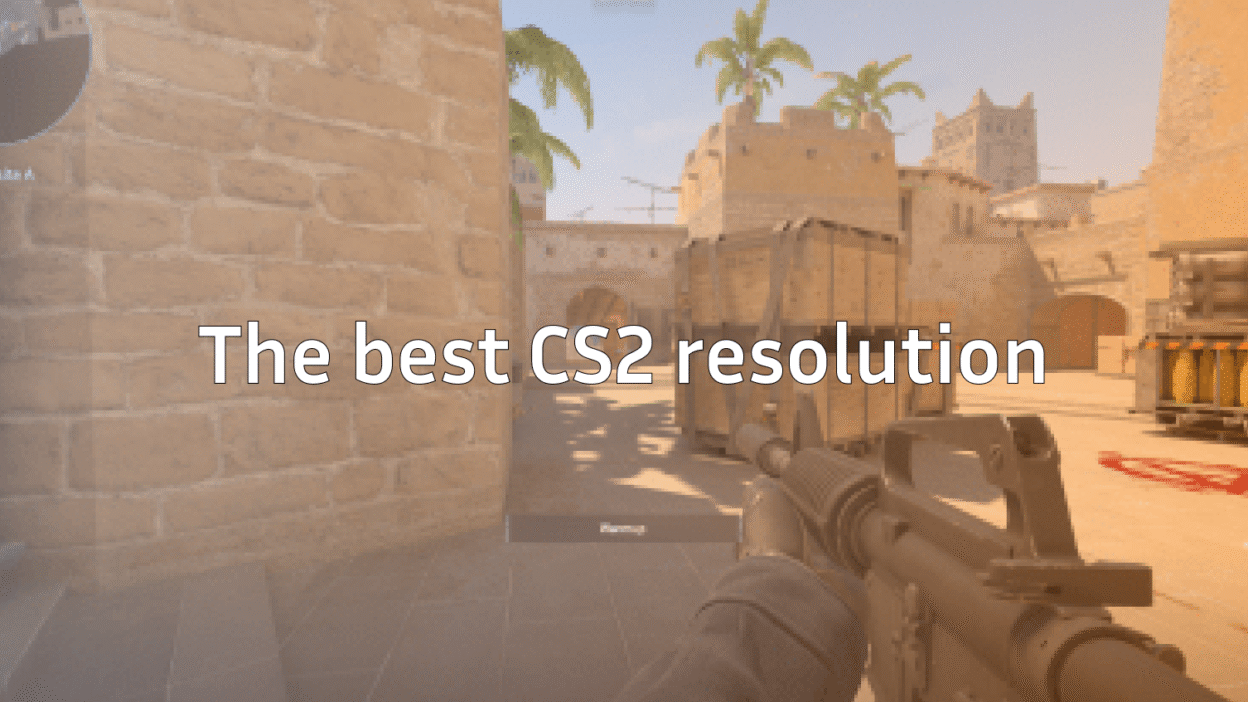
If you want to elevate your CS2 gameplay, one of the most overlooked yet crucial settings is your resolution. The right resolution affects your FPS, hitbox visibility, and overall comfort while playing. In this guide, we’ll break down everything you need to know about CS2 resolution, including what pros use and how to pick your ideal setup.
Why Resolution Matters in CS2
Resolution determines how your game looks and performs. Choosing the wrong one can lead to blurry visuals, input lag, or missing crucial details in fights. Here’s why resolution is critical:
- Clarity of enemies: Higher resolutions can make targets smaller but sharper, while lower resolutions may make enemies easier to spot.
- Performance (FPS): Lower resolutions reduce GPU load and can boost FPS.
- Hitbox alignment: Some pros prefer certain resolutions because it slightly affects the perception of hitboxes.
- Personal comfort: Your brain adapts to certain visuals; pick a resolution you can play comfortably for hours.
For extra help on aiming and target tracking, check out our CS2 crosshair guide.
Popular CS2 Resolutions
Here’s a breakdown of common resolutions in CS2:
| Resolution | Aspect Ratio | Pros | Cons | Who Uses It |
| 1920×1080 | 16:9 | Sharp, crisp, default standard | Slightly heavier on GPU | Casual & pro players |
| 1280×960 | 4:3 stretched | Enemies appear wider, easier to hit | Pixelated visuals | Many CS:GO pros |
| 1024×768 | 4:3 stretched | Max FPS boost | Low clarity | Classic competitive choice |
| 1440×1080 | 4:3 stretched | Balanced clarity & wider targets | Slightly distorted visuals | Semi-pro & pro players |
| 1600×900 | 16:9 | Compromise between clarity & FPS | Less popular | Mid-tier competitive players |
Note: Stretched vs. non-stretched resolutions are a matter of preference. Some pros swear by 4:3 stretched for wider targets, while others stick to 16:9 for clarity.
CS2 Pro Resolutions
Here are some resolutions currently used by professional CS2 players:
| Player | Resolution | Aspect Ratio | Notes |
| s1mple | 1920×1080 | 16:9 | Standard crisp visuals |
| Zywoo | 1024×768 | 4:3 stretched | Classic CS:GO feel, easier to track enemies |
| M0nesy | 1280×960 | 4:3 stretched | Focuses on wider target perception |
| ropz | 1440×1080 | 4:3 stretched | Balanced performance and visibility |
| shroud | 1920×1080 | 16:9 | Smooth visuals with high FPS |
How to Pick the Best Resolution for CS2
Choosing your ideal resolution depends on several factors:
- Monitor size & aspect ratio:
- 16:9 is standard for modern widescreens.
- 4:3 stretched is preferred for higher target visibility.
- Hardware performance:
- Lower resolutions help FPS on weaker GPUs.
- High-end systems can easily handle 1080p or above.
- Personal preference:
- Comfort and familiarity are key. Don’t force a resolution just because pros use it.
- Competitive advantage:
- Some resolutions slightly alter hitbox perception, which can influence aim.
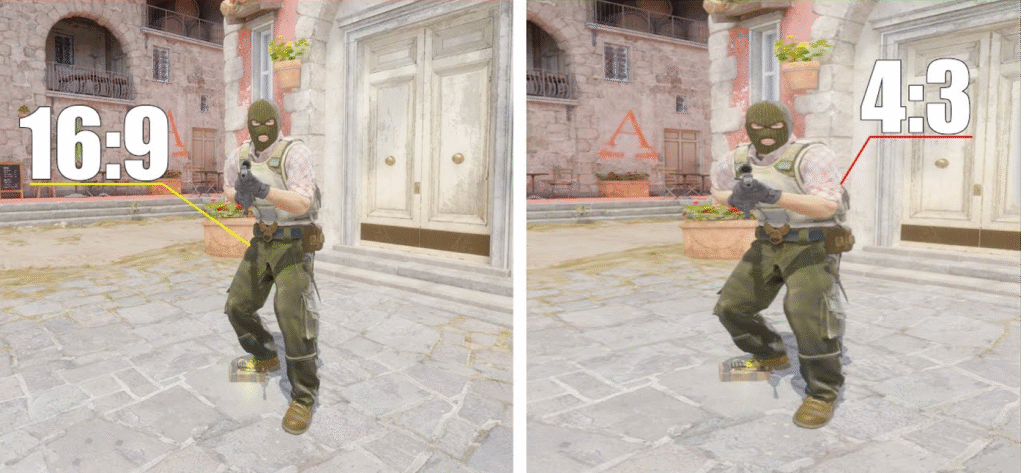
Tip: Test multiple resolutions in offline matches or aim maps like CS2 Aim Training Map to see what feels best.
Recommended CS2 Resolution Settings
Here’s a quick recommendation based on skill level and hardware:
- High-end PC / Casual or Competitive: 1920×1080, 16:9
- Mid-tier PC / Competitive play: 1440×1080, 4:3 stretched
- Low-end PC / Competitive focus: 1024×768 or 1280×960, 4:3 stretched
You can combine these with optimized CS2 graphics settings and NVIDIA settings for maximum performance.
Stretched vs Native Resolutions
Stretched resolution changes your aspect ratio to make targets look wider:
- Pros: Easier to track enemies, slightly faster reaction time.
- Cons: Distorted visuals, harder to judge distances.
Native resolution keeps the aspect ratio as-is:
- Pros: Crisp visuals, realistic view of the map.
- Cons: Smaller targets can be harder to aim for some players.
If you want to learn more about map awareness while using your chosen resolution, check out our CS2 map callouts guides for each map.
Pro Tips Summary
Finding the best CS2 resolution is a mix of performance, preference, and competitive advantage. Remember: no single resolution fits everyone, but knowing pro settings and experimenting yourself will give you an edge.
- Test multiple resolutions.
- Match your resolution with your monitor and hardware.
- Combine with optimized graphics and input settings.
By dialing in your resolution, you’re not just improving visuals you’re improving your gameplay, reaction time, and overall comfort during long sessions. For better aim practice, also check out our CS2 crosshair commands guide.