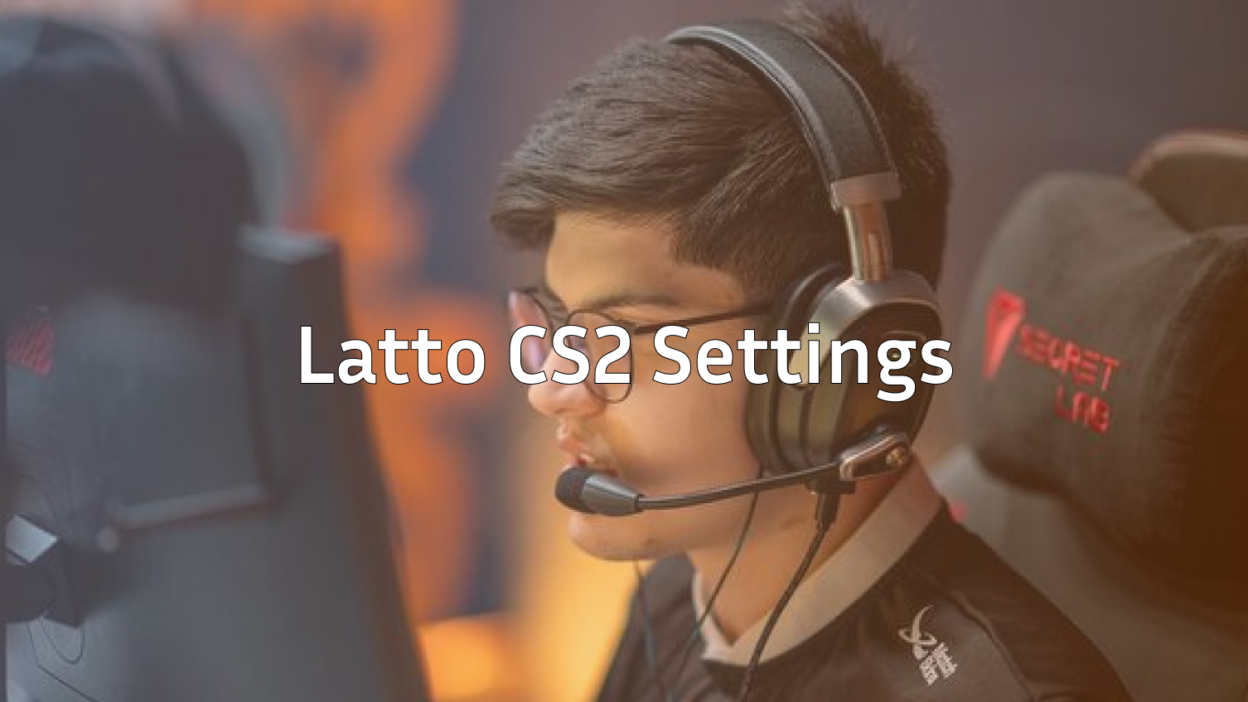
Looking to copy Latto CS2 settings and dominate with the AWP like one of Brazil’s most promising talents? You’re in the right place.
Gabriel “Latto” Mazzuco has established himself as a skilled AWPer in the Brazilian CS2 scene. His precise flick shots and aggressive positioning make him a player worth studying. In this guide, we break down his complete setup so you can test these settings yourself.
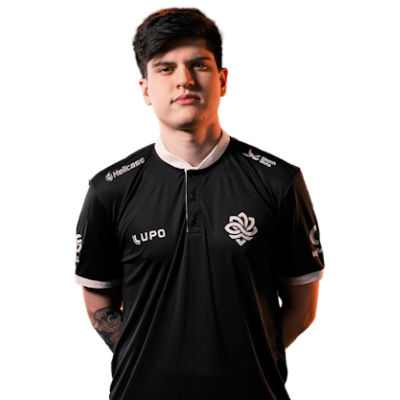
Latto’s Mouse Settings
Mouse settings are crucial for any AWPer, and Latto uses a setup that balances precision with the ability to make quick flicks.
| Setting | Value |
|---|---|
| DPI | 800 |
| In-Game Sensitivity | 1.0 |
| eDPI | 800 |
| Zoom Sensitivity | 1.0 |
| Hz (Polling Rate) | 1000 |
| Windows Sensitivity | 6 |
| Raw Input | On |
An eDPI of 800 falls within the medium low range that many professional AWPers prefer. This allows for precise micro adjustments when holding angles while still enabling quick 180 degree turns when needed.
If you’re transitioning from higher sensitivity, lower it gradually over several days rather than making a sudden switch.
Latto’s Crosshair Settings
A clean crosshair helps with rifle rounds and pistol play when you’re not using the AWP.
cl_crosshair_drawoutline 0cl_crosshair_dynamic_maxdist_splitratio 0.35
cl_crosshair_dynamic_splitalpha_innermod 1
cl_crosshair_dynamic_splitalpha_outermod 0.5
cl_crosshair_dynamic_splitdist 7
cl_crosshair_outlinethickness 1
cl_crosshair_sniper_width 1
cl_crosshair_t 0
cl_crosshairalpha 255
cl_crosshaircolor 1
cl_crosshaircolor_b 50
cl_crosshaircolor_g 250
cl_crosshaircolor_r 50
cl_crosshairdot 0
cl_crosshairgap -3
cl_crosshairsize 2
cl_crosshairstyle 4
cl_crosshairthickness 0
cl_crosshairusealpha 1
This creates a small, static green crosshair with no dot. The tight gap and small size work well for headshot-level aiming, especially during eco rounds with pistols like the Desert Eagle.
Video Settings
Latto prioritizes performance and visibility over visual fidelity—a common approach among professionals.
| Setting | Value |
|---|---|
| Resolution | 1280×960 |
| Aspect Ratio | 4:3 |
| Scaling Mode | Stretched |
| Display Mode | Fullscreen |
Graphics Settings
| Setting | Value |
|---|---|
| Global Shadow Quality | Medium |
| Model/Texture Detail | Low |
| Texture Filtering Mode | Bilinear |
| Shader Detail | Low |
| Particle Detail | Low |
| Ambient Occlusion | Disabled |
| High Dynamic Range | Performance |
| FidelityFX Super Resolution | Disabled |
The 4:3 stretched resolution makes player models appear wider, which some players find easier to track and hit. This comes at the cost of reduced peripheral vision, but many AWPers accept this trade off since they’re often holding specific angles rather than scanning wide areas.
For optimal performance, check our guide on CS2 launch options to squeeze out extra frames.
Viewmodel Settings
Latto’s viewmodel keeps weapons positioned to minimize screen obstruction.
viewmodel_fov 68viewmodel_offset_x 2.5
viewmodel_offset_y 0
viewmodel_offset_z -1.5
viewmodel_presetpos 3
cl_righthand 1
These settings push the weapon model toward the right side of the screen, clearing up the left portion for better visibility when peeking corners.
Latto’s Keybinds
Efficient keybinds can shave precious milliseconds off your reactions. Here are some of Latto’s key bindings:
| Action | Key |
|---|---|
| Jump | Space / Mouse Wheel Down |
| Duck | Ctrl |
| Walk | Shift |
| Primary Weapon | 1 |
| Secondary Weapon | 2 |
| Knife | 3 |
| Cycle Grenades | 4 |
| Bomb | 5 |
Using mouse wheel down for jumping is essential for consistent bunny hopping. If you want to set up custom binds, our CS2 binds guide covers everything from jump throws to buy binds.
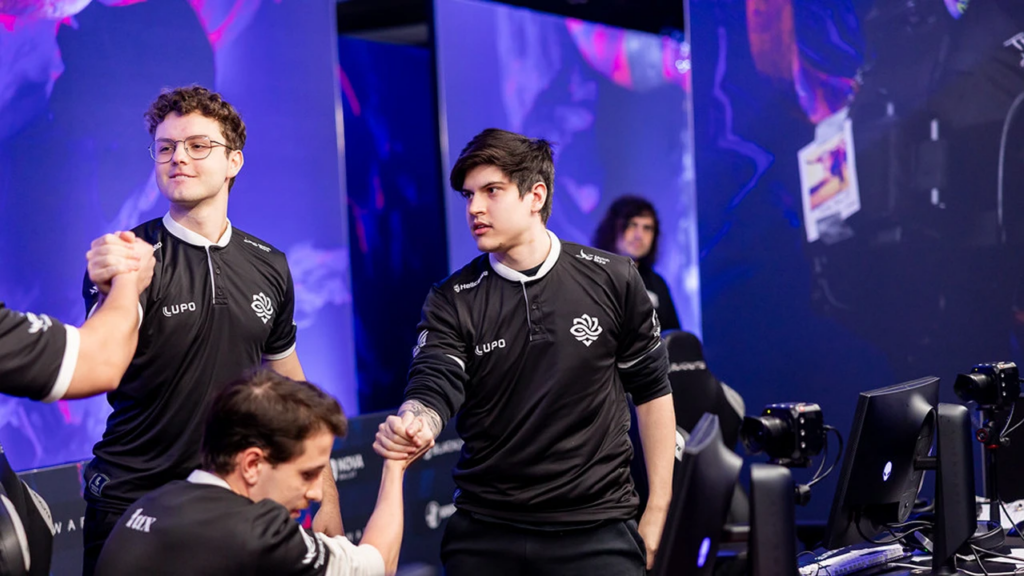
Latto’s Gaming Gear
Professional players invest in quality peripherals. Here’s what Latto uses:
| Equipment | Product |
|---|---|
| Mouse | Logitech G Pro X Superlight |
| Mousepad | Logitech G640 |
| Keyboard | Logitech G Pro X |
| Monitor | BenQ ZOWIE XL2546K (240Hz) |
| Headset | HyperX Cloud II |
The G Pro X Superlight is one of the most popular mice among CS2 professionals due to its lightweight design and reliable sensor. The 240Hz monitor ensures smooth visuals, which is critical for tracking fast-moving targets.
Tips for Using Latto’s Settings
Before copying these settings directly, consider these points:
- Sensitivity is personal. If 800 eDPI feels too slow or fast, adjust in small increments (0.05-0.1 at a time).
- Give stretched resolution time. The wider models feel strange initially but become natural after a few days.
- Practice your flicks. Load up a private server using CS2 practice commands and work on your AWP muscle memory.
- Your mousepad matters. A consistent surface affects how these sensitivity settings translate to actual movement.
Conclusion
Latto’s CS2 settings reflect the preferences of a dedicated AWPer low sensitivity for precision, stretched resolution for wider targets, and clean visuals for maximum FPS. While these settings work for him, remember that finding your ideal setup takes experimentation.
Start with Latto’s config as a baseline, then adjust based on your playstyle and comfort. Want to customize your loadout while you practice? Browse CS2 skins to find the perfect AWP skin to match your new settings.