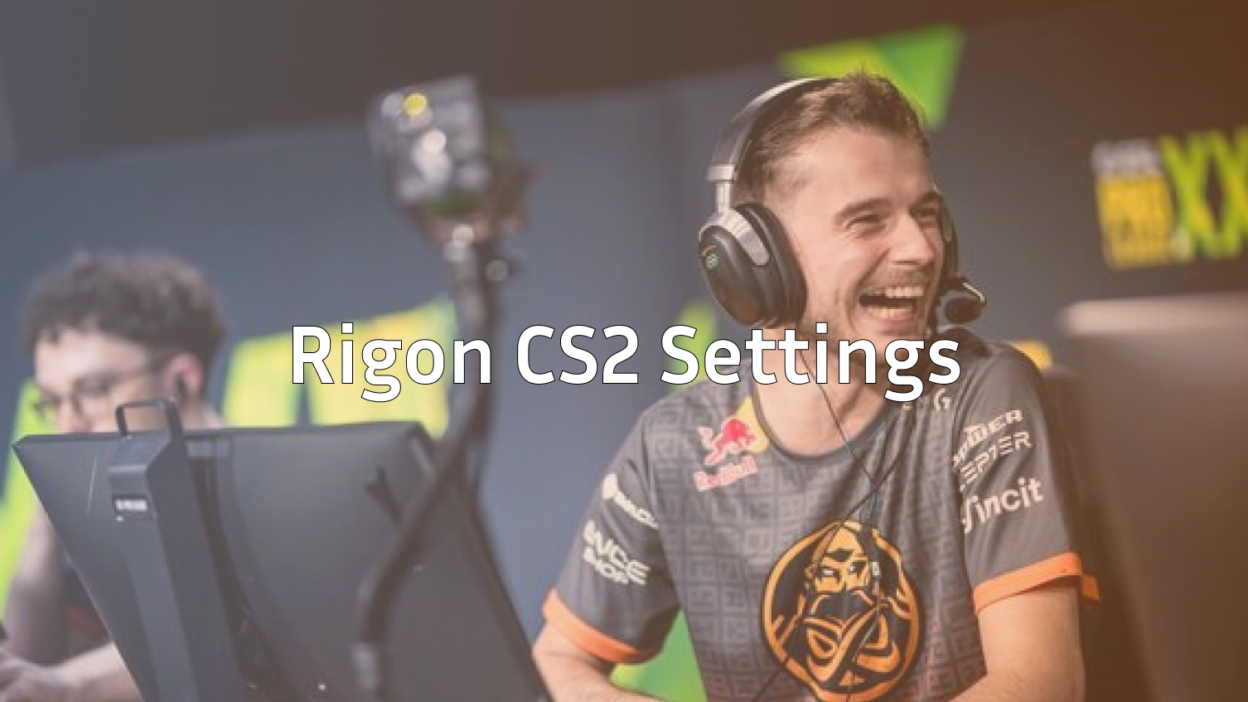
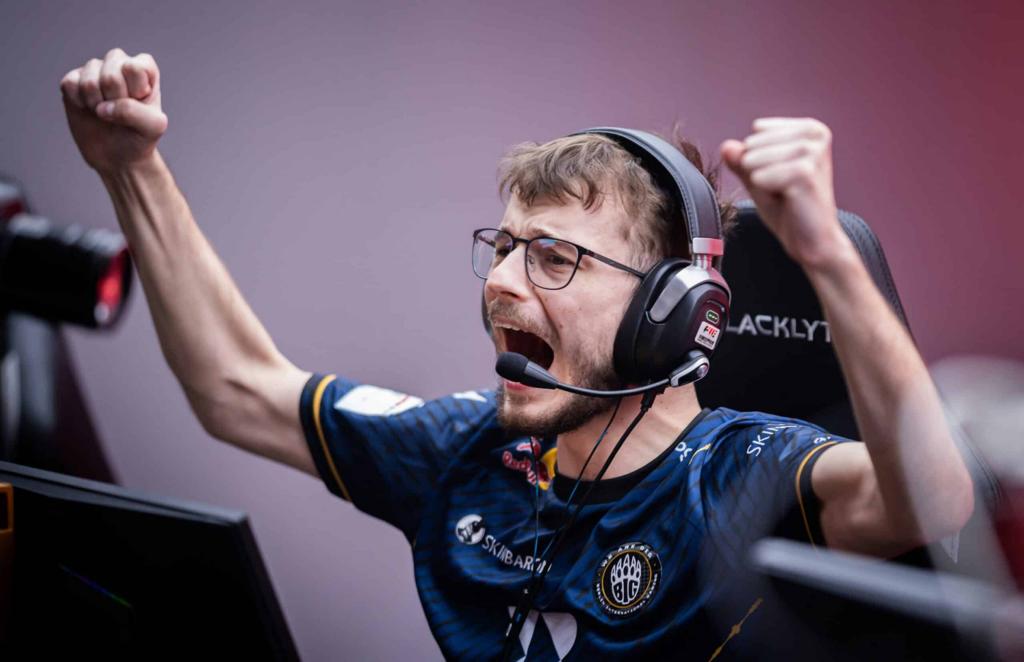
David “Rigon” Myslík has quickly established himself as one of the most exciting young talents in professional Counter-Strike. If you want to replicate the Rigon CS2 settings that help him dominate on the server, you’re in the right place.
We’ll break down his complete setup from mouse sensitivity to crosshair code so you can test these settings in your own matches.
Who Is Rigon?
Rigon is a Czech professional CS2 player known for his aggressive rifling style and consistent fragging ability. He’s built a reputation for clutch performances and smart positioning that makes him dangerous in any situation.

His playstyle combines mechanical precision with intelligent game sense, making his settings worth studying for players looking to improve their aim and overall performance.
Rigon Mouse Settings
Mouse settings are the foundation of any pro player’s aim. Rigon uses relatively standard sensitivity values that balance precision with the ability to make quick flicks.
| Setting | Value |
|---|---|
| DPI | 400 |
| In-Game Sensitivity | 2.0 |
| eDPI | 800 |
| Zoom Sensitivity | 1.0 |
| Hz (Polling Rate) | 1000 |
| Windows Sensitivity | 6 |
| Raw Input | On |
His eDPI of 800 sits in the medium-low range preferred by most professional players. This gives him enough control for precise AK-47 spray transfers while still allowing comfortable 180-degree turns.
If you’re transitioning from higher sensitivity, drop it gradually over several days rather than making an immediate switch.
Rigon Crosshair Settings
A clean crosshair helps with precise aim placement. Rigon uses a simple static crosshair that doesn’t distract during firefights.
| Setting | Value |
|---|---|
| Style | 4 |
| Size | 2 |
| Thickness | 0 |
| Gap | -3 |
| Outline | No |
| Color | Green (1) |
| Dot | No |
Crosshair Code
Copy and paste this code into your console to instantly apply Rigon’s crosshair:
CSGO-vNOxL-Bk5VL-EXbPt-dRHzb-JGRWBThis tight, gap-negative crosshair provides a clear center point for headshot placement without obscuring enemies at range.
Rigon Video Settings
Video settings impact both visibility and performance. Rigon prioritizes high frame rates over visual quality, which is standard among professionals.
| Setting | Value |
|---|---|
| Resolution | 1280×960 |
| Aspect Ratio | 4:3 |
| Scaling Mode | Stretched |
| Display Mode | Fullscreen |
Graphics Settings
| Setting | Value |
|---|---|
| Global Shadow Quality | High |
| Model/Texture Detail | Low |
| Texture Filtering Mode | Bilinear |
| Shader Detail | Low |
| Particle Detail | Low |
| Ambient Occlusion | Disabled |
| High Dynamic Range | Performance |
| FidelityFX Super Resolution | Disabled |
| Boost Player Contrast | Enabled |
| Multisampling Anti-Aliasing | None |
The 4:3 stretched resolution makes player models appear wider, potentially making targets easier to hit. Many pros prefer this setup, though it reduces your field of view. If you’re new to stretched resolutions, check our guide on CS2 launch options to configure it properly.
Rigon Viewmodel Settings
Viewmodel positioning affects how much screen space your weapon takes up. Rigon uses a classic setup that keeps his view clear.
| Setting | Value |
|---|---|
| Viewmodel FOV | 68 |
| Viewmodel Offset X | 2.5 |
| Viewmodel Offset Y | 0 |
| Viewmodel Offset Z | -1.5 |
| Viewmodel Presetpos | 3 |
You can apply these with the following commands:
viewmodel_fov 68viewmodel_offset_x 2.5
viewmodel_offset_y 0
viewmodel_offset_z -1.5
viewmodel_presetpos 3
Rigon Keybinds
Efficient keybinds let you access utilities and weapons without fumbling. While personal preference matters most, here are some binds Rigon uses:
| Action | Key |
|---|---|
| Jump | Space / Mouse Wheel Down |
| Crouch | Left Ctrl |
| Walk | Left Shift |
| Use | E |
| Drop Weapon | G |
Jump-throwing grenades consistently requires proper binds. Our CS2 binds guide covers jump-throw setups in detail.
Rigon’s Gear
Hardware plays a significant role in performance. Here’s what Rigon uses:
| Equipment | Product |
|---|---|
| Mouse | Logitech G Pro X Superlight |
| Mousepad | ZOWIE G-SR |
| Keyboard | Wooting 60HE |
| Monitor | BenQ ZOWIE XL2546K (240Hz) |
| Headset | HyperX Cloud II |
The 240Hz monitor ensures smooth visuals with minimal input lag, while the G Pro X Superlight is one of the lightest wireless gaming mice available perfect for low-sensitivity players who make large arm movements.
Should You Copy Rigon’s Settings?
Pro settings provide an excellent starting point, but they won’t instantly make you a better player. Here’s how to approach them:
- Start with sensitivity — This has the biggest impact on your aim
- Test for a week — Give your muscle memory time to adapt
- Adjust gradually — Make small tweaks based on what feels off
- Focus on fundamentals — Settings won’t fix poor crosshair placement or bad positioning
If you’re still developing your skills, consider practicing with CS2 practice commands to build muscle memory faster.
Conclusion
The Rigon CS2 settings offer a solid foundation for players looking to optimize their config. His medium-low sensitivity, stretched resolution, and clean crosshair represent choices made by many top professionals for good reason.
Copy his crosshair code, test his sensitivity, and see what works for your playstyle. Remember the best settings are the ones you can perform consistently with.
Looking for more pro configurations? Browse all weapons to find skins that match your new setup, or explore CS2 skins to customize your loadout.