Why Pro Settings Matter in CS2
Professional players don’t use optimized settings just because they look cool—they use them because they provide measurable competitive advantages. In a game where milliseconds determine outcomes, the right CS2 pro settings can mean the difference between clutching a round and watching your team lose.
The Performance Advantage
Most professional players prioritize FPS stability over visual flair. Why? Consistent frame rates directly impact:
- Input responsiveness: Higher FPS means lower input lag
- Peeker’s advantage: Smooth performance improves sub-tick responsiveness
- Visual clarity: Eliminating distractions helps focus on targets
For maximum FPS gains, many pros use optimized CS2 launch options that strip away unnecessary graphical overhead. This technical optimization creates a smoother experience that directly translates to better in-game performance.
Consider this: when s1mple adjusts his CS2 video settings, he’s not just tweaking graphics—he’s engineering his environment for maximum information intake and minimal cognitive load. The same principle applies to CS2 mouse settings—pros spend hundreds of hours finding sensitivity that balances flick speed with micro-adjustment precision.
The Consistency Factor
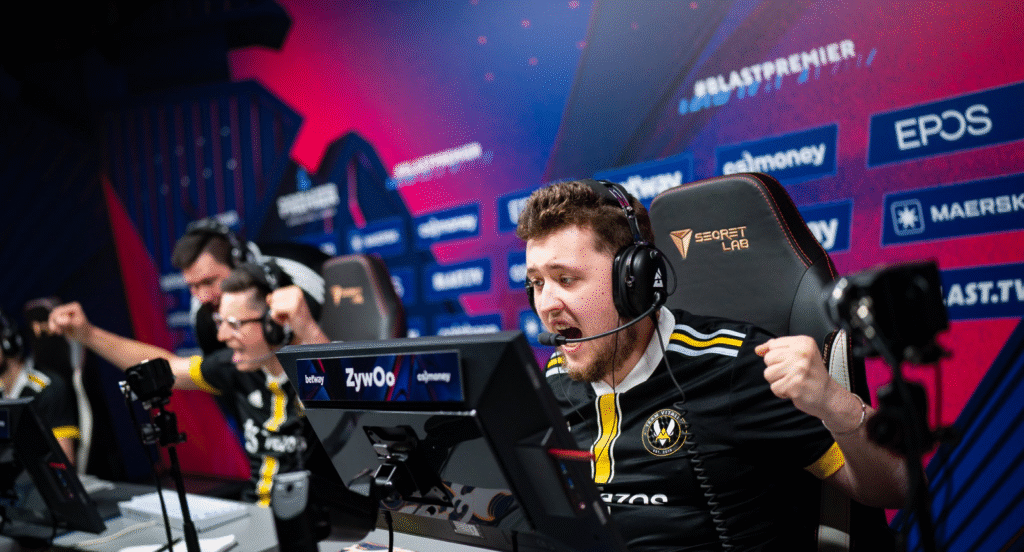
Professional gamers maintain the same settings for years, not days. This consistency builds muscle memory that becomes second nature during high-pressure situations. When ZywOo needs to hit a crucial AWP shot, he doesn’t think about his CS2 sensitivity—his hands already know exactly how much movement is required.
This is why simply copying a pro’s config isn’t enough—you need to understand why each setting exists and how it contributes to competitive performance. As we explore specific settings in the following sections, you’ll learn not just what to change, but why each adjustment matters for your gameplay.
Ready to optimize your visual experience? Let’s dive into the video settings that give pros their crystal-clear competitive edge.
Video Settings for Maximum FPS & Clarity
Professional CS2 players sacrifice visual eye candy for competitive advantage. Their video settings are meticulously tuned to deliver maximum frames per second while maintaining clear visual information. Let’s break down exactly how the pros configure their visual experience.
Resolution & Aspect Ratio
The resolution debate continues in CS2, but the patterns are clear. Most professionals choose between:
- 1920×1080 (16:9): The standard for visual clarity and modern compatibility
- 1280×960 (4:3 stretched): Popular for wider character models and faster perceived movement
- 1024×768 (4:3 black bars): Classic choice for focused vision and higher FPS
Why it matters: Stretched resolutions make enemy models appear wider, while black bars reduce peripheral distractions. However, native 16:9 provides the sharpest image and most accurate visual information. The choice ultimately comes down to personal preference and what helps you aim most consistently.
Brightness & Color Settings
Visual clarity extends beyond resolution. Pros optimize their display to spot enemies faster:
- Brightness: Typically 100-130% for darker areas
- Digital Vibrance: 100-130% for enhanced color contrast
- Monitor settings: High contrast ratios with fast response times
Many players combine these settings with optimized CS2 crosshair settings to create a visual environment where targets pop against backgrounds. The goal isn’t aesthetic pleasure—it’s creating the highest contrast between enemies and environments.
Advanced Video Options
Here’s where performance meets practicality in CS2 pro settings:
| Setting | Pro Recommendation | Why |
|---|---|---|
| Global Shadow Quality | Low | Reveals shadows equally at all settings |
| Model/Texture Detail | Low | Reduces visual clutter |
| Effect Detail | Low | Minimizes muzzle flash obstruction |
| Shader Detail | Low | Removes shiny surfaces that can distract |
| Multicore Rendering | Enabled | Significant FPS boost on modern CPUs |
| MSAA | 2x or 4x | Reduces jagged edges without huge FPS cost |
| Texture Filtering | Bilinear | Minimal visual impact for FPS savings |
| FidelityFX Super Resolution | Disabled | Can introduce input lag |
The pattern is clear: every setting is evaluated through a competitive lens. Does it help spot enemies? Does it improve FPS? If not, it gets disabled or minimized.
Now that your visuals are optimized for competition, let’s fine-tune your primary weapon: your mouse and sensitivity settings.
Mouse & Sensitivity Settings
Your mouse is your primary weapon in CS2—more important than any AK-47 or AWP. Professional players treat their mouse settings with scientific precision because microscopic adjustments can dramatically impact aim consistency and reaction time.
Finding Your Perfect eDPI
eDPI (effective DPI) is the golden metric for sensitivity consistency. It’s calculated as:
DPI × In-Game Sensitivity = eDPI
The professional eDPI range typically falls between 600-1200, with most players clustering around 800-1000. Here’s how to find your sweet spot:
- Start with 800 eDPI (example: 400 DPI × 2.0 sensitivity)
- Test in DM: Can you track heads smoothly while strafing?
- Adjust gradually: Change by 0.1 sensitivity increments
- Stick with it: Give changes at least 2-3 days before re-evaluating
Most pros use lower DPI (400-800) with higher in-game sensitivity rather than high DPI with low sensitivity. This approach typically provides smoother cursor movement and more consistent aim.
Raw Input vs. Smoothing
Raw Input should always be enabled in your CS2 mouse settings. This bypasses Windows acceleration and uses direct mouse data, ensuring 1:1 movement translation. Mouse acceleration should remain disabled—you want muscle memory, not variable sensitivity.
Many players also utilize specialized binds to enhance gameplay efficiency. For example, a properly configured CS2 jump throw bind ensures consistent grenade trajectories without relying on timing precision.
Mouse Acceleration: Yes or No?
The professional consensus is unanimous: mouse acceleration disabled. Why?
- Consistency: Identical physical movement always produces identical cursor movement
- Muscle memory: Your brain learns exact distances, not variable speeds
- Predictability: No surprises during high-pressure flicks
While a tiny minority of historical pros used acceleration, the modern competitive landscape demands complete consistency. If you’re transitioning from acceleration, expect an adjustment period—but the long-term improvement is worth the temporary discomfort.
With your mouse finely tuned for precision, it’s time to focus on your visual aiming reference point. Next, we’ll explore the crosshair settings that help pros land those crucial headshots.
Crosshair Settings Used by Pros
Your crosshair is your aiming compass—it should provide clear direction without distracting from the action. Professional players spend countless hours refining their CS2 crosshair settings to create the perfect balance of visibility and precision.
The Anatomy of a Pro Crosshair
Professional crosshairs typically share these characteristics:
- Static vs. Dynamic: 98% use static crosshairs for consistent reference points
- Center gap: Small but present (2-4) to see heads at long range
- Outline: Often enabled with 0.5-1 thickness for contrast against backgrounds
- Dot: Rarely used—obscures targets at distance
The most popular CS2 crosshair codes come from players like s1mple, ZywOo, and m0NESY, but the best crosshair is one that feels natural to you. Many pros started with a favorite player’s setup then made micro-adjustments over months of play.
Color and Visibility
Crosshair color is about contrast, not preference:
- Cyan/Light Blue: Most popular—pops against most maps
- Green: High visibility for most players
- Red: Only effective against specific backgrounds
- Yellow: Good alternative for colorblind players
Your crosshair should never blend into the environment. If you lose it during intense fights, increase the outline thickness or switch colors. The CS2 crosshair guide offers comprehensive customization options if you want to experiment further.
Size, Gap, and Thickness
Here’s the professional sweet spot:
- Length: 2-4 (shorter reduces visual obstruction)
- Gap: 2-4 (enough to see heads at long range)
- Thickness: 1-2 (thin enough for precision)
- Outline: 0-1 (for contrast without bulk)
Many players combine their crosshair optimization with effective CS2 grenade binds to create a seamless aiming and utility experience. The goal is muscle memory—your crosshair should feel like an extension of your vision.
With your visual aiming reference locked in, let’s tune your auditory awareness. Next up: audio settings that help you hear enemy movements before you see them.
Audio Settings for Sound Whoring
In CS2, sound isn’t just ambiance—it’s intelligence. Professional players treat audio as a legitimate information source, often hearing enemies before seeing them. Proper CS2 audio settings can give you a half-second advantage that translates into easy kills and prevented flanks.
HRTF: On or Off?
HRTF (Head-Related Transfer Function) represents the biggest audio decision in CS2:
- HRTF Enabled: Provides 3D spatial audio for precise vertical and horizontal positioning
- HRTF Disabled: Traditional stereo sound that some players find more familiar
The professional consensus strongly favors HRTF enabled. Why? It transforms audio from directional to positional. With HRTF, you can distinguish:
- Enemies above vs. below on Nuke
- Water vs. dry footsteps on Overpass
- Default plant vs. heaven positions on Inferno
Most pros use HRTF from day one and never look back. The adjustment period (typically 2-3 weeks) pays dividends in game sense.
Volume and Dynamic Range
Finding the perfect volume balance is crucial:
- Master Volume: 30-50% (loud enough to hear footsteps, quiet enough to protect hearing)
- Windows Volume: 50-80% (avoids distortion from maxing out either source)
- Voice Chat: 60-80% (clear comms without drowning game audio)
Many professionals use compression (via external software or gaming headsets) to normalize loud and quiet sounds. This prevents ear damage from gunshots while maintaining footstep audibility.
Advanced Audio Configuration
Beyond basic sliders, pros optimize every audio element:
| Setting | Pro Recommendation | Reasoning |
|---|---|---|
| L/R Isolation | Balanced | Equal attention to both ears |
| EQ Settings | Boost mids/highs | Enhances footstep frequencies |
| Audio Device | Quality headphones | Open-back preferred for soundstage |
| Voice Chat | Push-to-talk only | Eliminates background noise |
The best CS2 audio settings guide offers deeper technical optimizations for players wanting every possible advantage. Remember: quality headphones beat gaming headsets for competitive audio—your ears matter more than your microphone in most situations.
Now that you can hear everything happening around you, let’s optimize what happens before the match even begins. Next, we’ll explore the launch options and system settings that pros use to maximize performance.
Launch Options & NVIDIA Settings
The optimization doesn’t stop when you launch CS2—it begins there. Professional players use advanced launch options and GPU configurations to squeeze out every possible frame and reduce input latency to the absolute minimum.
Essential CS2 Launch Options
Launch options are commands that execute before the game loads, overriding default settings for better performance. Here are the most effective options used by pros:
-high -threads 4 -novid -refresh 240 +fps_max 0
Let’s break down what each does:
- -high: Prioritizes CS2 CPU usage (can help on older CPUs)
- -threads X: Sets specific core count (replace X with your CPU threads)
- -novid: Skips intro video for faster loading
- -refresh X: Forces monitor refresh rate (replace X with your Hz)
- +fps_max 0: Removes FPS cap (use +fps_max 400 for stability if needed)
Many players combine these with optimized CS2 buy binds to create a seamless pre-round experience. The goal is eliminating any barrier between intention and action.
NVIDIA Control Panel Optimizations
For NVIDIA users (the majority of professionals), these settings deliver maximum performance:
| Setting | Recommendation | Why |
|---|---|---|
| Power Management | Prefer Maximum Performance | Preforms GPU throttling |
| Low Latency Mode | Ultra | Reduces render queue |
| Texture Filtering | High Performance | Minimal quality loss for FPS gain |
| Vertical Sync | Off | Eliminates input lag |
| G-SYNC/FreeSync | Off + FPS cap below refresh | Minimizes stuttering |
These settings work alongside your in-game options to create a responsive gaming environment. The Low Latency Mode: Ultra is particularly important in CS2—it ensures your actions translate to screen movement with minimal delay.
Advanced Performance Tweaks
Beyond basic settings, pros use these additional optimizations:
- Disable fullscreen optimizations: Right-click CS2 executable → Properties → Compatibility
- Game Mode On: Windows Game Mode actually helps in Windows 10/11
- Background apps: Disable unnecessary background processes
- NVIDIA Reflex: Enable + Boost for reduced system latency
The CS2 launch options guide provides even deeper technical explanations if you want to customize further. Remember: test changes individually to identify what actually improves your experience.
Now that your system is fully optimized from boot to gameplay, let’s put it all together. In the next section, you’ll learn how to import and use complete professional configurations.
Pro Configs: How to Import & Use
Professional configurations (configs) bundle all the settings we’ve discussed into a single file that you can import instantly. Learning to work with CS2 pro configs saves hours of manual setup and ensures you’re playing with a competitively optimized foundation from day one.
Finding and Downloading Pro Configs
Professional players’ configs are available from several trusted sources:
- HLTV.org: Player profiles often include config downloads in professional interviews
- Team websites: Some organizations publish their players’ settings
- Steam Community Guides: Verified configs with user reviews and ratings
- Player streams: Many pros share their configs directly with viewers
- Tournament organizer sites: Some events publish player settings
When choosing a config, look for recent uploads (within 3-6 months) as settings can change with game updates. Starting with a player who has a similar role and playstyle to yours often provides the best foundation.
The Autoexec.cfg Method
The autoexec.cfg file is the professional’s choice for persistent settings. Here’s how to set it up:
- Navigate to your CS2 config folder: Steam\userdata\[YOUR_STEAM_ID]\730\local\cfg

- Create a new text file and rename it to autoexec.cfg

- Add your settings using the same format as professional configs
- Ensure execution by adding +exec autoexec to your launch options
The autoexec method ensures your settings load every time you launch CS2, preventing reset issues after updates. Many players include their CS2 practice commands in the same file for quick access to training routines.
Common Import Issues and Solutions
Even with proper setup, you might encounter these common problems:
- Settings not applying: Check file extension is .cfg, not .txt
- Some commands ignored: Verify CS2 version compatibility
- Performance issues: Not all hardware works well with all configs
- Keybind conflicts: Review binds before importing to avoid overlap
If you experience issues, try executing the config manually in-game using the console command exec autoexec. This helps isolate whether the problem is with the file itself or the auto-execution process.
Customization and Personalization
Remember: even pros started with someone else’s config. The real magic happens when you:
- Adjust sensitivity to your exact preference
- Modify crosshair for your visual comfort
- Customize binds for your hand size and keyboard
- Tweak video settings for your specific hardware
Your config should evolve with your skills. What works at 500 hours might feel limiting at 2,000 hours. Regular tweaking is normal—even professionals make micro-adjustments throughout their careers.
Now that you understand how to implement professional configurations, let’s examine the actual settings used by today’s top players. Next, we’ll break down the specific configurations of 2025’s most dominant competitors.
Top 5 Pro Players’ Settings (2025)
Examining actual professional configurations provides valuable insights into how the world’s best players approach CS2 optimization. Here’s a detailed breakdown of 2025’s most effective settings from dominant competitors across different roles and playstyles.
1. s1mple (Natus Vincere – AWPer)

The Ukrainian superstar maintains remarkably consistent settings despite meta shifts:
- Resolution: 1280×960 (4:3 stretched)
- Sensitivity: 400 DPI × 3.09 = 1236 eDPI
- Crosshair: Static, cyan, gap 3, thickness 1
- Video Settings: All low except Shaders medium
- Key Innovation: Separate zoom sensitivities for different scopes
s1mple’s config demonstrates how AWPers often prefer slightly higher sensitivity for quick scope adjustments and flicks. His stretched resolution provides wider enemy models while maintaining decent clarity.
2. ZywOo (Team Vitality – Hybrid)

The French phenom uses settings that balance rifling and AWPing:
- Resolution: 1920×1080 (16:9 native)
- Sensitivity: 400 DPI × 2.0 = 800 eDPI
- Crosshair: Static, green, gap 2, thickness 1
- Video Settings: All low, multicore rendering enabled
- Key Innovation: Extensive buy binds for economic efficiency
ZywOo’s native resolution and lower sensitivity reflect his methodical, position-heavy playstyle. His CS2 buy binds are particularly sophisticated, allowing instant purchases during eco rounds.
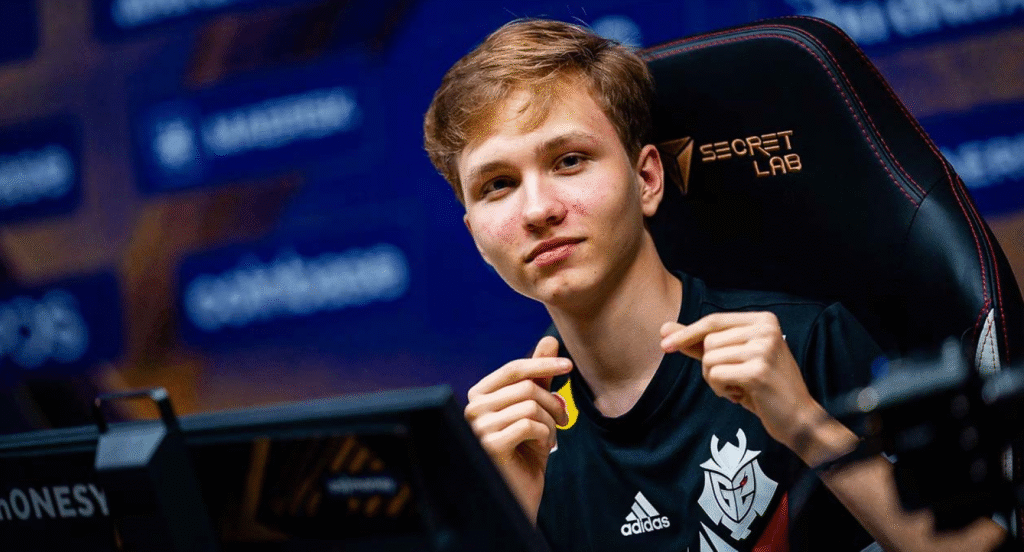
3. m0NESY (G2 Esports – AWPer)

The young sniper prodigy uses aggressive settings matching his playstyle:
- Resolution: 1024×768 (4:3 black bars)
- Sensitivity: 400 DPI × 2.4 = 960 eDPI
- Crosshair: Static, light blue, gap 4, thickness 1
- Video Settings: All minimum, MSAA disabled
- Key Innovation: Multiple jumpthrow binds for different situations
m0NESY’s black bars create a focused visual field, while his medium eDPI allows both precise micro-adjustments and aggressive flicks. His specialized jump throw bind setup ensures consistent smokes without timing reliance.
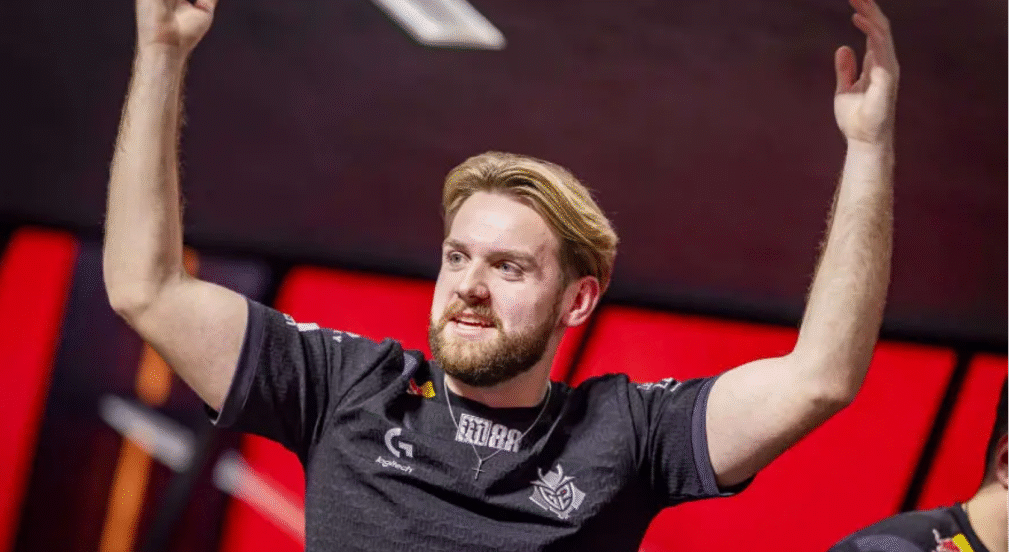
4. NiKo (G2 Esports – Rifler)

The headshot machine uses settings optimized for rifle precision:
- Resolution: 1280×960 (4:3 stretched)
- Sensitivity: 400 DPI × 1.63 = 652 eDPI
- Crosshair: Static, pink, gap 3, thickness 1
- Video Settings: All low, texture filtering bilinear
- Key Innovation: Minimalistic HUD for maximum visibility
NiKo’s exceptionally low sensitivity enables pixel-perfect headshot tracking, though it requires substantial arm movement. His stretched resolution amplifies enemy model width, making heads slightly easier to target.
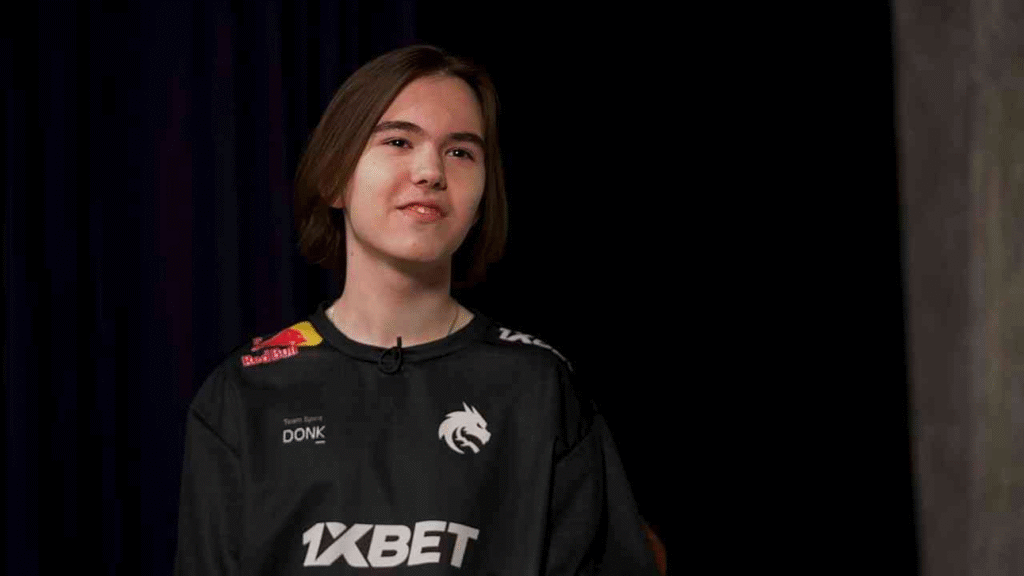
5. donk (Team Spirit – Entry Fragger)

The explosive entry fragger uses settings matching his aggressive role:
- Resolution: 1280×960 (4:3 stretched)
- Sensitivity: 400 DPI × 2.8 = 1120 eDPI
- Crosshair: Static, yellow, gap 3, thickness 1
- Video Settings: All minimum, FPS maximized
- Key Innovation: Optimized grenade quick-switch binds
donk’s higher sensitivity facilitates quick 180-degree turns and rapid clearing of angles. His CS2 grenade binds are streamlined for rapid utility usage during executes.
Settings Comparison Table
| Player | Role | Resolution | eDPI | Crosshair Color |
|---|---|---|---|---|
| s1mple | AWPer | 1280×960 | 1236 | Cyan |
| ZywOo | Hybrid | 1920×1080 | 800 | Green |
| m0NESY | AWPer | 1024×768 | 960 | Light Blue |
| NiKo | Rifler | 1280×960 | 652 | Pink |
| donk | Entry | 1280×960 | 1120 | Yellow |
Notice how role influences settings: AWPers trend higher sensitivity, riflers lower, and hybrids sit in the middle.
Even with perfect settings, questions often remain. Let’s address the most common queries in our comprehensive FAQ section to ensure no uncertainty holds back your performance.
Frequently Asked Questions
What are the best CS2 settings for FPS?
The best FPS settings combine low video settings with proper launch options. Set all video quality options to Low or Disabled, enable Multicore Rendering, use FidelityFX Super Resolution on Performance if needed, and implement optimized launch options like -novid -high -threads 4. The exact combination depends on your hardware, but prioritizing performance over visuals typically yields the best results.
How do I copy a pro player’s config?
First, download their config file from reliable sources like HLTV player profiles or team websites. Place the file in your CS2 config folder (Steam\userdata\[YOUR_STEAM_ID]\730\local\cfg), then either rename it to autoexec.cfg or execute it manually using exec filename in console. Always review keybinds first to avoid conflicts with your existing setup.
What sensitivity do most pros use?
Most professionals use eDPI between 600-1200, with the average clustering around 800-1000. This translates to 400 DPI × 2.0-2.5 sensitivity or 800 DPI × 1.0-1.25 sensitivity. The sweet spot provides enough precision for micro-adjustments while maintaining maneuverability for flicks and turns.
Should I use raw input in CS2?
Yes, raw input should always be enabled. This bypasses Windows mouse acceleration and provides direct, unprocessed mouse data to the game. The setting ensures consistent, predictable cursor movement that’s essential for building muscle memory. Combined with mouse acceleration disabled, it creates the most reliable aiming environment.
What is the best crosshair for CS2?
The “best” crosshair is subjective, but most pros use static crosshairs with small center gaps (2-4), thin thickness (1), and high-contrast colors like cyan, green, or light blue. The key is finding a crosshair that doesn’t distract while providing a clear aiming reference. Our CS2 crosshair guide offers extensive customization options.
How do I reduce input lag in CS2?
Reduce input lag by enabling Raw Input, disabling VSync, using Fullscreen Exclusive mode, setting Low Latency Mode to Ultra in NVIDIA Control Panel, capping FPS slightly above your refresh rate, and closing background applications. Also ensure your monitor is set to its highest refresh rate in both Windows and CS2 settings.
What resolution do pros use in CS2?
Professional players are divided between 1920×1080 (16:9 native) and various 4:3 stretched resolutions (1280×960 being most popular). Native provides sharper visuals and more screen space, while stretched makes enemy models appear wider. There’s no competitive advantage to either—it’s purely personal preference.
How to optimize CS2 for low-end PCs?
For low-end systems, set all video settings to Low/Disabled, use 4:3 resolutions, enable FidelityFX Super Resolution on Performance mode, close all background applications, and use aggressive launch options like -low -nojoy -softparticles. Also consider using CS2 stretched resolution for additional FPS gains.
What are the best audio settings for CS2?
Enable HRTF for 3D spatial audio, set Master Volume between 30-50%, use quality headphones (open-back preferred), and consider external EQ software to enhance footstep frequencies (around 2-4kHz). Disable any “audio enhancements” in Windows that might introduce processing delay.
How do I import an autoexec.cfg?
Create a text file in your CS2 config folder, rename it to autoexec.cfg (not .txt), paste your settings using the correct syntax, then add +exec autoexec to your launch options. Verify it works by checking if your settings apply automatically when launching the game.
What launch options should I use?
The most effective launch options are: -novid -high -threads [YOUR_CPU_THREAD_COUNT] -refresh [YOUR_MONITOR_HZ] +fps_max 0. Avoid excessive or outdated options that might cause instability. The CS2 launch options guide provides detailed explanations for each command.
How do I find my perfect sensitivity?
Start with a proven sensitivity (like 800 eDPI), then use the “mouse sensitivity finder” method: practice in Deathmatch, adjust slightly based on feel, then stick with it for several days. Perfect sensitivity feels natural for both micro-adjustments and 180-degree turns without being either sluggish or uncontrollable.
Should I enable multithreaded rendering?
Yes, unless you’re experiencing specific stability issues. Multithreaded rendering significantly improves FPS on modern multi-core CPUs by distributing rendering workload across available cores. The setting provides free performance with no visual downside for most players.
What is the best viewmodel in CS2?
The “best” viewmodel is subjective, but most pros use settings that minimize visual obstruction while maintaining weapon visibility. Common preferences include viewmodel_fov 68, offset x 1, y 1, z -2. Experiment in private servers to find what feels comfortable for your playstyle.
How do I improve hit registration?
Improve hit registration by ensuring stable internet connection (low packet loss, jitter), using appropriate rate settings (rate 1280000, cl_updaterate 128, cl_cmdrate 128), playing on servers with good tickrate, and maintaining consistent FPS above 100. Also verify your interp ratio is set correctly for your connection type.
What’s the difference between 4:3 stretched and black bars?
4:3 stretched expands the image horizontally to fill your widescreen monitor, making enemy models appear wider and movement faster. Black bars maintains the original 4:3 aspect ratio with black bars on the sides, providing a more focused view with no distortion. Stretched is more popular for the perceived advantage in target size.
How do pros set up their buy binds?
Professional buy binds use key combinations to purchase entire loadouts instantly. Common setups include number keys for rifles, function keys for pistols, and mouse buttons for utility. The CS2 buy binds guide provides templates you can customize for your preferred equipment.
What’s the ideal FPS for competitive play?
Aim for at least 200+ FPS consistently, with 300+ FPS being ideal. Your FPS should comfortably exceed your monitor’s refresh rate to minimize input lag. Even on a 144Hz monitor, higher FPS provides smoother gameplay and reduced system latency through CS2’s sub-tick system.
How often should I update my settings?
Major settings (sensitivity, resolution, crosshair) should remain consistent for months to build muscle memory. Minor optimizations (video settings, binds) can be adjusted as needed. Only make significant changes during breaks from competitive play to avoid disrupting your performance rhythm.
Can I use the same settings across different computers?
While you can replicate most settings, hardware differences mean you may need to adjust video settings and DPI based on the specific equipment. Sensitivity and crosshair should remain identical, but FPS optimization will vary between systems. Always test your config on new hardware before competitive matches.
What’s the advantage of using a jump throw bind?
A jump throw bind ensures perfectly consistent grenade trajectories by eliminating timing variables. This is crucial for precise smokes and molotovs that require both jumping and throwing simultaneously. Professional players rely on these binds for execute consistency.
How do I know if my settings are actually optimal?
Your settings are optimal when they feel natural and you’re not consciously thinking about them during gameplay. Good indicators include consistent aim, comfortable movement, and no visual distractions. If you’re constantly adjusting settings or blaming them for poor performance, they likely need simplification.
Conclusion: Your Path to Pro Performance
Optimizing your CS2 settings isn’t about blindly copying professionals—it’s about understanding the principles behind their choices and adapting them to your hardware, playstyle, and preferences. The players we’ve examined didn’t achieve their settings overnight; they evolved through continuous testing and refinement.
Remember these key takeaways as you develop your own optimal configuration:
- Performance over visuals: Every setting should serve your competitive advantage
- Consistency builds skill: Stick with changes long enough to develop muscle memory
- Hardware matters: Quality peripherals provide the foundation for great settings
- Your comfort is king: What works for s1mple might not work for you
The journey to finding your perfect settings is ongoing. As CS2 evolves and your skills develop, your preferences will change. Revisit these settings periodically, make micro-adjustments, and always prioritize what helps you perform consistently.
Now that you’re armed with professional knowledge and practical implementation steps, it’s time to apply these principles. Start with one section at a time, test thoroughly, and build toward the configuration that unlocks your full potential in CS2.
Ready to dominate? Your settings journey begins now.