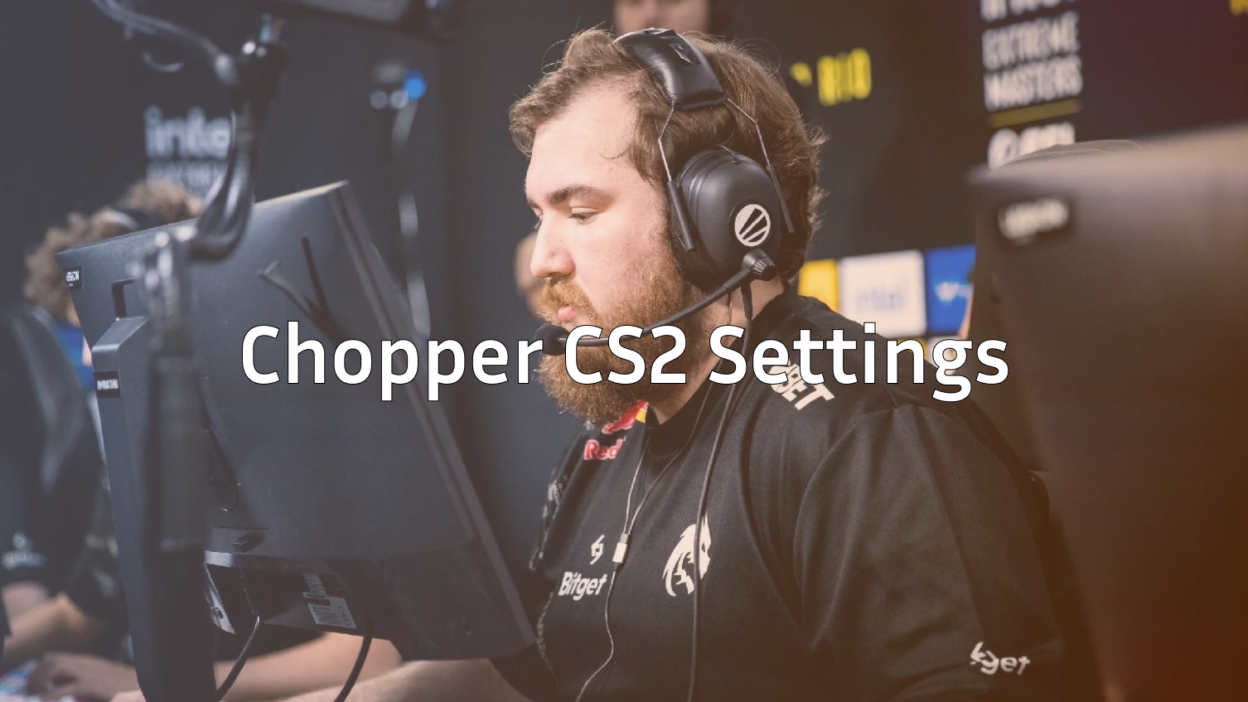
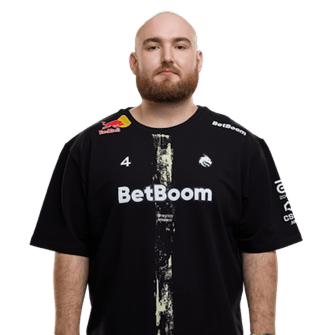
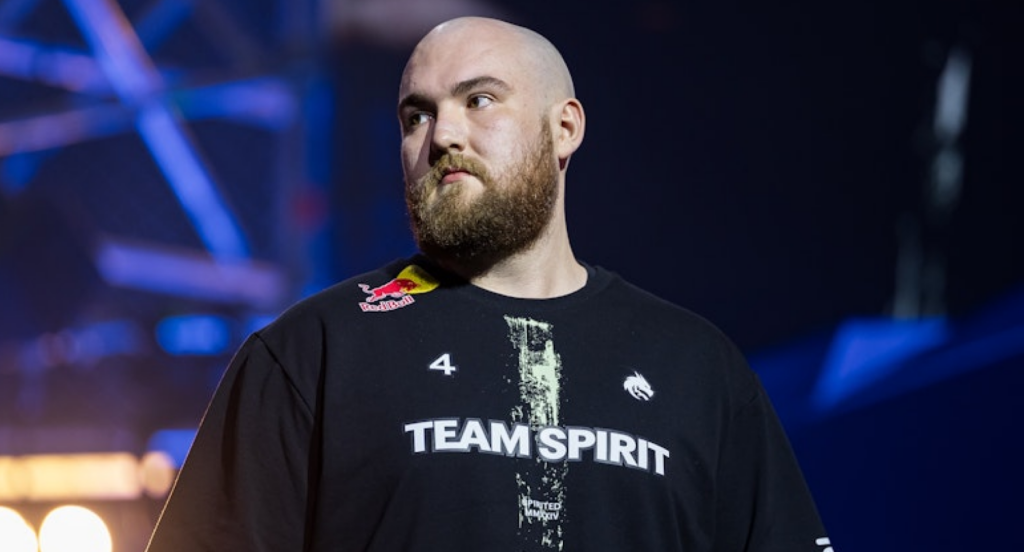
If you want to improve your CS2 gameplay, studying top players like Leonid ‘chopper’ Vishnyakov is a smart move. Known for his calm decision-making and in-game leadership, chopper’s CS2 settings are built for consistency, map control, and tactical superiority rather than flashy aim.
This guide breaks down chopper CS2 settings, crosshair, viewmodel, video/audio setup, skins, and more everything you need to replicate his setup while understanding why it works.
Chopper CS2 Settings Overview
Here’s a quick snapshot of chopper’s main settings:
| Setting Type | Value |
| DPI | 800 |
| Sensitivity | 1.2 |
| eDPI | 960 |
| Zoom Sensitivity | 1.0 |
| Windows Sensitivity | 6 |
| Raw Input | On |
Chopper prioritizes precision and consistency. For more on sensitivity optimization, see our best sensitivity guide.
Crosshair Settings
Chopper’s crosshair is simple but effective, making it ideal for spray control and mid-range fights.
Crosshair Settings:
| Setting | Value |
| Style | Classic Static |
| Thickness | 1 |
| Length | 2 |
| Gap | -2 |
| Outline | Yes |
| Color | Green |
You can learn how to import or change crosshairs in our crosshair guide.
For beginners, chopper’s crosshair is easy to track and avoids clutter, which is ideal if you are focusing on strategy and communication.
Video Settings
Chopper prioritizes performance and visibility. His settings are designed to maximize FPS while keeping player models clear.
| Setting | Value |
| Resolution | 1280×960 |
| Aspect Ratio | 4:3 (Stretched) |
| Display Mode | Fullscreen |
| Boost Player Contrast | Enabled |
| V-Sync | Off |
| NVIDIA Reflex | Enabled |
Learn more about stretched resolutions in CS2 stretched res guide, and check out the complete video settings guide for optimization tips.
Audio Settings
Sound awareness is crucial for an IGL like chopper. His setup ensures footsteps, utility usage, and bomb plants are easy to hear.
Key Audio Settings:
- Master Volume: ~0.8
- Headphone Mode: Enabled
- EQ: Flat/Natural for clarity
- Focus on footsteps and in-game callouts
For a more detailed breakdown, see our best CS2 audio settings guide.
Viewmodel & HUD
Chopper keeps a clean and functional HUD to maintain awareness.
Viewmodel Settings:
viewmodel_fov 68
viewmodel_offset_x 2
viewmodel_offset_y 2
viewmodel_offset_z -2
Learn how to change your viewmodel in our guide.
HUD settings can also affect awareness. For more tips, check out CS2 HUD customization.
Launch Options
Minimal launch options help maintain a smooth experience without unnecessary tweaks:
-novid -tickrate 128 +fps_max 0
Learn how to set up launch options correctly in CS2 launch options guide.
Chopper’s Skins
Chopper is known for preferring classic, visually clear skins that don’t distract during gameplay. While he does not focus on flashy collections, he uses skins that are easy to track in fights.
Common Skins:
| Weapon | Skin |
| AK-47 | Redline |
| M4A1-S | Hyper Beast |
| USP-S | Cortex |
| Desert Eagle | Code Red |
For more details on skins in CS2, see most expensive CS2 skins and best CS2 loadouts.
Using skins with high visibility can help you track movement more effectively, which aligns with chopper’s tactical approach.
Why Chopper’s Settings Work
Unlike players who focus purely on aim, chopper’s setup is geared for:
- Consistency over flicks
- Map awareness and rotations
- Reliable spray control
- Clear communication
This approach makes his settings ideal for IGLs or supportive roles. For a comparison, see setups from Aleksib or zywoo.
How to Copy Chopper’s Settings
Simply copying settings isn’t enough. Adaptation is key:
- Apply sensitivity and DPI first
- Play a few matches
- Adjust slightly if needed
- Practice in DM or Aim Botz
- Lock settings once comfortable
Also, consider learning movement and utility usage from guides like CS2 grenade binds and CS2 practice commands.
Pro Tips Inspired by Chopper
- Focus on positioning over pure aim
- Always prioritize sound cues
- Play for information and team coordination
- Keep your setup consistent to build muscle memory
For IGL strategies, see CS2 roles guide and how to get better at CS2.
FAQ
Q: What sensitivity does chopper use?
A: 800 DPI with 1.2 in-game sensitivity, giving an eDPI of 960.
Q: Is his crosshair good for beginners?
A: Yes, it’s simple, visible, and great for learning spray control.
Q: Should I copy settings exactly?
A: Start with them but tweak slightly for comfort.
Q: What skins does chopper use?
A: He prefers functional skins like AK Redline and M4A1-S Hyper Beast for clarity in fights.
Skins & Loadout Tips
Chopper’s choice of skins complements gameplay rather than showcasing style. If you want inspiration, check:
Skins with high contrast and clear animations help in high-pressure situations.
Explore Other Pro Player Setups & CS2 Resources
If you want to expand your CS2 knowledge beyond chopper’s setup, there are plenty of other pro players and guides to learn from. For aggressive entry-frag styles, check out NiKo CS2 settings and Donk CS2 settings. For in-game leaders and tactical playstyles, Aleksib CS2 settings and ZywOo CS2 settings offer excellent insights.
For sharpshooters and riflers looking to refine aim and crosshair placement, Sh1ro CS2 settings is a must-read.
Beyond settings, improving your gameplay also means understanding the tools at your disposal. Learn how to set up your crosshair perfectly with our CS2 crosshair guide and acquire the best skins efficiently by following the best CS2 trading sites.
By exploring these guides, you can combine the strategies, crosshair setups, and loadout choices of multiple pros to create a customized playstyle that works best for you.
Final Thoughts
Chopper CS2 settings focus on strategy, consistency, and team play. Copying his setup will help improve your tactical awareness, map control, and communication. Remember, settings alone don’t win games your mindset and practice do.Start with chopper’s setup, adapt it to your comfort, and pair it with proper training maps like CS2 aim training to maximize your improvement.