If you’re searching for just CS2 settings, you’re already thinking in the right direction. Competitive players don’t rely on guesswork they fine-tune their setup to remove inconsistencies and improve performance over time.
This guide covers everything you need to know about just’s setup, including crosshair, sensitivity, video settings, and config. More importantly, it explains why these settings work and how you can adapt them to your own playstyle.
Who is just in CS2?
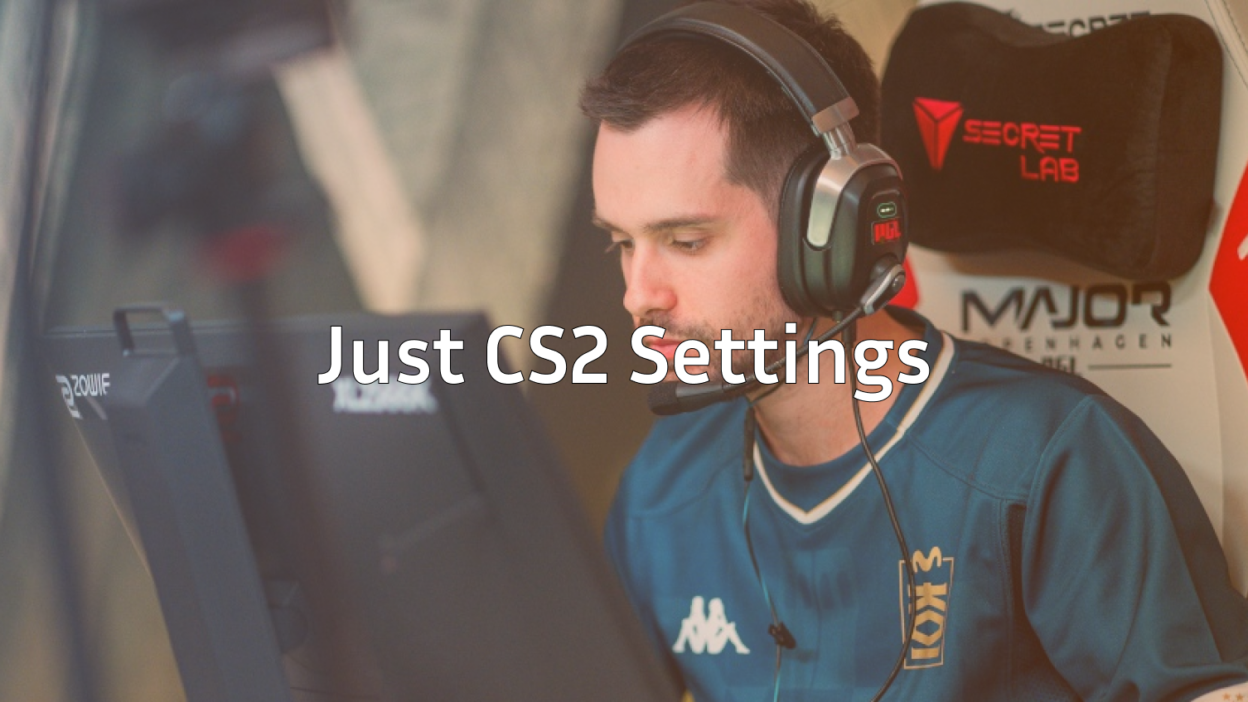
just (Alimzhan Talipov “just”) is known for his clean rifling mechanics, disciplined positioning, and consistent performances. He isn’t a flashy highlight player, but that’s exactly why his settings are valuable they’re built for reliability under pressure.
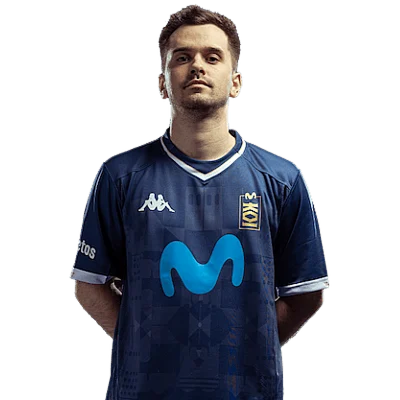
If you’ve looked at setups like NiKo’s aggressive rifling setup or ZywOo’s hybrid AWP style, you’ll notice each pro has a unique approach. just’s settings fall into a balanced category that focuses on control, clarity, and consistency.
just CS2 Settings
Before going deeper, here’s a quick snapshot of just’s core setup.
Mouse Settings
| Setting | Value |
| DPI | 400 |
| Sensitivity | 2.0 |
| eDPI | 800 |
| Zoom Sens | 1.0 |
| Raw Input | On |
This sensitivity range is very common among professional players. An eDPI of 800 gives you a strong balance between precision and speed, which is ideal for riflers.
If you’re still experimenting, this best sensitivity for CS2 guide will help you fine-tune your settings.
Crosshair Settings
just uses a clean and minimal crosshair designed for consistency and visibility.
| Setting | Value |
| Style | Classic Static |
| Dot | No |
| Outline | Off |
| Color | Green |
| Thickness | Thin |
| Length | Medium |
A simple crosshair helps reduce distractions and improves tracking during fights.
To customize your own, follow this how to change crosshair in CS2 guide or explore more options in the CS2 crosshair guide.
Video Settings
just prioritizes performance and visibility over visual quality.
| Setting | Value |
| Resolution | 1280×960 (Stretched) |
| Aspect Ratio | 4:3 |
| Display Mode | Fullscreen |
| Boost Player Contrast | Enabled |
| V-Sync | Off |
| Motion Blur | Off |
| Shadows | Low |
| Texture Quality | Low to Medium |
Lower settings reduce visual clutter and increase FPS, which leads to smoother gameplay.
For deeper optimization, check this CS2 video settings guide and combine it with the best NVIDIA settings for CS2.
Viewmodel Settings
A clean viewmodel keeps your screen focused on enemies instead of weapon clutter.
viewmodel_fov 68
viewmodel_offset_x 2
viewmodel_offset_y 2
viewmodel_offset_z -2
You can adjust this using the how to change viewmodel in CS2 guide to find what feels most comfortable.
Audio Settings
Audio plays a major role in competitive gameplay. just’s setup focuses on clarity and directional awareness.
To properly configure your sound, use this best CS2 audio settings guide so you can clearly hear footsteps, rotations, and utility.
Why just’s Settings Work
Understanding why these settings work is more important than copying them.
Balanced Sensitivity
An eDPI of 800 allows:
- Precise crosshair placement
- Smooth tracking
- Controlled spray patterns
If you want to compare, check the approach used in this ropz CS2 settings guide, which leans more toward low-sensitivity precision.
Minimal Visual Clutter
just avoids unnecessary distractions:
- No flashy crosshair
- Low graphics
- Clean interface
If your screen feels crowded, consider adjusting your CS2 HUD settings for better clarity.
High FPS Focus
Higher FPS leads to smoother gameplay and better reaction time.
If your performance isn’t stable, use this CS2 max FPS guide and fix issues with this CS2 stuttering guide.
Should You Copy just CS2 Settings?
You can use just’s settings as a strong starting point, but you should still adapt them to your own setup.
What You Should Copy
- Crosshair style
- Video settings philosophy
- Raw input enabled
- Clean configuration
What You Should Adjust
- Sensitivity based on your mouse space
- Resolution depending on preference
If you’re unsure about resolution, this CS2 stretched resolution guide explains the differences clearly.
Pro Tips to Improve Faster
Settings help, but improvement comes from practice and consistency.
Practice Your Aim
Training maps are essential for building muscle memory.
Use this how to play Aim Botz in CS2 guide to practice effectively.
Improve Core Mechanics
Focus on fundamentals like positioning, movement, and crosshair placement.
This how to get better at CS2 guide breaks it down in detail.
Use a Proper Config
A config ensures your settings stay consistent every time you launch the game.
Follow this CS2 autoexec guide and combine it with these CS2 binds for better control.
Reduce Input Lag
Input delay can ruin even the best settings.
Use this CS2 input lag guide to make your game feel more responsive.
just CS2 Config
Here’s a basic config inspired by just’s setup:
sensitivity 2.0
zoom_sensitivity_ratio 1.0
m_rawinput 1
cl_crosshairsize 2.5
cl_crosshairthickness 1
cl_crosshairgap -2
cl_crosshair_drawoutline 0
cl_crosshairdot 0
You can expand this using the CS2 autoexec guide for more advanced customization.
Common Mistakes to Avoid
Even with pro settings, players often struggle because of avoidable mistakes.
Copying Without Testing
Always test new settings before using them in competitive matches.
Ignoring Hardware Limitations
Your system performance matters. Check this CS2 system requirements guide to understand what your PC can handle.
Not Monitoring Performance
Tracking FPS and ping is important for consistency.
Use this how to show FPS in CS2 guide to monitor your performance.
Key Takeaways
just CS2 settings are a great example of competitive simplicity. They focus on clarity, consistency, and performance without unnecessary distractions.
Use these settings as a base, adjust them to your comfort, and focus on improving your fundamentals. That’s how you turn good settings into real results.