Understanding and optimizing your CS2 minimap commands is one of the most underrated ways to improve your gameplay in Counter-Strike 2. Whether you’re grinding Premier mode, climbing ranks, or practicing callouts, your radar settings directly impact your game sense and coordination.
This guide will cover every essential CS2 radar command, explain what they do, and show you the best radar settings for CS2 that pros and advanced players use today. You’ll also learn how to adjust and save your custom radar for consistent performance across maps.
Why Radar and Minimap Settings Matter in CS2
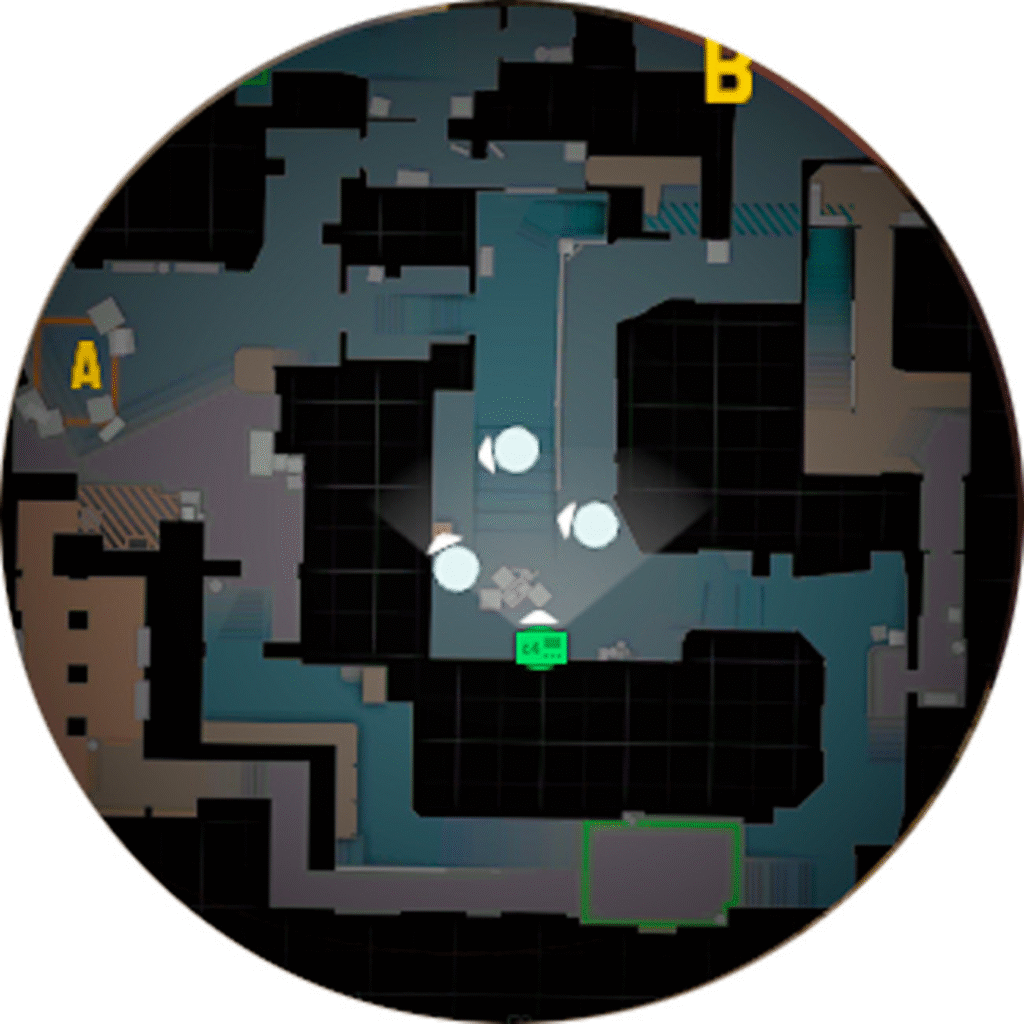
The CS2 radar isn’t just a static feature—it’s a tactical tool. A clear and well-tuned radar helps you track teammate rotations, anticipate enemy flanks, and keep situational awareness even in chaotic fights.
Here’s why your radar setup matters:
- A zoomed-out radar helps visualize rotations and map control.
- Proper scaling improves clarity without cluttering the HUD.
- Disabling auto-centering gives better awareness of areas ahead of you.
- Adjusting icon size can help you quickly read teammate positions during clutch rounds.
If you’re learning map callouts, your radar setup pairs perfectly with guides like CS2 Mirage Callouts, CS2 Inferno Callouts, or CS2 Nuke Callouts.
How to Access and Use CS2 Radar Commands
1. Enable the Developer Console
Go to Settings → Game Settings → Enable Developer Console, and set it to Yes.
Then assign a console key (usually ~ or “) under Keyboard & Mouse → UI Keys → Toggle Console.
2. Open the Console and Enter Commands
Press your console key to open the input window. You can now enter any radar-related command, such as:
cl_radar_scale 0.35
cl_hud_radar_scale 1.2
3. Test in Practice or Local Matches
It’s best to test your radar adjustments in offline matches with bots or on custom workshop maps. For instance, while practicing utility setups, you can also try commands from our CS2 Smoke Practice Commands Guide.
Full List of CS2 Minimap & Radar Commands
Here’s a breakdown of the most commonly used CS2 radar and minimap settings and what they do.
| Command | Description | Recommended Range | Purpose |
| cl_hud_radar_scale | Adjusts radar HUD size on screen | 1.0 – 1.3 | Balances radar visibility and screen clutter |
| cl_radar_scale | Controls how zoomed-in or out the radar is | 0.25 – 0.5 | Lower values = wider map view |
| cl_radar_icon_scale_min | Changes player/teammate icon size | 0.5 – 1.0 | Smaller icons make more space |
| cl_radar_always_centered | Determines if your player is always in the center | 0 or 1 | 0 = see more of the map ahead |
| cl_radar_rotate | Toggles radar rotation with camera | 0 or 1 | 0 = fixed (north-up), 1 = rotates with view |
| cl_radar_square_with_scoreboard | Adjusts radar shape when scoreboard is open | 0 or 1 | Prevents distortion during TAB press |
| cl_drawhud_force_radar | Hides or shows the radar | -1 or 0 | Usually keep it on (0) |
You can experiment with these until you find your perfect balance. If things look messy, you can reset them to defaults:
cl_radar_always_centered 1
cl_radar_scale 0.7
cl_hud_radar_scale 1
cl_radar_icon_scale_min 0.6
cl_radar_rotate 1
cl_radar_square_with_scoreboard 1
Recommended Radar Settings for CS2
Based on community consensus and professional players’ setups, here’s a tested radar configuration that provides an excellent balance between visibility and awareness.
cl_hud_radar_scale 1.2
cl_radar_scale 0.35
cl_radar_icon_scale_min 0.5
cl_radar_always_centered 0
cl_radar_rotate 0
cl_radar_square_with_scoreboard 0
cl_drawhud_force_radar 0
Why These Are the Best CS2 Radar Settings
- Wider View: You can see more of the map, improving rotational awareness.
- Static Orientation: A fixed radar (north-up) helps keep consistent map orientation.
- Non-Centered Player: Lets you see more of the area ahead rather than behind.
- Balanced Scaling: Keeps radar clear without taking too much HUD space.
If you often play smaller or tighter maps, you can slightly increase cl_radar_scale (like 0.45) for a closer view.
How Pros Configure Their Radar in CS2
Most professional players use some variation of the setup above. For example:
- ZywOo, known for his map awareness, uses a non-centered, fixed radar to keep orientation consistent. You can explore his full configuration in our ZywOo CS2 Settings Guide.
- m0NESY and s1mple prefer slightly smaller HUD radar scales for cleaner visuals; see their complete setups in m0NESY CS2 Settings and s1mple CS2 Settings.
Using these guides, you can cross-reference how the best players align radar setups with their crosshair and resolution preferences.
How to Save Your Radar Settings
Once you’re happy with your radar configuration, save it permanently in your autoexec file.
Step-by-Step:
- Locate your autoexec.cfg in:
…\Steam\steamapps\common\Counter-Strike Global Offensive\game\csgo\cfg - Open it with a text editor.
Paste your radar settings inside:
cl_hud_radar_scale 1.2
cl_radar_scale 0.35
cl_radar_icon_scale_min 0.5
cl_radar_always_centered 0
cl_radar_rotate 0
cl_radar_square_with_scoreboard 0
cl_drawhud_force_radar 0
- Save and add this line at the end:
host_writeconfig
This ensures your custom settings automatically load every time you start CS2.
If you’re new to configuring CS2 files, check out our guide on CS2 Launch Options for deeper optimization tips.
Common Radar Mistakes to Avoid
- Over-zooming the radar: Makes it harder to see rotations or teammates on other parts of the map.
- Leaving radar centered: Limits map vision, especially when defending or pushing.
- Too large HUD radar: Can block key visuals during clutch moments.
- Ignoring radar icon scaling: Icons that are too large overlap and cause confusion.
Fixing these mistakes will immediately improve your map control and timing reads—especially on rotation-heavy maps like Overpass and Anubis.
Map-Specific Radar Adjustments
Different maps require different radar tuning depending on their layout:
- Mirage & Inferno: Wider radar (cl_radar_scale 0.35) helps track mid and site rotations.
- Nuke: Keep a balanced zoom (0.4) since it has multiple vertical levels. For full layout breakdown, see CS2 Nuke Callouts.
- Anubis: Fixed radar works best for clear directional awareness. You can learn its structure in our CS2 Anubis Callouts Guide.
- Dust 2: Slightly zoomed-out radar (0.3) helps visualize cross and mid control—see CS2 Dust 2 Callouts.
- Vertigo: A zoomed-in radar works well due to vertical gameplay—see Vertigo Callouts in CS2.
Advanced Radar Tips
Combine radar with binds: Create quick binds to toggle radar zoom for clutch vs. full-map views.
Example:
bind “F5” “cl_radar_scale 0.35”
bind “F6” “cl_radar_scale 0.7”
- Practice awareness: Play on custom servers with radar-only focus—track teammates, bomb locations, and enemy paths.
- Use static orientation: Learn North-Up orientation permanently to maintain map consistency.
- Keep radar visible: Never disable your radar; it’s essential for strategic decisions.
- Square Radar: YSwitch your radar from circle to square for easier minimap tracking, especially if you have weaker eyesight.
Conclusion
Perfecting your CS2 radar and minimap settings gives you a tangible advantage. A well-optimized radar improves your communication, map control, and overall awareness—making it one of the easiest ways to upgrade your gameplay.
Start with the recommended setup:
cl_hud_radar_scale 1.2
cl_radar_scale 0.35
cl_radar_icon_scale_min 0.5
cl_radar_always_centered 0
cl_radar_rotate 0
Then adjust based on your preferences and maps. Once it feels natural, save it to your autoexec for consistent results.
For more gameplay optimization, check out related guides like CS2 Practice Commands, CS2 Crosshair Guide, and CS2 Pro Settings.