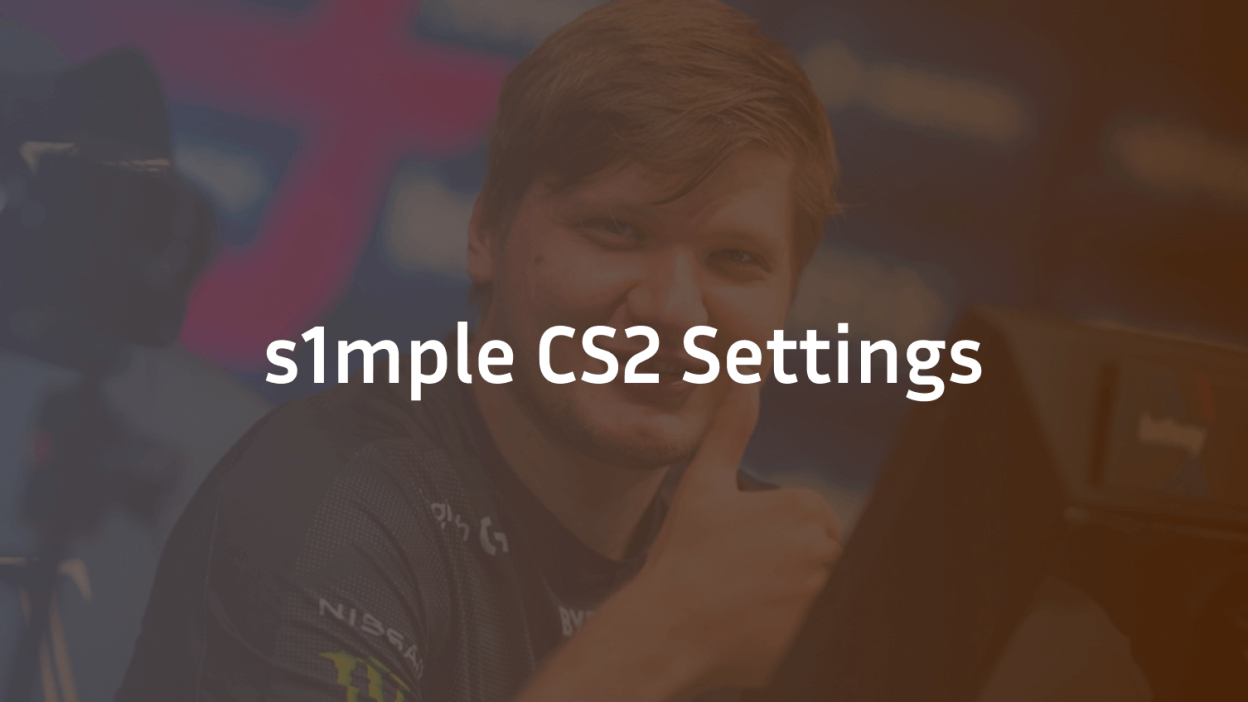
Oleksandr “s1mple” Kostyliev, widely regarded as one of the greatest Counter-Strike players of all time, has a meticulously crafted setup that complements his exceptional skills. Currently representing BC.Game Esports since mid of 2025 shortly after his cameo with FaZe Clan, s1mple’s settings in Counter-Strike 2 (CS2) are optimized for peak performance. This comprehensive guide delves into every aspect of his configuration, from mouse sensitivity to video settings, providing insights for players aiming to emulate his setup.
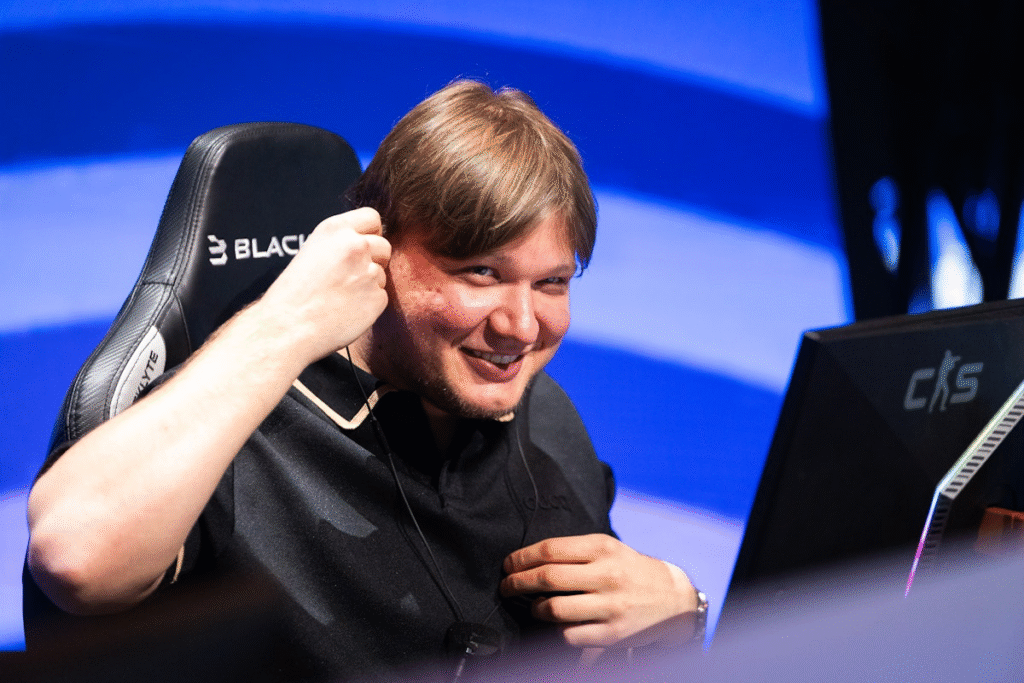
s1mple Mouse Settings
- DPI: 400
- In-game Sensitivity: 3.09
- eDPI: 1236
- Zoom Sensitivity: 1.00
- Windows Sensitivity: 6
- Polling Rate: 1000Hz
- Raw Input: Enabled
- Mouse Acceleration: Disabled
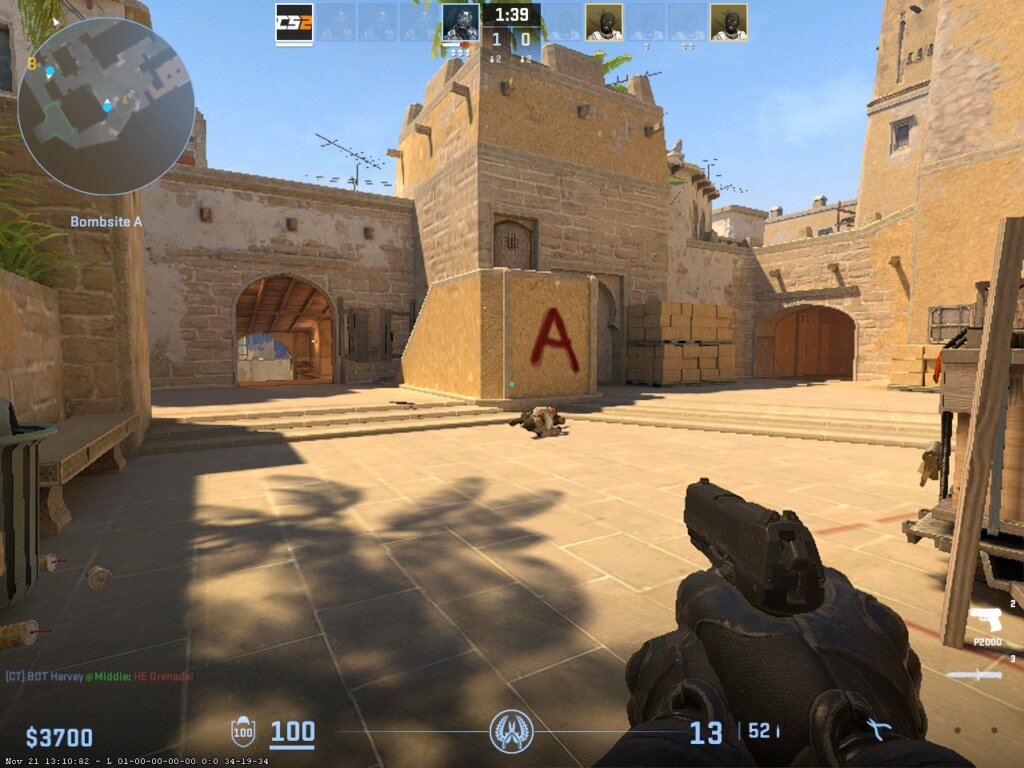
These settings offer s1mple a balance between precise aiming and swift movements, essential for his aggressive playstyle.
s1mple Crosshair Configuration
- Style: Static
- Color: Cyan (RGB: 0, 255, 255)
- Outline: Off
- Center Dot: Off
- Length: 1
- Thickness: 0
- Gap: -2
- Alpha: 255
- Crosshair Code: CSGO-xJae6-kBbNJ-DmqQ8-SpOsZ-LYqhH

The minimalist design ensures maximum visibility and precision.
s1mple Video Settings
- Resolution: 1280×960
- Aspect Ratio: 4:3 (Stretched)
- Display Mode: Fullscreen
- Refresh Rate: 240Hz
- Brightness: 100%
- Scaling Mode: Stretched via NVIDIA Control Panel
- Digital Vibrance: Enhanced for better visibility
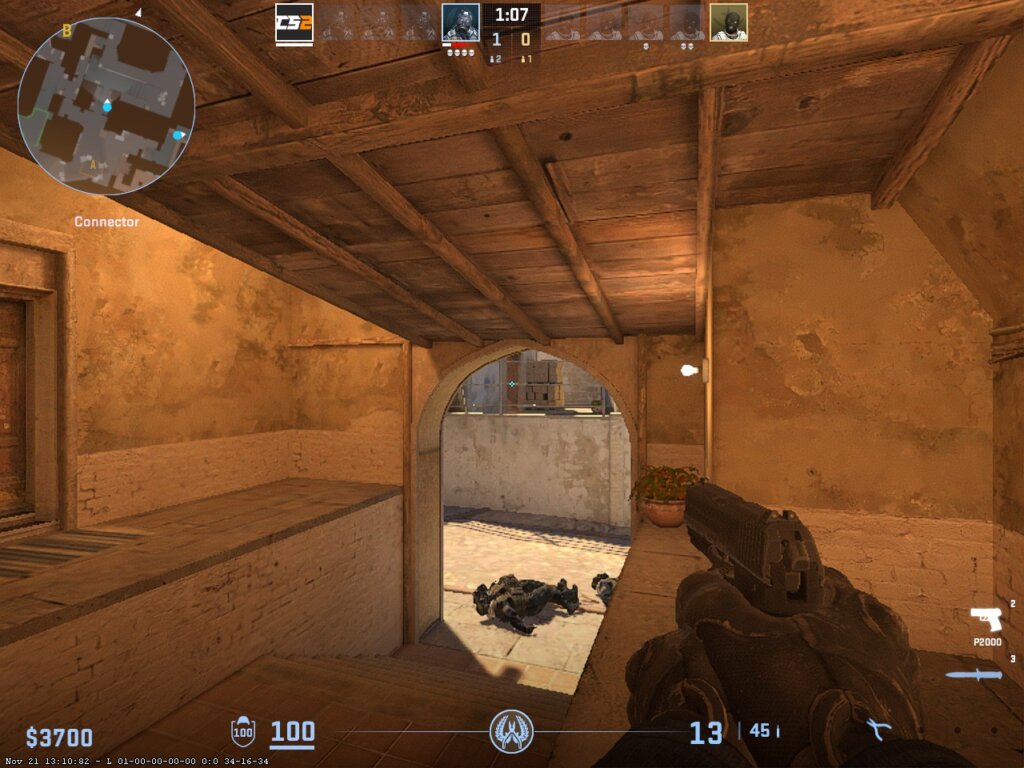
s1mple’s choice of a stretched resolution enlarges player models, making them easier targets, while the high refresh rate ensures smooth gameplay.
Furthermore: How to change crosshair in cs2
s1mple Advanced Video Settings
Boost Player Contrast: Disabled
- Wait for Vertical Sync: Disabled
- Multisampling Anti-Aliasing Mode: 8x MSAA
- Global Shadow Quality: High
- Model/Texture Detail: Low
- Texture Filtering Mode: Bilinear
- Shader Detail: High
- Particle Detail: Low
- Ambient Occlusion: Medium
- High Dynamic Range: Quality
- FidelityFX Super Resolution: Disabled
- NVIDIA Reflex Low Latency: Disabled
These settings prioritize performance and clarity, reducing visual distractions while maintaining essential details.
Furthermore: NiKo CS2 Settings
s1mple Viewmodel & Bob Settings
- Viewmodel FOV: 68
- Viewmodel Offset X: 2.5
- Viewmodel Offset Y: 0
- Viewmodel Offset Z: -1.5
- Viewmodel Presetpos: 3
- Bob Lower Amount: 5
- Bob Amt Lat: 0.1
- Bob Amt Vert: 0.1
- Bob Cycle: 0.98
These configurations minimize weapon movement, allowing for better focus on crosshair placement.
s1mple Launch Options
-freq 240 -console -novid -tickrate 128
These commands set the monitor refresh rate, enable the developer console, skip the intro video, and set the tick rate for offline servers.
s1mple‘s Gear & Hardware
- Monitor: BenQ Zowie XL2566K (240Hz)
- Mouse: Logitech G Pro X Superlight
- Keyboard: Logitech G915 TKL
- Headset: Logitech G Pro X
- Chair: BACKFORCE NAVI ONE
- CPU: Intel Core i9
- GPU: NVIDIA GeForce RTX 3080
s1mple’s choice of peripherals and hardware ensures optimal performance and comfort during extended gaming sessions.
s1mple‘s Skins & Collectibles
- Butterfly Knife | Gamma Doppler
- AWP | Fade
- Glock-18 | Gamma Doppler Emerald
- USP-S | Kill Confirmed
- AK-47 | Redline
- M4A1-S | Hot Rod
- Desert Eagle | Sunset Storm 壱
- Sport Gloves | Slingshot
s1mple’s inventory reflects his refined taste, combining aesthetics with in-game performance.
How to Import s1mple’s Config in CS2
Crosshair:
- Navigate to Settings > Crosshair in CS2.
- Enter the code: CSGO-xJae6-kBbNJ-DmqQ8-SpOsZ-LYqhH.
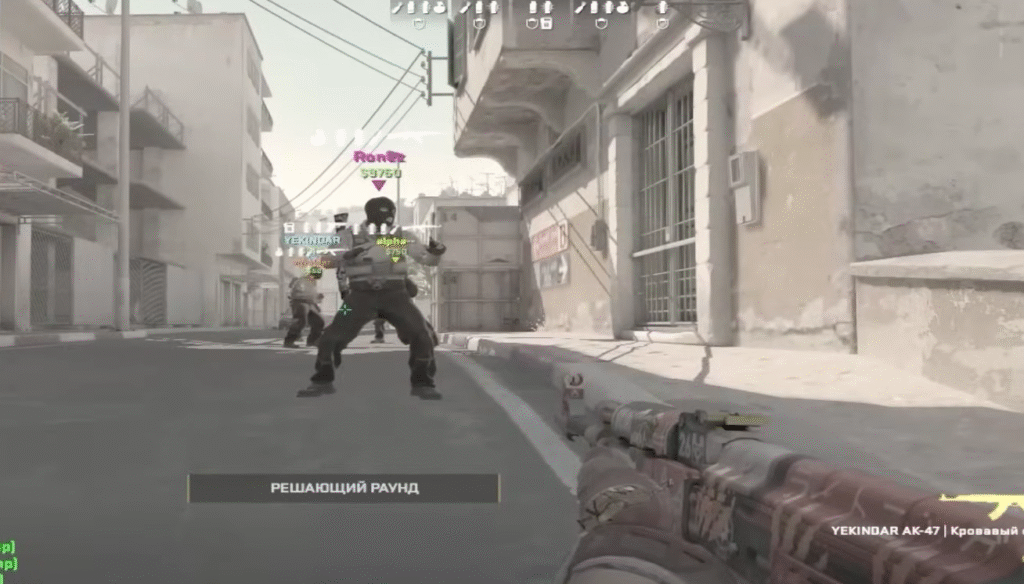
- Video Settings:
- Go to Settings > Video.
- Set the resolution to 1280×960 with a 4:3 aspect ratio.
- Enable Fullscreen mode.
- Go to Settings > Video.
- Mouse Settings:
- Set your mouse DPI to 400.
- In-game sensitivity: 3.09.
- Enable Raw Input and disable Mouse Acceleration.
- Set your mouse DPI to 400.
- Launch Options:
- Open Steam Library.
- Right-click on Counter-Strike 2 > Properties > Launch Options.
- Paste: -freq 240 -console -novid -tickrate 128.
- Open Steam Library.
- Viewmodel & Bob Settings:
- Open the developer console (~) in CS2.
- Enter the viewmodel and bob commands as listed above.
- Open the developer console (~) in CS2.
Core Insight
Pro players like s1mple use very small crosshairs because a tiny crosshair makes the center point easier to see and keeps the screen clear, allowing precise head-level aiming without visual clutter. Their aim looks incredible not because of the crosshair itself, but because they have extremely strong fundamentals built through years of practice. They keep their crosshair at head level, use low and consistent sensitivity, control their movement, and repeat the same aiming motions thousands of times until they become automatic. The small crosshair simply supports that precision by giving them an unobstructed, exact point to aim with.