Keeping track of your Steam purchase history is super helpful — especially if you’re buying CS2 cases, upgrading your inventory, or just making sure you’re not overspending during sales. Whether you want to check a recent transaction, view older orders, or confirm what you bought years ago, Steam makes it easy… if you know where to look.
This guide covers how to view Steam purchase history, how to check purchase history on Steam, and everything you need to understand your Steam transaction history.
Let’s jump right in
What Is Steam Purchase History?
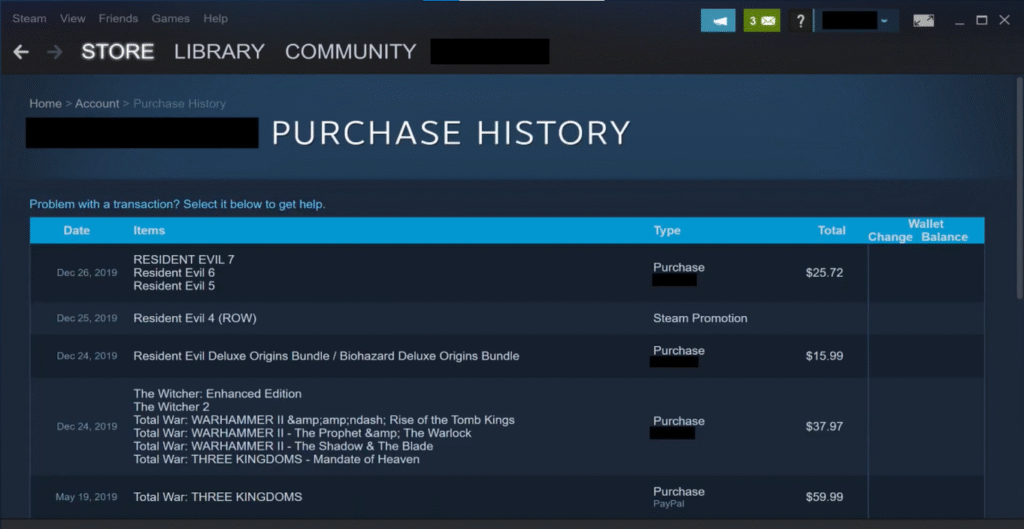
Steam purchase history is a log of every transaction tied to your Steam account, including:
- Game purchases
- DLC and in-game items
- Steam Wallet top-ups
- Market buys and sells
- Refunds and chargebacks
- Case openings and CS2 inventory buys
If you’re managing your CS2 inventory, especially if you buy Knife Cases or chase rare drops (like in the Knife Cases CS2 and CS2 Cases With Butterfly Knife guides), keeping an eye on your Steam spending can save you big time.
How to View Steam Purchase History (Fastest Method)
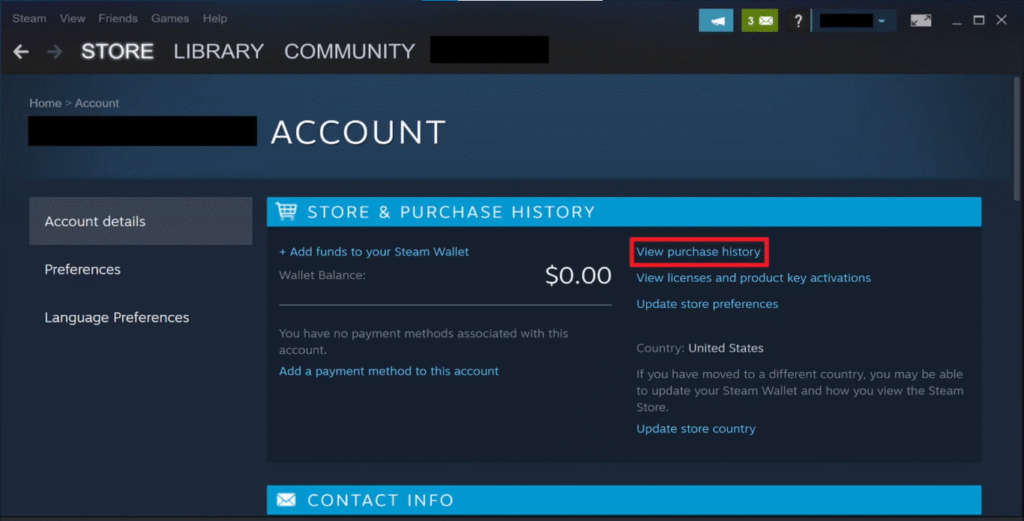
Here’s the quickest step-by-step method:
1. Open Steam
Launch the Steam client on your PC.
2. Click on Your Username (Top-Right Corner)
A dropdown will appear.
3. Select “Account Details”
This leads you to your account dashboard.
4. Click “View Purchase History”
You’ll now see a full list of every Steam transaction you’ve ever made.
That’s it — you’re in.
Steam will show purchases, refunds, wallet changes, market transactions, and subscription details.
Alternative Ways to Check Purchase History on Steam
1. Through the Steam Mobile App
- Go to Menu → Store → Account Details
- Tap Purchase History
2. Through a Web Browser
- Go to store.steampowered.com/account
- Log in
- Click View Purchase History
Great for when you’re away from your PC but need to check a Market purchase or accidently bought a CS2 item.
Understanding Your Steam Transaction History
Steam’s purchase log includes:
| Transaction Type | Description |
| Steam Wallet Top-ups | Funds added to your Wallet |
| Game Purchases | Full games and DLC |
| Market Transactions | Buying/selling CS2 skins |
| Refunds | Completed + pending refunds |
| Community Market Fees | Valve transaction cuts |
| Subscription Payments | Recurring charges (rare for gamers) |
This transparency helps you track Arsenal upgrades, CS2 case spending, and Market buys — especially if you’re following guides like How to Get Cases in CS2 or managing rare skins reviewed in Most Expensive CS2 Knives.
Why Gamers Should Check Steam Purchase History
Checking your transaction logs is useful if you:
Track how much you spend during major Steam Sales
Buy CS2 cases or skins regularly
Want proof of past purchases for support
Think you were double-charged
Want to monitor Market activity
Share a Steam account with siblings or friends
If you’re grinding CS2 or collecting skins, Steam purchase history becomes a budget skill issue fixer.
How to Filter Important Transactions
Steam doesn’t offer built-in filters, but here’s a fast manual way:
1. Use CTRL + F
Search for terms like:
- Counter-Strike
- Case
- Wallet
- Market
- Refund
2. Identify Market fees
Market buys/sells include your CS2 skins, knives, gloves, and more.
3. Look for subscriptions or recurring charges
Rare, but worth checking.
Fix: Steam Purchase History Not Loading
If the page gets stuck or fails to load:
1. Clear Steam Web Cache
Steam → Settings → Web Browser → Clear Cache
2. Disable VPN
Steam sometimes blocks VPN connections.
3. Restart Steam in Admin Mode
Quick fix for loading issues.
4. Check Steam Server Status
During big sales, it lags hard.
5. Use a Web Browser Instead
Sometimes the client bugs out.
If Steam itself is acting weird, check out fixes like CS2 Black Screen on Launch, CS2 Freezing, or CS2 Won’t Launch — many Steam/UI issues overlap.
Can You Delete Steam Purchase History?
No — Steam does not allow users to delete or hide purchase history.
Valve keeps all transaction logs permanently for:
- Fraud protection
- Refund validation
- Marketplace accuracy
The most you can do is hide games from your library, but not transaction logs.
How Refunds Appear in Steam Purchase History
Refunded items show as:
- “Refunded”
- “Refund Pending”
- “Chargeback Reversed”
Steam clearly logs when the refund was requested, processed, and completed.
If you’re learning how to manage inventory, trading, or Steam Wallet funds, this pairs well with guides like How to Remove Steam Trade Hold or What Is Steam Guard?
Frequently Asked Questions (FAQs)
1. Can I view Steam purchase history from another PC?
Yes — log in to your Steam account on any device and open Account Details → Purchase History.
2. Does Steam show Market buys and sells?
Yes. Every Market transaction appears, including fees and wallet changes.
3. Can I download or export my purchase history?
Not officially. You can screenshot it manually.
4. Why is a transaction missing?
It may be a pending charge, a failed payment, or a Market action that is still processing.
5. Can other people see my purchase history?
No. It’s completely private and only visible to you.