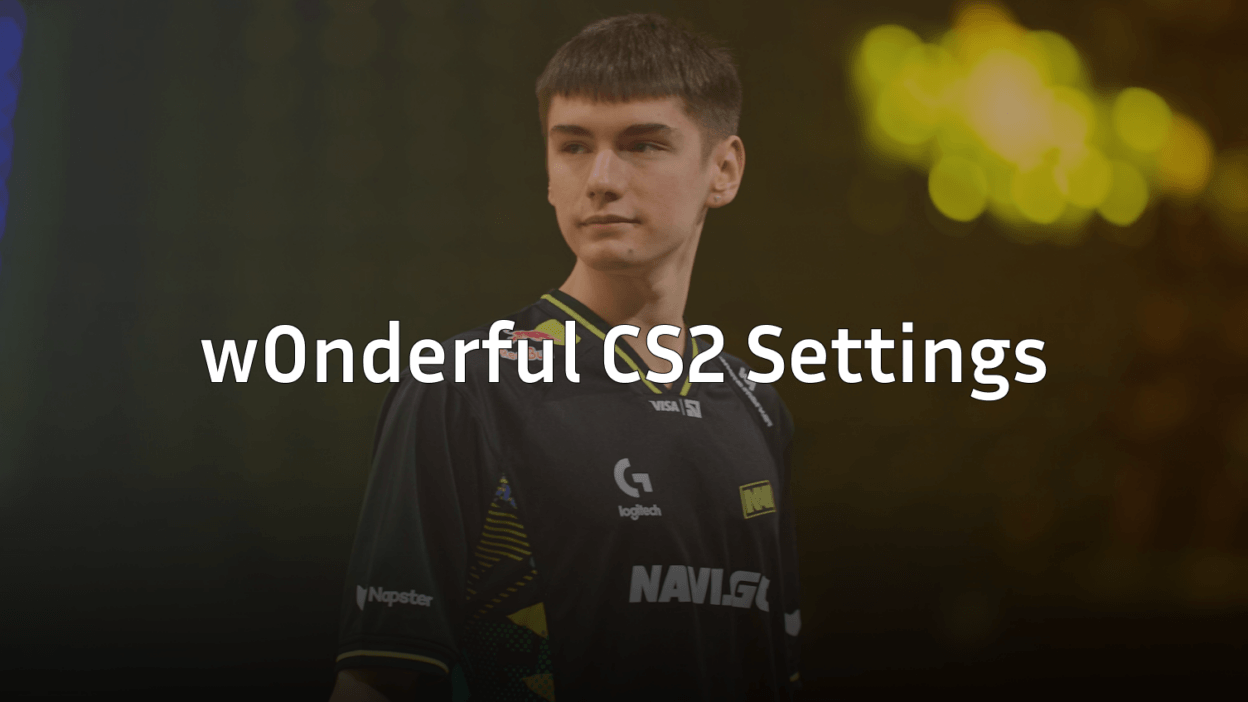
Viktor “w0nderful” Starosvetskyi has rapidly become one of the most exciting young AWPers in professional Counter-Strike. If you want to copy w0nderful’s CS2 settings, you’re in the right place—we’ve compiled his complete setup including mouse sensitivity, crosshair, video settings, and viewmodel configuration.
The Ukrainian prodigy made his name playing for NAVI Junior before stepping into the spotlight on the main roster. His aggressive AWP style and crisp flick shots have earned him recognition as one of CS2’s brightest talents.
w0nderful’s Mouse Settings
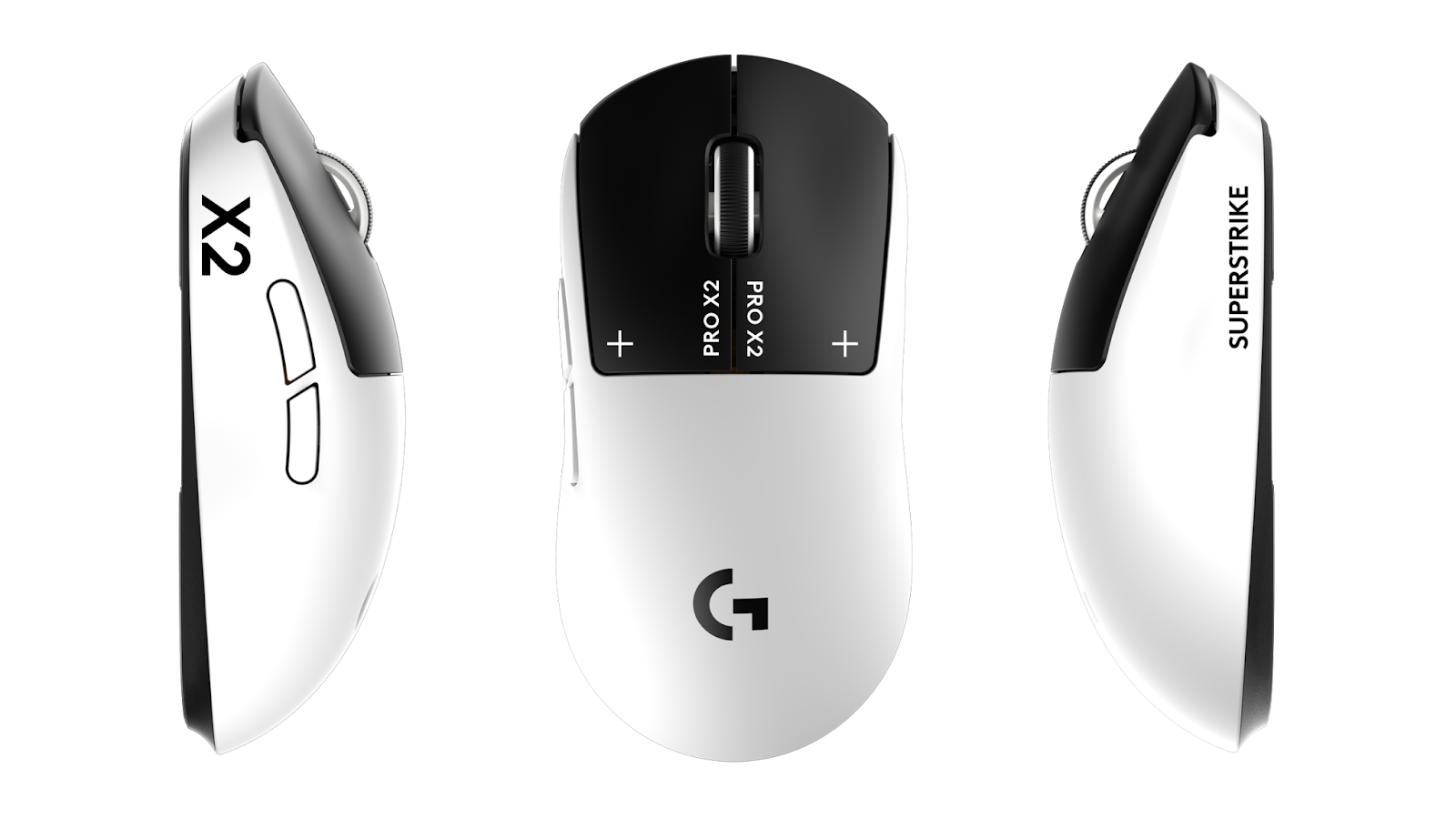
Mouse settings form the foundation of any pro player’s aim. w0nderful uses a relatively moderate sensitivity that balances precision AWP shots with the flexibility needed for rifle play.
| Setting | Value |
|---|---|
| DPI | 800 |
| In-Game Sensitivity | 0.9 |
| eDPI | 720 |
| Zoom Sensitivity | 1.0 |
| Polling Rate | 1000 Hz |
| Windows Sensitivity | 6 |
| Raw Input | On |
His eDPI of 720 sits in the lower-medium range for professional players. This gives him excellent control for holding angles with the AWP while still allowing quick crosshair adjustments during eco rounds.
Key takeaway: w0nderful’s zoom sensitivity of 1.0 means his scoped sensitivity feels identical to his unscoped aim—a preference many dedicated AWPers share.
Crosshair Settings
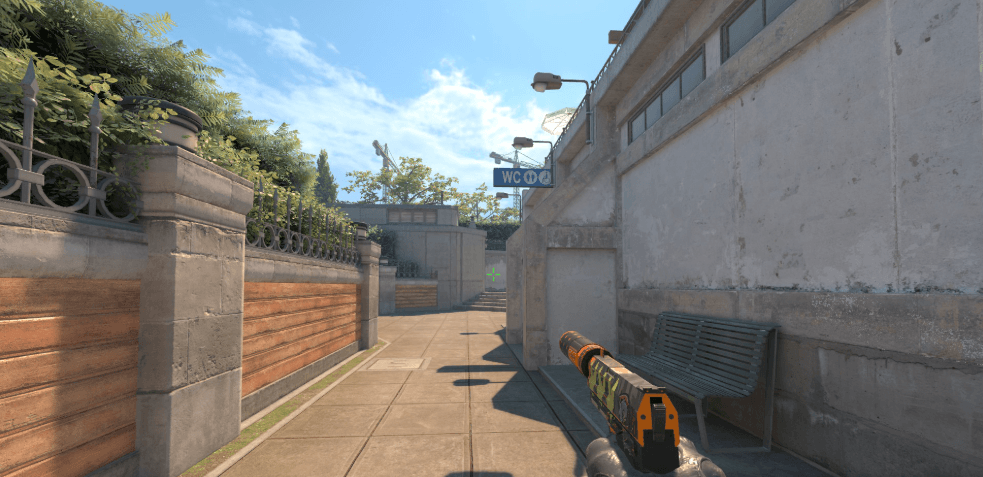
w0nderful uses a compact, static crosshair that provides clear visibility without cluttering his screen during crucial moments.
| Setting | Value |
|---|---|
| Style | 4 (Classic Static) |
| Color | Green (1) |
| Size | 2 |
| Thickness | 0 |
| Gap | -3 |
| Outline | No |
| Dot | No |
To apply w0nderful’s crosshair instantly, paste this command into your console:
cl_crosshair_drawoutline 0; cl_crosshair_dynamic_maxdist_splitratio 0.35; cl_crosshair_dynamic_splitalpha_innermod 1; cl_crosshair_dynamic_splitalpha_outermod 0.5; cl_crosshair_dynamic_splitdist 7; cl_crosshair_outlinethickness 1; cl_crosshair_sniper_width 1; cl_crosshair_t 0; cl_crosshairalpha 255; cl_crosshaircolor 1; cl_crosshaircolor_b 50; cl_crosshaircolor_g 250; cl_crosshaircolor_r 50; cl_crosshairdot 0; cl_crosshairgap -3; cl_crosshairsize 2; cl_crosshairstyle 4; cl_crosshairthickness 0; cl_crosshairusealpha 1The tight gap of -3 creates a small, precise crosshair ideal for landing headshots. If you’re looking to improve your aim with different weapons, check out our guide on NiKo’s CS2 settings for another pro perspective.
Video Settings

w0nderful prioritizes performance and visibility over visual fidelity. Like most professionals, he runs settings that maximize frame rates and minimize visual clutter.
| Setting | Value |
|---|---|
| Resolution | 1280×960 |
| Aspect Ratio | 4:3 |
| Scaling Mode | Stretched |
| Display Mode | Fullscreen |
Graphics Quality Settings
| Setting | Value |
|---|---|
| Global Shadow Quality | High |
| Model/Texture Detail | Low |
| Texture Filtering Mode | Bilinear |
| Shader Detail | Low |
| Particle Detail | Low |
| Ambient Occlusion | Disabled |
| High Dynamic Range | Performance |
| FidelityFX Super Resolution | Disabled |
| NVIDIA Reflex Low Latency | Enabled |
The stretched 4:3 resolution makes player models appear wider, potentially making targets easier to track. Many AWPers prefer this setup because it enhances horizontal movement visibility. For optimizing your graphics card, our CS2 NVIDIA settings guide covers additional tweaks.
Shadows set to High is intentional—this allows w0nderful to spot enemy shadows around corners, providing crucial information during clutch situations.
Viewmodel Settings
w0nderful’s viewmodel keeps his weapon positioned to minimize screen obstruction while maintaining a natural feel.
| Setting | Value |
|---|---|
| Viewmodel FOV | 68 |
| Viewmodel Offset X | 2.5 |
| Viewmodel Offset Y | 0 |
| Viewmodel Offset Z | -1.5 |
| Viewmodel Presetpos | 3 |
| Bob | Disabled |
Apply these viewmodel settings with:
viewmodel_fov 68; viewmodel_offset_x 2.5; viewmodel_offset_y 0; viewmodel_offset_z -1.5; viewmodel_presetpos 3; cl_bob_lower_amt 0; cl_bobamt_lat 0; cl_bobamt_vert 0Radar and HUD Settings
Effective radar usage separates good players from great ones. w0nderful’s radar settings provide maximum map awareness.
| Setting | Value |
|---|---|
| Radar Centers Player | Yes |
| Radar Rotation | Yes |
| Radar Size | 1.0 |
| Radar Zoom | 0.4 |
| HUD Scale | 0.85 |
The low radar zoom of 0.4 displays the entire map, letting him track teammate positions and anticipate rotations without opening the scoreboard.
Launch Options
w0nderful keeps his launch options minimal, as CS2 handles most optimizations automatically:
-novid -tickrate 128Note: Unlike CS:GO, CS2 doesn’t benefit from many legacy launch options. The -novid simply skips the intro video for faster loading.
w0nderful’s Gear
Your settings matter, but hardware plays a role too. Here’s what w0nderful uses:
| Equipment | Product |
|---|---|
| Mouse | Logitech G Pro X Superlight |
| Mousepad | ZOWIE G-SR |
| Keyboard | Logitech G Pro X |
| Monitor | BenQ ZOWIE XL2546K (240Hz) |
| Headset | Logitech G Pro X |
The G Pro X Superlight is extremely popular among professionals due to its lightweight design (63g) and flawless sensor. Paired with the control-oriented G-SR mousepad, it provides consistent stopping power for precise flicks.
Tips for Using w0nderful’s Settings
Before copying these settings directly, consider these points:
- Sensitivity adjustment period – Give yourself at least a week to adapt to new mouse settings before judging them
- Resolution preference – Stretched 4:3 requires adjustment; some players find native resolution more comfortable
- Hardware differences – Your mousepad surface affects how sensitivity feels; account for this when testing
w0nderful’s setup works for his aggressive AWP playstyle. If you primarily rifle, you might prefer slightly different settings. Compare his config with Shroud’s CS2 settings for a more rifle-focused approach.
Conclusion
w0nderful’s CS2 settings combine a moderate eDPI of 720, stretched 4:3 resolution, and performance-focused graphics to create a setup optimized for professional AWP play. His configuration prioritizes frame rate stability and target visibility over visual quality.
Copy these settings as a starting point, then fine-tune based on your playstyle and hardware. Looking for new skins to complement your improved gameplay? Browse the latest CS2 skins on our marketplace.