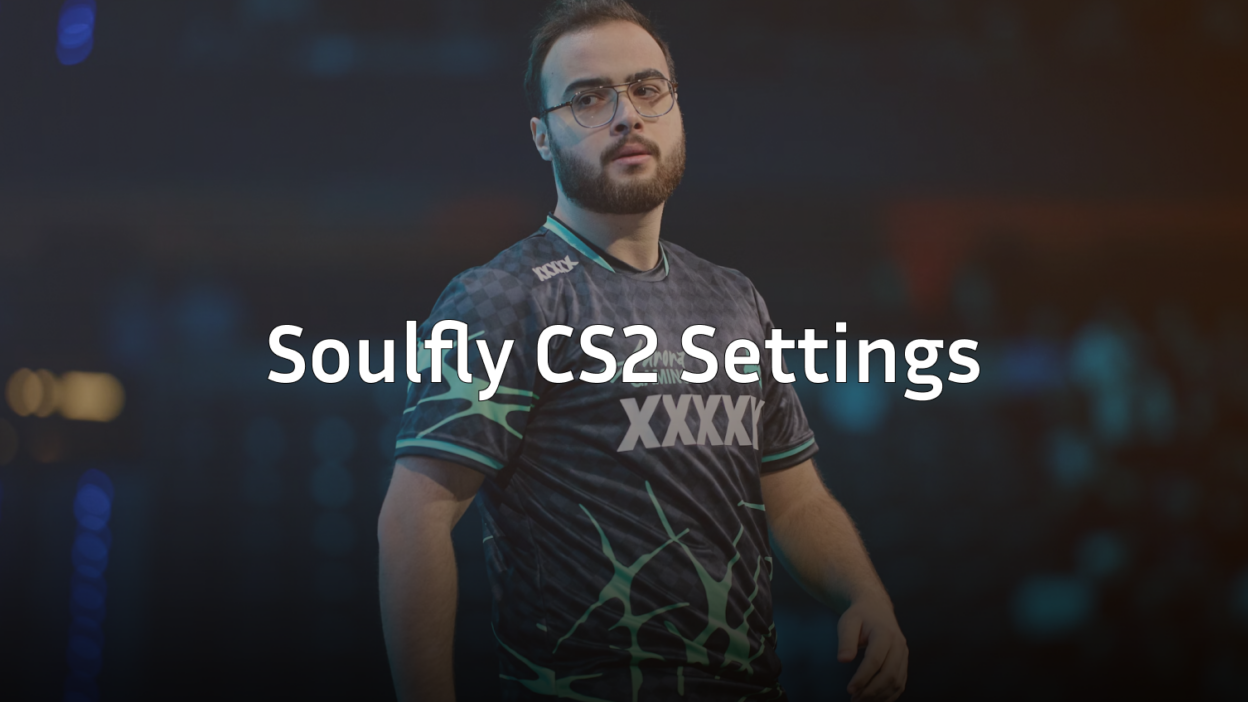
Looking to replicate a rising star’s configuration? Soulfly CS2 settings offer a balanced setup that combines precision aiming with smooth performance. This guide breaks down every setting you need to mirror his professional config.
Soulfly has established himself as a talented rifler known for consistent aim and smart positioning. His settings reflect a preference for clarity and control—nothing flashy, just what works at the highest level.
Soulfly’s Mouse Settings

Mouse settings form the foundation of any pro player’s aim. Soulfly uses a moderate sensitivity that allows for both precise micro-adjustments and quick flicks.
| Setting | Value |
|---|---|
| DPI | 800 |
| In-Game Sensitivity | 1.0 |
| eDPI | 800 |
| Zoom Sensitivity | 1.0 |
| Hz (Polling Rate) | 1000 |
| Windows Sensitivity | 6 |
| Raw Input | On |
An eDPI of 800 sits in the mid-range for professional players. This gives Soulfly enough speed for quick site takes while maintaining the precision needed for holding angles with the AWP or tapping heads with the AK-47.
Crosshair Settings
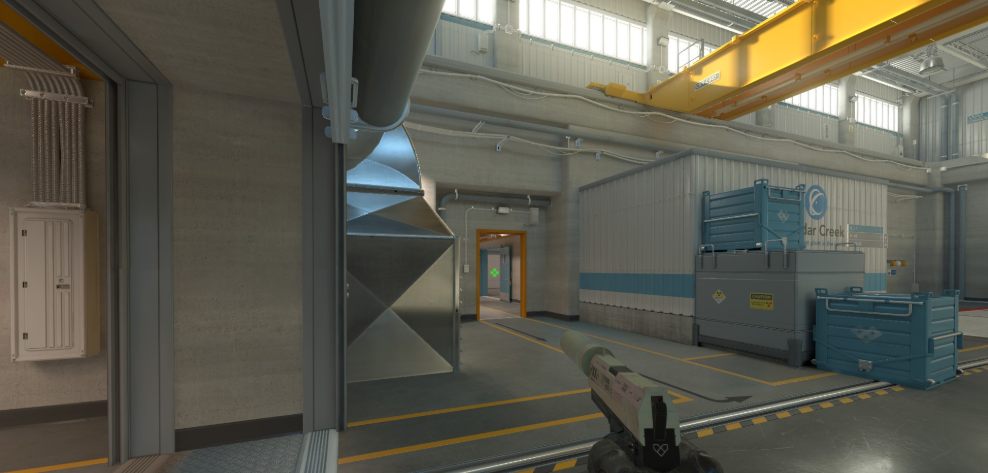
Soulfly’s crosshair is clean and functional—designed for visibility without cluttering your screen.
cl_crosshairsize 1.5cl_crosshairgap -3
cl_crosshairthickness 0
cl_crosshairdot 0
cl_crosshaircolor 1
cl_crosshair_drawoutline 0
cl_crosshairstyle 4
Key characteristics:
- Small size (1.5) keeps the crosshair tight for headshot-level aiming
- Negative gap (-3) creates a compact center point
- Style 4 means static—no expansion during movement or shooting
- Green color (1) provides solid contrast on most maps
This crosshair works exceptionally well on maps with varied lighting. The compact design helps when holding tight angles on sites.
Video Settings

Performance matters more than visuals at the pro level. Soulfly’s video settings prioritize maximum FPS and enemy visibility.
| Setting | Value |
|---|---|
| Resolution | 1280×960 |
| Aspect Ratio | 4:3 |
| Scaling Mode | Stretched |
| Display Mode | Fullscreen |
Advanced Video Settings
| Setting | Value |
|---|---|
| Boost Player Contrast | Enabled |
| V-Sync | Disabled |
| NVIDIA Reflex Low Latency | Enabled |
| Multisampling Anti-Aliasing | 4x MSAA |
| Global Shadow Quality | High |
| Model/Texture Detail | Low |
| Texture Filtering Mode | Bilinear |
| Shader Detail | Low |
| Particle Detail | Low |
| Ambient Occlusion | Disabled |
| High Dynamic Range | Performance |
| FidelityFX Super Resolution | Disabled |
The 4:3 stretched resolution makes player models appear wider, potentially easier to track and hit. Many pros prefer this setup—check out Brollan’s CS2 settings for another stretched resolution example.
Boost Player Contrast is crucial. It makes enemies stand out against backgrounds, giving you that split-second advantage in spotting opponents. For a deeper dive into optimizing your visual settings, read our CS2 graphic settings guide.
Viewmodel Settings
Soulfly uses a viewmodel that keeps weapons out of his line of sight while maintaining good visual feedback.
viewmodel_fov 68viewmodel_offset_x 2.5
viewmodel_offset_y 0
viewmodel_offset_z -1.5
viewmodel_presetpos 3
cl_righthand 1
This configuration pushes the weapon model toward the bottom-right corner, maximizing screen real estate for spotting enemies.
Key Bindings
Efficient keybinds reduce reaction time. Here are Soulfly’s essential binds:
| Action | Key |
|---|---|
| Jump | Space / Mouse Wheel Down |
| Crouch | Ctrl |
| Walk | Shift |
| Use | E |
| Drop Weapon | G |
| Inspect | F |
Jump throw bind is essential for consistent utility:
alias "+jumpthrow" "+jump;-attack"alias “-jumpthrow” “-jump”
bind “v” “+jumpthrow”
This ensures your smokes land perfectly every time—critical for executing onto sites.
Radar Settings
Good radar awareness separates average players from great ones.
cl_radar_scale 0.4cl_hud_radar_scale 1.15
cl_radar_always_centered 0
cl_radar_rotate 1
Setting centered to 0 shows more of the map, helping you track teammate positions and potential enemy rotations without checking the scoreboard.
Audio Settings
Sound cues win rounds. Soulfly keeps his audio clean and focused on footsteps.
| Setting | Value |
|---|---|
| Master Volume | 50% |
| Audio Device | Headphones |
| EQ Profile | Crisp |
| L/R Isolation | Off |
| Perspective Correction | No |
The Crisp EQ profile emphasizes higher frequencies where footsteps sit, making it easier to pinpoint enemy positions.
Launch Options
-novid -tickrate 128 -freq 240Keep launch options minimal. Valve has moved most optimizations into the game itself, so excessive launch options can actually cause issues.
Why These Settings Work
Soulfly’s configuration emphasizes consistency over flash. Here’s why each element matters:
- 800 eDPI provides a balance between speed and precision
- 4:3 stretched increases target size perception
- Static crosshair gives reliable reference points
- Low graphics settings ensure stable, high FPS
These settings won’t instantly make you a pro, but they remove technical barriers. You’ll have the same visual clarity and input responsiveness that Soulfly uses in professional matches.
Hardware Setup
For reference, Soulfly uses high-end peripherals to complement his settings:
- Mouse: Lightweight gaming mouse at 1000Hz
- Mousepad: Large cloth pad for consistent glide
- Monitor: 240Hz+ for smooth visuals
- Headset: Closed-back for sound isolation
Your hardware matters. The best settings won’t help if your mouse sensor can’t keep up or your monitor adds input lag.
Conclusion
Soulfly’s CS2 settings deliver a clean, performance-focused experience that lets skill shine through. The combination of 4:3 stretched resolution, moderate sensitivity, and minimal crosshair creates an environment where mechanical skill determines outcomes.
Copy these settings as a starting point, then adjust sensitivity gradually until it feels natural. Remember—pros spend thousands of hours with their configs. Give yourself time to adapt.
Ready to upgrade your loadout to match your new settings? Browse CS2 skins to find the perfect M4A1-S or Desert Eagle to complete your setup.