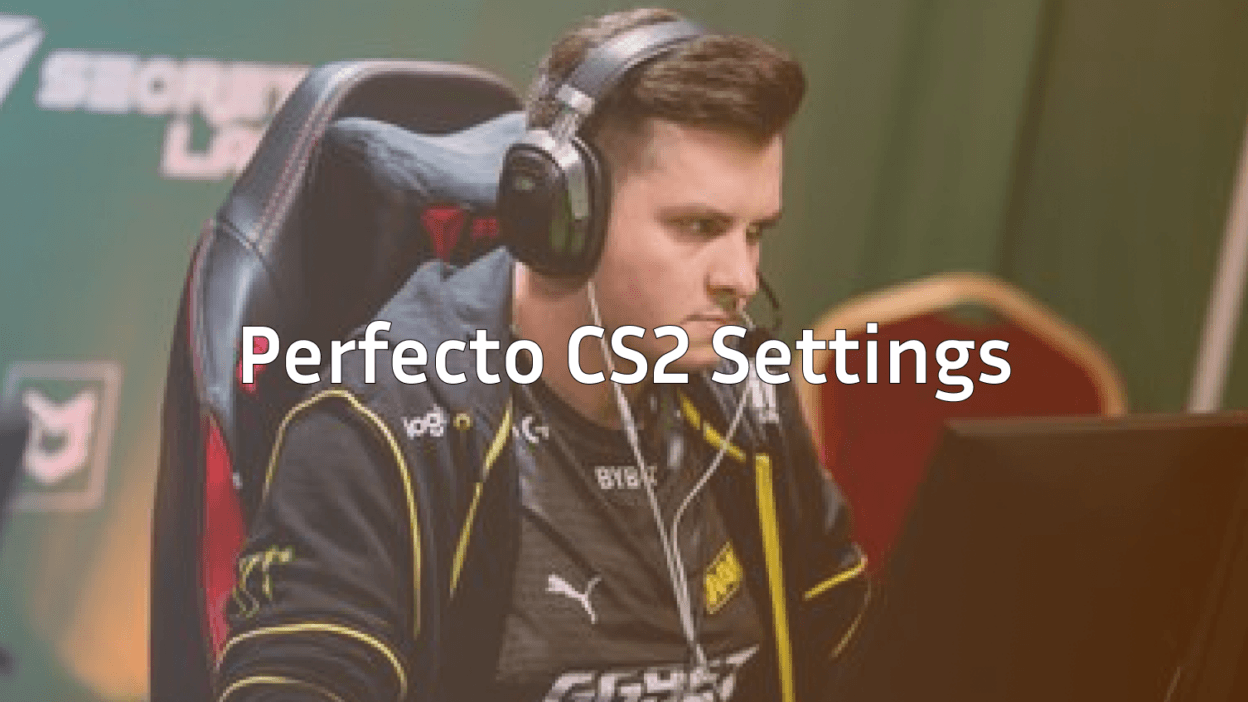
Perfecto has quietly become one of the most reliable players in professional Counter-Strike. Now starring for Team Vitality, this Russian rifler and secondary AWPer brings exceptional consistency to every match. If you want to copy Perfecto CS2 settings and understand why his config works so well, you’re in the right place.
This guide covers his complete setup mouse settings, crosshair, viewmodel, video config, and the gear he uses to compete at the highest level.
Who Is Perfecto?
Ihor “Perfecto” Zhdanov is a Ukrainian professional CS2 player currently competing for Team Vitality. Known for his calm playstyle and clutch potential, Perfecto excels in high-pressure situations where other players crack.
His role typically involves:
- Support rifling with the AK-47 and M4A1-S
- Secondary AWPing when the team needs flexibility
- Anchor positions on CT side
- Clutch situations where his composure shines
Perfecto’s settings reflect his playstyle stable, precise, and optimized for consistency rather than flashy plays.
Perfecto Mouse Settings
Perfecto uses a moderate sensitivity that balances precision aiming with the ability to make quick adjustments. His eDPI sits in a comfortable range for most players.
| Setting | Value |
|---|---|
| DPI | 400 |
| In-Game Sensitivity | 2.0 |
| eDPI | 800 |
| Zoom Sensitivity | 1.0 |
| Hz (Polling Rate) | 1000 |
| Windows Sensitivity | 6 |
| Raw Input | On |
| Mouse Acceleration | Off |
Key takeaway: An eDPI of 800 is considered medium-low, giving Perfecto excellent control for holding angles while still allowing fast 180-degree turns when needed. This sensitivity works exceptionally well for players who split time between rifles and the AWP.
Why This Sensitivity Works
Perfecto’s 800 eDPI requires roughly 52cm for a full 360-degree turn. This means:
- Precise micro-adjustments for headshots
- Enough speed for checking corners quickly
- Consistent flicks without overshooting targets
If you’re transitioning from a higher sensitivity, lower it gradually over several days rather than copying his settings immediately.
Perfecto Crosshair Settings
Perfecto uses a clean, static crosshair that provides clear visibility without cluttering the screen. Here’s his exact configuration:
| Setting | Value |
|---|---|
| Style | 4 (Classic Static) |
| Size | 2 |
| Gap | -2 |
| Thickness | 1 |
| Outline | No |
| Color | Green (1) |
| Dot | No |
| Alpha | 255 |
Crosshair Code
Copy and paste this into your console:
cl_crosshair_drawoutline 0; cl_crosshair_dynamic_maxdist_splitratio 0.35; cl_crosshair_dynamic_splitalpha_innermod 1; cl_crosshair_dynamic_splitalpha_outermod 0.5; cl_crosshair_dynamic_splitdist 7; cl_crosshair_outlinethickness 1; cl_crosshair_sniper_width 1; cl_crosshair_t 0; cl_crosshairalpha 255; cl_crosshaircolor 1; cl_crosshaircolor_b 50; cl_crosshaircolor_g 250; cl_crosshaircolor_r 50; cl_crosshairdot 0; cl_crosshairgap -2; cl_crosshairsize 2; cl_crosshairstyle 4; cl_crosshairthickness 1This crosshair emphasizes precision over visibility. The small size and tight gap force you to aim carefully, which develops better habits over time. If you want to experiment with different styles, check out some cs2 crosshair maps to test various configurations.
Perfecto Video Settings
Perfecto prioritizes maximum frames per second over visual quality. At the professional level, every frame matters for input responsiveness.
| Setting | Value |
|---|---|
| Resolution | 1280×960 |
| Aspect Ratio | 4:3 |
| Scaling Mode | Stretched |
| Display Mode | Fullscreen |
Graphics Settings
| Setting | Value |
|---|---|
| Global Shadow Quality | High |
| Model/Texture Detail | Low |
| Texture Filtering Mode | Bilinear |
| Shader Detail | Low |
| Particle Detail | Low |
| Ambient Occlusion | Disabled |
| High Dynamic Range | Performance |
| FidelityFX Super Resolution | Disabled |
| NVIDIA Reflex Low Latency | Enabled |
Why 4:3 stretched? This resolution makes player models appear wider, theoretically making targets easier to hit. Many pros prefer this setup despite the reduced field of view. The trade-off is worth it for players who’ve trained their muscle memory around stretched visuals.
Perfecto keeps shadows on High because they reveal enemy positions around corners a crucial advantage when holding sites.
Perfecto Viewmodel Settings
His viewmodel stays compact and out of the way, maximizing screen real estate for spotting enemies.
| Setting | Value |
|---|---|
| Viewmodel FOV | 68 |
| Viewmodel Offset X | 2.5 |
| Viewmodel Offset Y | 0 |
| Viewmodel Offset Z | -1.5 |
| Viewmodel Presetpos | 3 |
| Bob | Disabled |
Viewmodel Commands
viewmodel_fov 68; viewmodel_offset_x 2.5; viewmodel_offset_y 0; viewmodel_offset_z -1.5; viewmodel_presetpos 3; cl_bob_lower_amt 5; cl_bobamt_lat 0.1; cl_bobamt_vert 0.1; cl_bobcycle 0.98This viewmodel pushes the weapon to the right side of the screen, keeping the center clear for crosshair placement.
Perfecto Gear & Peripherals
Professional players invest heavily in reliable equipment. Here’s what Perfecto uses:
| Component | Product |
|---|---|
| Mouse | Logitech G Pro X Superlight |
| Mousepad | Logitech G640 |
| Keyboard | Logitech G Pro X |
| Monitor | BenQ ZOWIE XL2546K (240Hz) |
| Headset | Logitech G Pro X |
The G Pro X Superlight weighs only 63 grams, reducing fatigue during long matches. Combined with the G640’s consistent glide, Perfecto achieves smooth, predictable mouse movement essential for his playstyle.
His 240Hz monitor ensures minimal input lag, which matters significantly at the professional level where milliseconds decide rounds.

How to Apply Perfecto’s Config
Follow these steps to implement his settings:
- Launch CS2 and open the console (enable it in Game Settings if needed)
- Paste the crosshair code and press Enter
- Paste the viewmodel commands and press Enter
- Navigate to Settings > Mouse and match his sensitivity values
- Adjust video settings through the Graphics menu
- Save everything by typing
host_writeconfigin console
For more advanced configuration options, our guide on cs2 practice commands helps you test settings efficiently in private servers.
Should You Copy Pro Settings?
Perfecto’s settings work for him because he’s trained thousands of hours with this exact configuration. Before copying everything:
- Start with his sensitivity if yours is drastically different—eDPI between 700-1000 suits most players
- Try his crosshair for a week before judging it
- Match his video settings only if your PC handles them smoothly
- Keep your keybinds unless his specifically solve a problem you have
The best approach? Use his config as a starting point, then adjust based on your comfort and performance.
Conclusion
Perfecto’s CS2 settings emphasize consistency and precision over flashy configurations. His moderate sensitivity, clean crosshair, and performance focused video settings create a stable foundation for high-level play.
Whether you’re grinding CS2 ranks or just looking to optimize your setup, Perfecto’s config offers a proven template. Copy what works, adjust what doesn’t, and focus on developing the game sense that truly separates good players from great ones.
Want to style your weapons like the pros? Browse the latest CS2 skins to find the perfect loadout for your new optimized config.