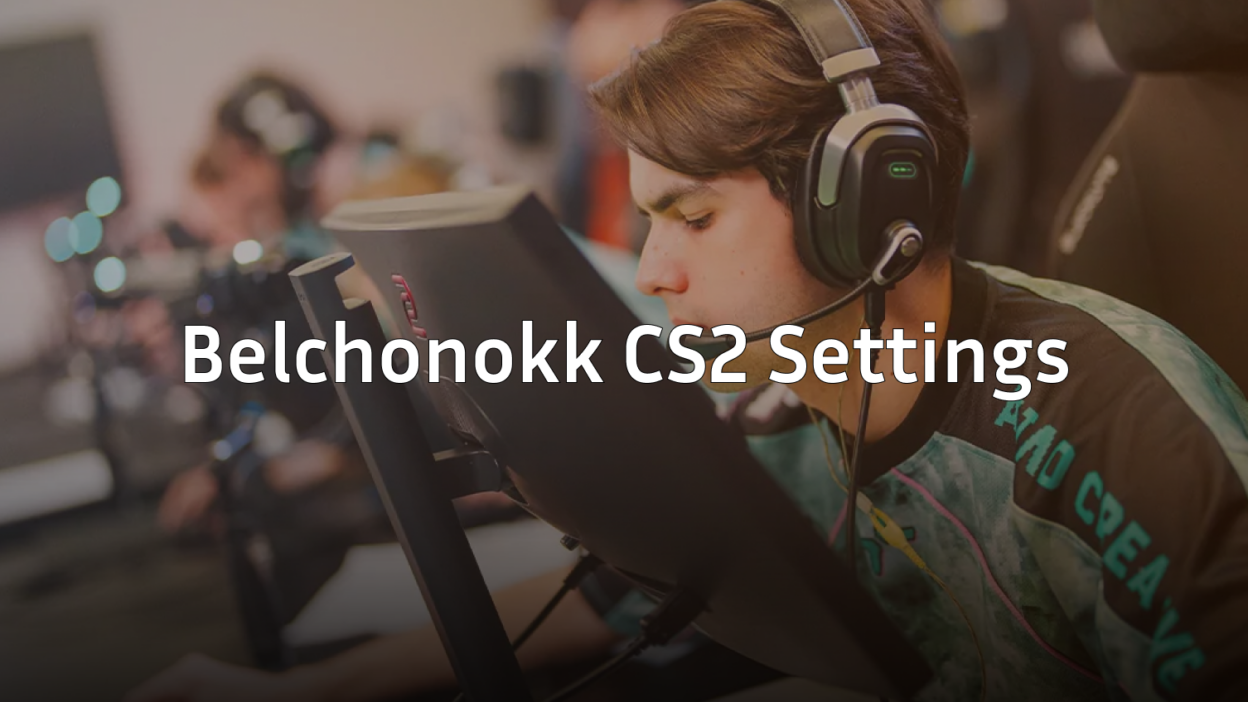
Want to AWP like one of the most promising young snipers in professional CS2? Copying Belchonokk CS2 settings gives you the exact configuration this Team Spirit star uses to land those jaw-dropping flick shots.
Danil “Belchonokk” Derkach has quickly established himself as a formidable AWPer on the international stage. His aggressive positioning and confident peek timing make him a constant threat. Let’s break down every setting he uses.
Belchonokk’s Mouse Settings

Precision matters most for AWP players, and Belchonokk runs a moderate sensitivity that balances flick potential with holding angles.
| Setting | Value |
|---|---|
| DPI | 800 |
| In-Game Sensitivity | 1.0 |
| eDPI | 800 |
| Zoom Sensitivity | 1.0 |
| Polling Rate | 1000 Hz |
| Windows Sensitivity | 6 |
| Raw Input | On |
An eDPI of 800 sits in the mid-range for professional players. This allows quick 180-degree turns while maintaining the control needed for pixel-perfect AWP shots. If you’re coming from a higher sensitivity, lower your eDPI gradually over several days.
Belchonokk’s Crosshair Settings
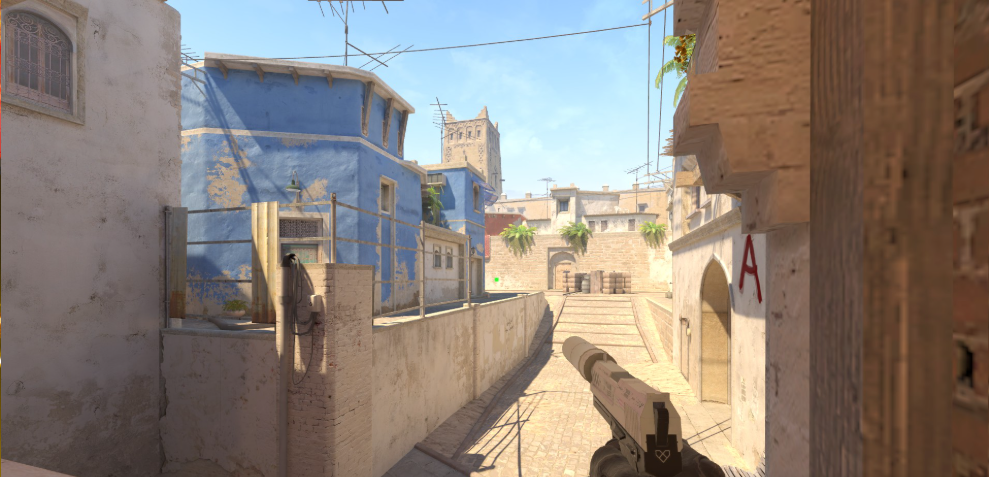
Even though the AWP uses a scope, having a clean crosshair helps with no-scopes and secondary weapon usage.
| Setting | Value |
|---|---|
| Style | 4 (Classic Static) |
| Color | Green |
| Size | 2 |
| Thickness | 0 |
| Gap | -3 |
| Outline | No |
| Dot | No |
Crosshair Code:
CSGO-Ozhqp-dPwjT-Ynqkh-4ZtGK-zXeoFThis small, tight crosshair provides excellent visibility without cluttering the screen. The negative gap creates a compact center point ideal for quick target acquisition.
Belchonokk’s Video Settings
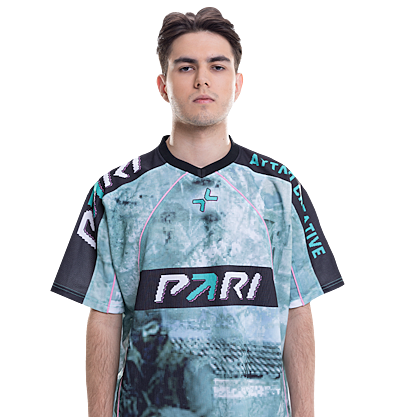
Performance trumps visuals at the professional level. Belchonokk optimizes for maximum frame rates and enemy visibility.
| Setting | Value |
|---|---|
| Resolution | 1280×960 |
| Aspect Ratio | 4:3 |
| Scaling Mode | Stretched |
| Display Mode | Fullscreen |
Advanced Video Settings
| Setting | Value |
|---|---|
| Boost Player Contrast | Enabled |
| V-Sync | Disabled |
| Multisampling Anti-Aliasing | 4x MSAA |
| Global Shadow Quality | Medium |
| Model/Texture Detail | Low |
| Texture Filtering Mode | Bilinear |
| Shader Detail | Low |
| Particle Detail | Low |
| Ambient Occlusion | Disabled |
| High Dynamic Range | Performance |
| FidelityFX Super Resolution | Disabled |
The 4:3 stretched resolution makes player models appear wider, which many AWPers prefer for easier target tracking. Combined with boosted player contrast, enemies stand out clearly against backgrounds. For more optimization tips, check our CS2 video settings guide.
Belchonokk’s Viewmodel Settings
A clean viewmodel keeps your weapon from obstructing your view during crucial moments.
viewmodel_fov 68viewmodel_offset_x 2.5
viewmodel_offset_y 0
viewmodel_offset_z -1.5
viewmodel_presetpos 3
Belchonokk’s Keybinds
Efficient keybinds allow faster weapon switching—critical when transitioning from AWP to pistol.
| Action | Key |
|---|---|
| Jump | Space / Mouse Wheel Down |
| Crouch | Left Ctrl |
| Walk | Left Shift |
| Primary Weapon | 1 |
| Secondary Weapon | 2 |
| Knife | 3 |
| Cycle Grenades | 4 |
| Bomb | 5 |
Binding jump to mouse wheel down enables consistent bunny hops and easier movement tech.
Launch Options
-novid -tickrate 128 -freq 240These launch options skip the intro video, set offline server tickrate to 128, and match his monitor’s refresh rate.
Tips for Using Belchonokk’s Config
Simply copying settings won’t instantly improve your aim. Here’s how to actually benefit:
- Practice the sensitivity for at least a week before judging it
- Learn common AWP angles on maps like Mirage and Inferno
- Master quick-switching to cancel the AWP’s bolt animation
- Work on positioning rather than relying purely on flicks
If you’re also interested in rifle play, compare these settings with other professionals like NiKo’s CS2 config or Shroud’s setup.
Conclusion
Belchonokk’s CS2 settings reflect a balanced approach—moderate sensitivity for versatility, stretched resolution for visibility, and low graphics for performance. While his config provides an excellent starting point, remember that consistent practice matters more than any setting. Try his crosshair code, adjust the sensitivity to your comfort level, and focus on improving your positioning. Looking to upgrade your AWP’s appearance? Browse CS2 skins to find the perfect match for your playstyle.