The CS2 developer console unlocks deeper control over your game — from performance tweaks to practice setups. It’s especially useful when adjusting your crosshair, viewmodel, binds, or preparing for grenade practice maps.
If you’re learning more advanced mechanics like recoil control, check out our CS2 Spray Patterns guide, where console commands play a huge role in training.
How to Enable and Open the CS2 Console

Step 1 — Enable the Developer Console
- Launch Counter-Strike 2.
- Click the Settings gear icon.
- Open the Game tab.
- Turn Enable Developer Console (~) → YES.
Step 2 — Open the Console
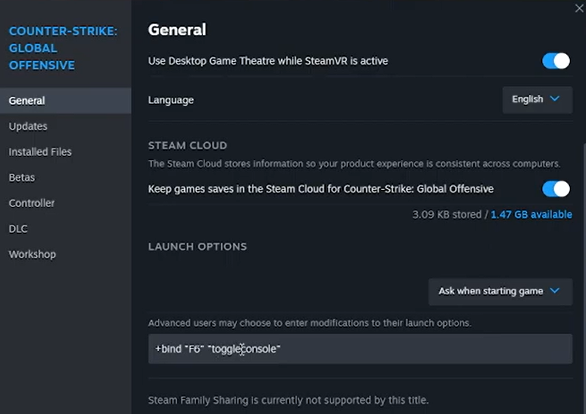
Once enabled, press the ~ (tilde) key to open it.
If it doesn’t work, you can rebind it:
- Settings → Keyboard/Mouse → UI Keys → Toggle Console
Troubleshooting: Console Not Opening?
If pressing ~ doesn’t work, try these:
1. Your Keyboard Layout Is Different
Some layouts require you to use ` or § instead of ~.
2. Rebind the Console Key
Go to UI Keys and set it to another key like F1.
3. Conflicts With Overlays
Disable overlays from NVIDIA, Discord, Steam, etc.
4. Reset Config / Restart CS2
If your settings are corrupted, a reset fixes it.
If you’re dealing with bigger launch problems, see our full guide on CS2 Won’t Launch Fix.
Useful CS2 Console Commands (Beginner-Friendly)
Here are some popular commands to start with:
| Command | Purpose |
| cl_showfps 1 | Shows FPS counter |
| cq_netgraph 1 | Shows ping/packet loss |
| fps_max 0 | Removes FPS limit |
| bot_add | Adds a bot |
| bot_kick | Removes all bots |
| sv_cheats 1 | Enables offline cheats |
| noclip | Fly mode (offline only) |
For deeper practice setups, see CS2 Practice Commands.
Why Every Player Should Learn Console Basics
The console lets you quickly adjust settings when switching sensitivities, copying pro configs, or testing new crosshairs.
If you’re comparing settings from pros, explore our guides:
It also pairs perfectly with guides where commands are required, like:
Pro Tips to Make Console Use Smoother
1. Save Your Commands in an Autoexec
This makes commands load automatically.
Perfect for players who frequently modify:
- crosshair
- viewmodel
- HUD
- binds
If you’re experimenting with viewmodel positions, see How to Change Viewmodel in CS2.
2. Use Console for Training
Pair console with smoke practice maps or grenade setups:
3. Improve Performance
Commands like fps_max, cq_netgraph, and HUD controls help you troubleshoot FPS issues—great when combined with our CS2 Black Screen Fix.
Frequently Asked Questions (FAQs)
1. How do I open the console in CS2?
Enable it in Settings → Game → Enable Developer Console, then press ~ to open it.
2. Why can’t I open the CS2 console even after enabling it?
This usually happens due to a different keyboard layout, an unbound console key, or overlay conflicts. Try rebinding Toggle Console under Keyboard/Mouse → UI Keys.
3. What’s the default key to open the console in CS2?
The default key is ~ (tilde), located under the ESC key on most keyboards.
4. How do I enable the developer console in CS2?
Go to Settings → Game and set Enable Developer Console to YES.
5. Can I change the console key in CS2?
Yes. You can change it under Settings → Keyboard/Mouse → UI Keys → Toggle Console. Many players bind it to F1 for convenience.
Final Thoughts
Opening the console in CS2 is quick, simple, and absolutely essential if you want full control over your gameplay. Whether you’re tuning performance, practicing utility, or copying pro setups, the console is your best tool.