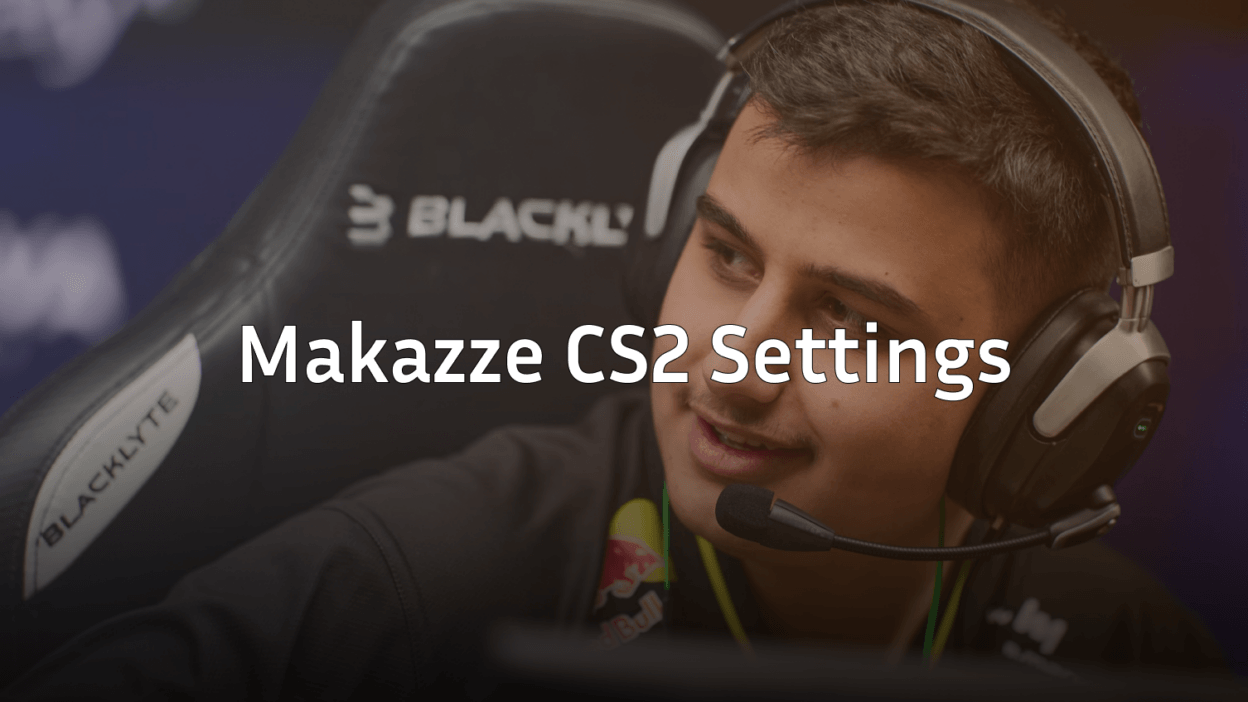
Makazze has emerged as one of the most exciting young talents in competitive CS2, known for his aggressive playstyle and crisp aim. If you’re looking to copy Makazze CS2 settings, this guide covers everything from his crosshair and sensitivity to video configuration and keybinds.
These settings have helped Makazze compete at the highest level. While copying a pro’s config won’t instantly make you better, understanding their choices can help you optimize your own setup.
Makazze Mouse Settings
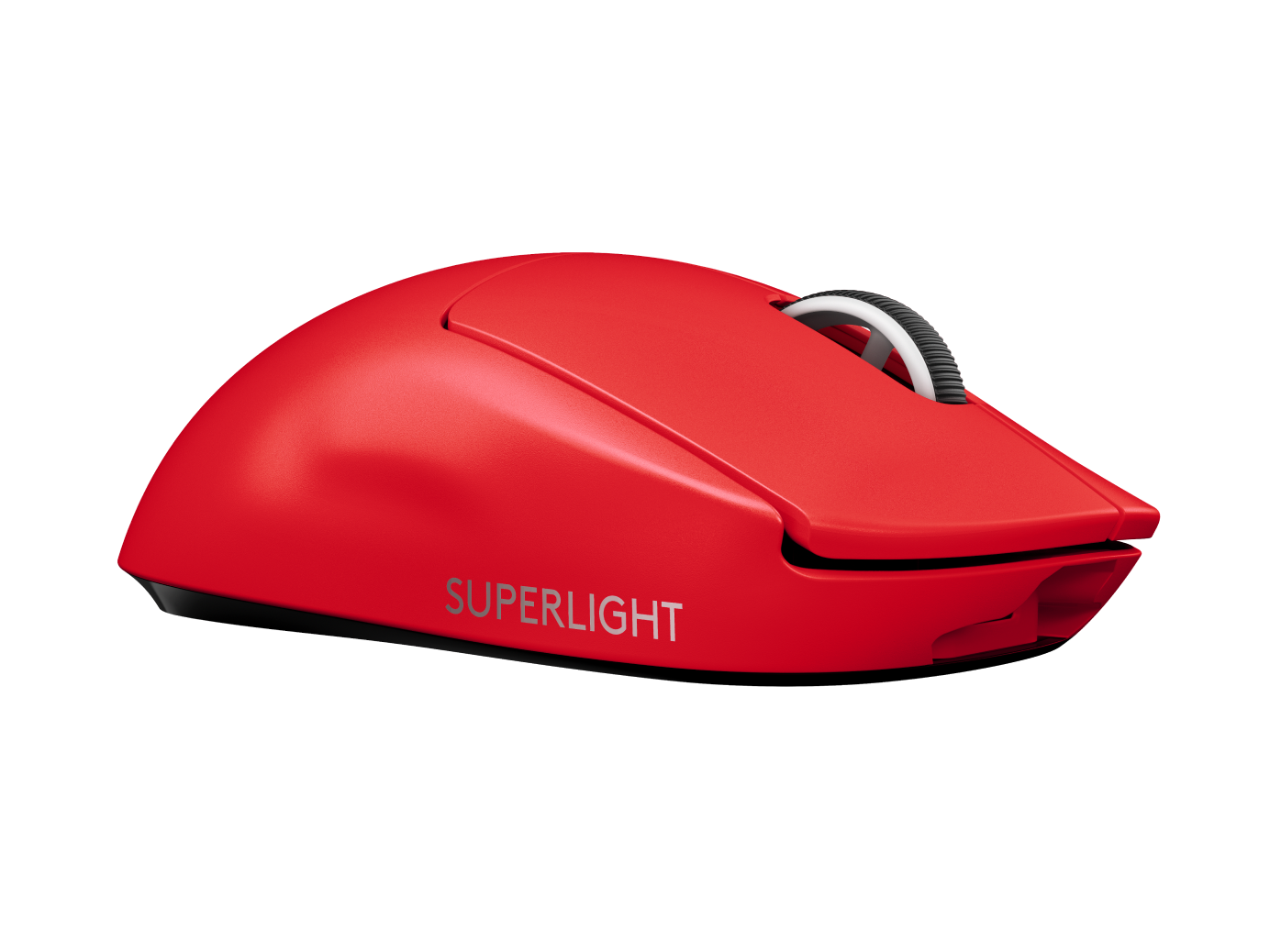
Mouse settings are the foundation of consistent aim. Makazze uses a relatively low sensitivity, which is common among professional players for precise crosshair placement.
| Setting | Value |
|---|---|
| DPI | 800 |
| In-Game Sensitivity | 0.9 |
| eDPI | 720 |
| Zoom Sensitivity | 1.0 |
| Hz (Polling Rate) | 1000 |
| Windows Sensitivity | 6 |
| Raw Input | On |
His eDPI of 720 falls within the typical pro range (600-1000). This allows for precise micro-adjustments while still enabling 180-degree turns with a full mousepad swipe.
If you’re transitioning from higher sensitivity, lower it gradually over several days rather than making a dramatic change overnight.
Makazze Crosshair Settings
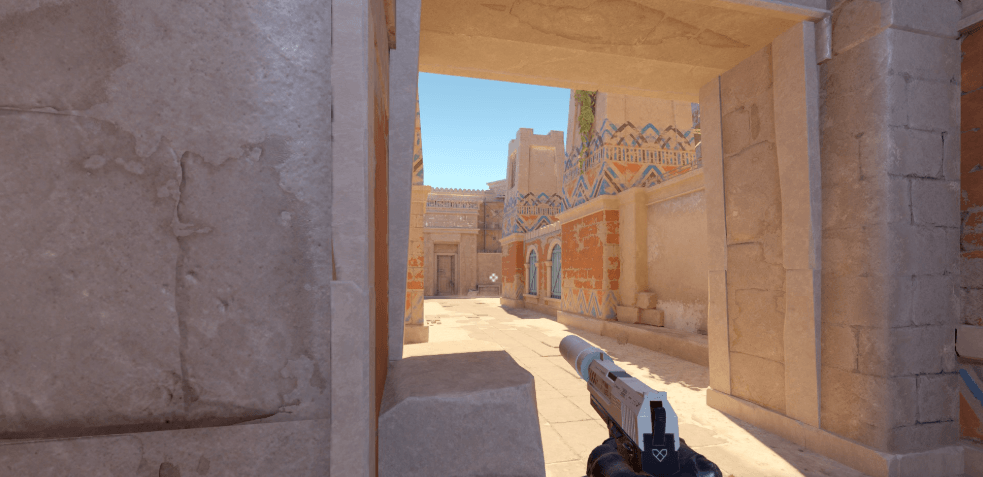
A clean, visible crosshair helps with precise aim. Makazze uses a simple static crosshair that stays consistent during movement and shooting.
cl_crosshairsize 1.5cl_crosshairgap -3
cl_crosshairthickness 0
cl_crosshairdot 0
cl_crosshaircolor 1
cl_crosshair_drawoutline 0
cl_crosshairstyle 4
cl_crosshairalpha 255
Crosshair Code: CSGO-xxxxx-xxxxx-xxxxx-xxxxx-xxxxx
This creates a small, tight crosshair ideal for headshot-level aiming. The green color (crosshaircolor 1) provides good visibility on most map surfaces without being distracting.
Many pros prefer similar compact crosshairs because they don’t obscure enemies at range. If you’re struggling with visibility, try adjusting the color or adding a slight outline.
Makazze Video Settings

Performance matters more than visuals in competitive CS2. Makazze prioritizes high frame rates over graphical fidelity.
| Setting | Value |
|---|---|
| Resolution | 1280×960 |
| Aspect Ratio | 4:3 |
| Scaling Mode | Stretched |
| Display Mode | Fullscreen |
Graphics Quality Settings
| Setting | Value |
|---|---|
| Global Shadow Quality | Medium |
| Model/Texture Detail | Low |
| Texture Filtering Mode | Bilinear |
| Shader Detail | Low |
| Particle Detail | Low |
| Ambient Occlusion | Disabled |
| High Dynamic Range | Performance |
| FidelityFX Super Resolution | Disabled |
| NVIDIA Reflex Low Latency | Enabled |
The 4:3 stretched resolution makes player models appear wider, which some players find easier to track and hit. This is purely preference—many pros use native 16:9 instead.
Keeping most settings on Low ensures maximum FPS consistency. Even with a powerful PC, frame drops during smokes or utility-heavy situations can cost you fights. For a deeper dive into optimization, check out our cs2 graphic settings guide.
Makazze Viewmodel Settings
Viewmodel positioning affects how much screen space your weapon occupies. Makazze uses a classic setup that keeps the gun model out of his central vision.
viewmodel_fov 68viewmodel_offset_x 2.5
viewmodel_offset_y 0
viewmodel_offset_z -1.5
viewmodel_presetpos 3
cl_righthand 1
These settings push the weapon toward the bottom-right corner, maximizing visible play area. The viewmodel_fov of 68 is the maximum allowed in competitive play.
Makazze Keybinds
Efficient keybinds reduce reaction time and fumbling during clutch moments. Here are Makazze’s key bindings:
| Action | Key |
|---|---|
| Jump | Space / Mouse Wheel Down |
| Crouch | Ctrl |
| Walk | Shift |
| Primary Weapon | 1 |
| Secondary Weapon | 2 |
| Knife | 3 |
| Cycle Grenades | 4 |
| HE Grenade | C |
| Flashbang | F |
| Smoke | Q |
| Molotov | X |
| Bomb | 5 |
Having individual grenade binds is essential for competitive play. Cycling through grenades with the scroll wheel wastes precious milliseconds and can get you killed.
Binding jump to mouse wheel down enables consistent bunny hopping and easier jump throws. Most pros use this alongside spacebar.
Makazze Launch Options
Launch options can improve game performance and stability:
-novid -tickrate 128 -high- -novid skips the intro video for faster loading
- -tickrate 128 sets offline server tickrate for practice
- -high gives CS2 high CPU priority
Keep launch options minimal. Many old CS:GO launch options no longer work or can actually hurt performance in CS2.
Makazze Radar Settings
Radar awareness separates good players from great ones. A properly configured radar shows more map information at a glance.
| Setting | Value |
|---|---|
| Radar Centers The Player | Yes |
| Radar Rotation | Yes |
| Radar Hud Size | 1.0 |
| Radar Map Zoom | 0.5 |
A zoomed-out radar helps you track teammate positions and rotations across the entire map. This is especially valuable when playing rifles like the AK-47 or M4A1-S, where you need to hold angles while maintaining map awareness.
Should You Copy These Settings?
Pro settings are a starting point, not a final destination. Makazze’s configuration works for his playstyle, monitor setup, and thousands of hours of muscle memory.
What to adopt:
- Low video settings for consistent FPS
- Individual grenade binds
- A clean, simple crosshair
- Raw input enabled
What to personalize:
- Sensitivity (based on your mousepad size and comfort)
- Resolution (depends on your monitor and preference)
- Crosshair color and size (visibility varies by person)
Compare these settings to other professionals like NiKo or w0nderful to understand the range of viable configurations.
Conclusion
Makazze CS2 settings prioritize performance, visibility, and competitive advantage. His low sensitivity, stretched resolution, and minimal graphics create a consistent environment for high-level play.
Copy these settings as a baseline, then adjust based on your hardware and preferences. The best config is one you’ve practiced with extensively.
Looking to upgrade your loadout while you grind? Browse CS2 skins to find the perfect AWP or karambit to match your new setup.