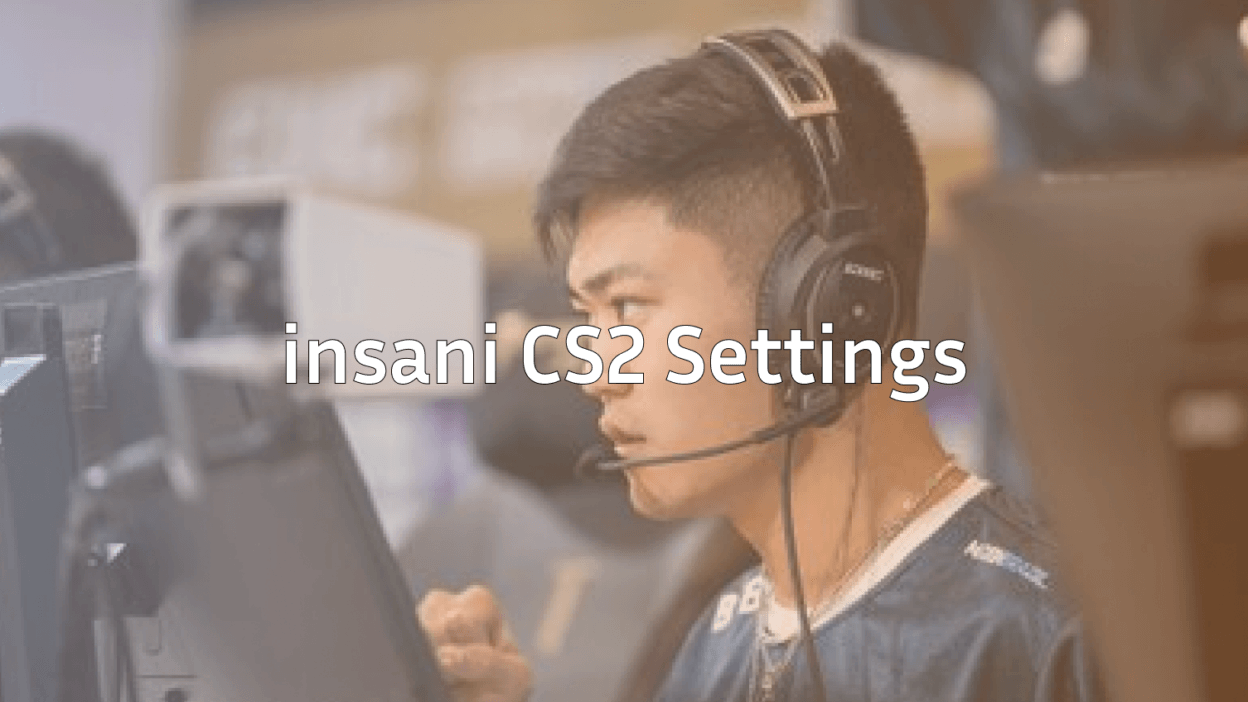
Marcelo “insani” Caires has quickly established himself as one of Brazil’s most exciting young AWPers in professional Counter-Strike. If you want to learn from insani CS2 settings and replicate his sharp, aggressive playstyle, you’re in the right place.
In this guide, we break down his complete configuration from mouse sensitivity to crosshair settings so you can test what works for one of South America’s rising stars.
Who Is insani?
insani is a Brazilian professional CS2 player who made his name competing in the South American scene. Known for his confident AWP plays and clutch potential, he’s earned recognition for performing under pressure on the biggest stages.
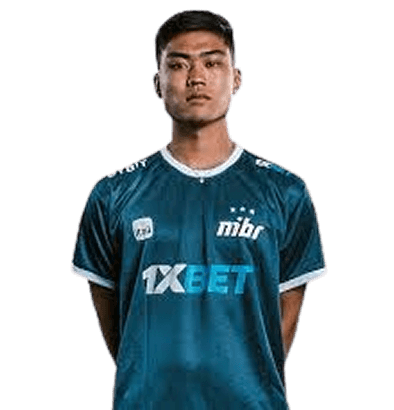
His playstyle combines quick flicks with smart positioning, making his settings particularly interesting for players who main the AWP or want to improve their sniping game.
insani Mouse Settings
Mouse settings are crucial for any AWPer, and insani uses a relatively low sensitivity setup that allows for precise flick shots while maintaining control during rifle rounds.
| Setting | Value |
|---|---|
| DPI | 800 |
| In-Game Sensitivity | 0.9 |
| eDPI | 720 |
| Zoom Sensitivity | 1.0 |
| Polling Rate | 1000 Hz |
| Windows Sensitivity | 6 |
| Raw Input | On |
An eDPI of 720 falls in the low-to-medium range preferred by many professional AWPers. This gives insani the precision needed for long-range picks while still allowing quick 180-degree turns when necessary.
If you’re new to lower sensitivities, check out settings from other pros like NiKo’s CS2 config to compare different approaches.
insani Crosshair Settings
insani uses a small, static crosshair that provides clear visibility without cluttering the screen during intense firefights.
cl_crosshairsize 1.5cl_crosshairgap -3
cl_crosshairthickness 0
cl_crosshairdot 0
cl_crosshaircolor 1
cl_crosshair_drawoutline 0
cl_crosshairstyle 4
Crosshair Breakdown
- Size 1.5: Compact crosshair that doesn’t obstruct targets
- Gap -3: Tight center gap for precise headshot alignment
- Color 1 (Green): High visibility against most map backgrounds
- Style 4: Classic static crosshair with no movement
This minimalist design helps maintain focus on the target rather than the crosshair itself essential for quick AWP flicks.
insani Video Settings
Performance matters in competitive CS2. insani prioritizes high frame rates over visual fidelity, which is standard among professional players.
| Setting | Value |
|---|---|
| Resolution | 1280×960 |
| Aspect Ratio | 4:3 |
| Scaling Mode | Stretched |
| Display Mode | Fullscreen |
Graphics Settings
| Setting | Value |
|---|---|
| Global Shadow Quality | Medium |
| Model/Texture Detail | Low |
| Shader Detail | Low |
| Particle Detail | Low |
| Ambient Occlusion | Disabled |
| High Dynamic Range | Performance |
| FidelityFX Super Resolution | Disabled |
| NVIDIA Reflex Low Latency | Enabled |
The 4:3 stretched resolution makes player models appear wider, potentially making targets easier to hit. Many Brazilian pros favor this setup, and it’s worth testing if you’re comfortable with the narrower field of view.
For optimal performance, make sure you’ve configured your CS2 launch options correctly.
insani Viewmodel Settings
Viewmodel positioning affects how your weapon appears on screen. insani uses settings that keep the gun model out of his sightlines.
viewmodel_fov 68viewmodel_offset_x 2.5
viewmodel_offset_y 0
viewmodel_offset_z -1.5
viewmodel_presetpos 3
cl_righthand 1
These settings push the weapon toward the right side of the screen, maximizing visibility on the left where many angles are held.
insani Keybinds
Efficient keybinds can make the difference in clutch situations. Here are some of insani’s notable bindings:
| Action | Key |
|---|---|
| Jump | Space / Mouse Wheel Down |
| Crouch | Left Ctrl |
| Walk | Left Shift |
| Primary Weapon | 1 |
| Secondary Weapon | 2 |
| Knife | 3 |
| Grenades | 4 |
| Jump Throw | Mouse4 |
Using mouse wheel for jumping is essential for consistent bunny hops and movement tricks. If you want to set up advanced binds, our CS2 binds guide covers everything you need.
insani’s Gear
Professional players invest in quality peripherals. Here’s what insani uses:
| Peripheral | Product |
|---|---|
| Mouse | Logitech G Pro X Superlight |
| Mousepad | Logitech G640 |
| Keyboard | Logitech G Pro X |
| Headset | HyperX Cloud II |
| Monitor | 240Hz (24.5″) |
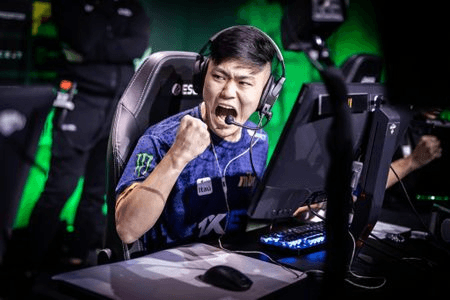
The G Pro X Superlight is one of the most popular mice among CS2 professionals due to its lightweight design and reliable sensor.
Tips for Using insani’s Settings
Before copying these settings directly, keep these points in mind:
- Sensitivity adjustment takes time — Give yourself at least a week to adapt to a new eDPI
- Resolution preference is personal — 4:3 stretched isn’t for everyone; test native resolution too
- Focus on fundamentals — Settings won’t fix poor crosshair placement or game sense
- Practice consistently — Use practice commands to warm up your aim daily
Conclusion
insani’s CS2 settings reflect the preferences of a precision-focused AWPer who values clarity and consistency over flashy visuals. His low sensitivity, compact crosshair, and stretched resolution work together to create a setup optimized for landing crucial picks.
Try these settings in your next session, but remember the best config is one you’ve personally refined through practice. Browse all rifles to find the perfect skin for your loadout once you’ve dialed in your gameplay.