

















































Cursor Camouflage Issues CS2: Fix the Invisible Mouse Bug
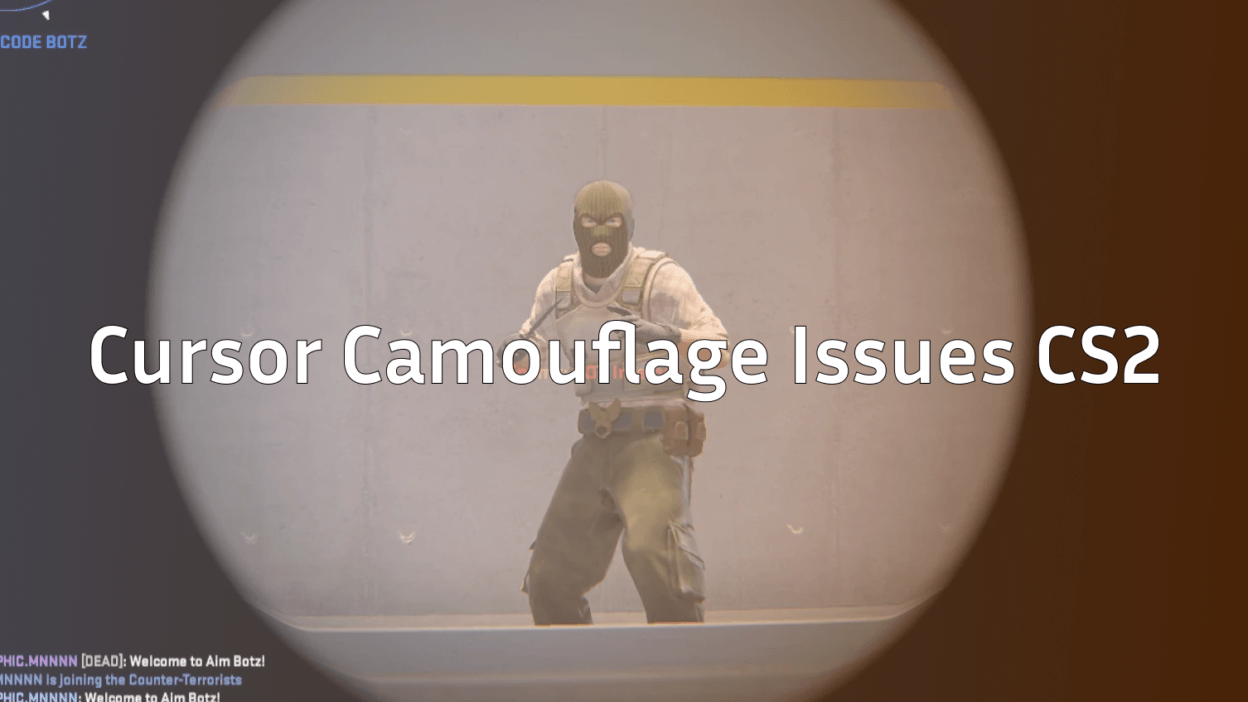
If you’ve ever booted up Counter-Strike 2 and lost your cursor inside the main menu or buy screen, you’re not alone. Cursor camouflage issues in CS2 are a widespread bug where the mouse pointer visually blends into the background or disappears entirely, making it nearly impossible to navigate menus, pick agents, or manage your loadout without squinting at the screen.
In this guide, we’ll break down what’s causing this bug, why it hits Linux users hardest, and the exact fixes that work today.
What Is the Cursor Camouflage Bug?
The cursor camouflage bug describes a rendering problem where your in-game mouse cursor either:
- Vanishes completely on certain menu backgrounds
- Blends into UI elements so you can only spot it when it moves over a contrasting area
- Flickers or duplicates across the screen
- Locks to the wrong position while your click still registers elsewhere
It’s most obvious on the main menu, the inventory screen, and the buy menu anywhere the UI uses darker or heavily textured backgrounds. Once you’re mid-round shooting an ak-47 at Long A, it’s a non-issue, but it makes navigating your cs2 skins collection a nightmare.
Why It Happens
The bug isn’t random. It stems from how CS2’s Source 2 engine handles the hardware cursor versus a software-rendered cursor, and how that interacts with your OS and GPU driver.
The Main Causes
- Linux/Proton rendering conflicts This bug is heavily reported on the ValveSoftware/csgo-osx-linux GitHub tracker, where Linux players see the cursor fail to render or blend into menu art.
- Multi-monitor setups Cursors sometimes render on the wrong display or get clipped by scaling differences.
- Fullscreen vs. borderless windowed Fullscreen exclusive mode often forces a hardware cursor that Source 2 mishandles.
- NVIDIA/AMD driver bugs Outdated or bleeding-edge drivers can break the cursor overlay layer.
- HDR or Vulkan quirks HDR pipelines can wash out or hide the cursor sprite entirely.
Quick Fixes for Cursor Camouflage Issues in CS2
Start with these before touching anything advanced. Most players fix it in under two minutes.
1. Switch to Windowed Fullscreen
Open Settings → Video → Display Mode and pick Fullscreen Windowed. This forces CS2 to use your OS cursor instead of the buggy exclusive-mode one.
2. Alt-Tab and Back
A dumb trick, but it works. Alt-Tab out of CS2, then back in. The cursor usually re-renders correctly. Combine this with proper cs2 launch options to reduce how often it triggers.
3. Toggle the Console
Bring up the developer console (~), then close it. This re-initializes the UI cursor layer.
4. Restart Steam Overlay
Steam’s overlay can conflict with the CS2 cursor. Disable it for CS2 via Right-click CS2 → Properties → Uncheck “Enable Steam Overlay” and test again.
Advanced Fixes
If the basics didn’t work, dig deeper.
Update Your GPU Drivers
Old drivers are the #1 culprit outside of Linux. Grab the latest from:
- NVIDIA: GeForce Experience or nvidia.com/drivers
- AMD: Adrenalin Software
- Intel Arc: Intel Arc Control
Disable HDR
If you’re running an HDR monitor, turn HDR off in Windows Display Settings before launching CS2. HDR tone mapping is a known cursor killer.
Force Software Cursor via Launch Options
Add this to your CS2 launch options:
-nojoy -softparticlesdefaultoffSome players report success adding -windowed -noborder to lock CS2 into a borderless window that plays nicer with the OS cursor. If you’re not sure where these go, our cs2 launch options guide walks through it step by step.
Check Your Monitor Scaling
Windows display scaling above 100% can offset the cursor hit-region from the visual cursor. Set scaling to 100% on your primary display, or run CS2 on a single monitor when troubleshooting.
Fixes for Linux and Steam Deck Players
Linux is where cursor camouflage issues in CS2 get ugly. The GitHub tracker has long threads about invisible cursors on Wayland, X11, and Proton builds. Try these:
| Setup | Fix |
|---|---|
| Wayland | Switch session to X11 for CS2 |
| KDE Plasma | Disable “Allow apps to block compositing” |
| GNOME | Turn off “Fractional Scaling” |
| Steam Deck | Toggle Gamescope on/off in Game Properties |
| NVIDIA on Linux | Use proprietary driver, not Nouveau |
Add SDL_VIDEODRIVER=x11 %command% to your Steam launch options on Linux if you’re stuck on Wayland.
When It’s Not a Bug Cursor Settings You Control
Sometimes the “invisible cursor” is actually a settings issue. Check:
- Cursor size: Windows Mouse Settings → Cursor size (bump it up to 2 or 3)
- Cursor color: Switch to inverted or custom color for contrast
- In-game HUD scale: A scale that’s too small can shrink cursor visibility on menus
While you’re auditing your peripheral setup, it’s worth reviewing pro configs like shroud’s CS2 settings a lot of menu-related quirks disappear once your sensitivity and DPI match a proven baseline.
Does This Affect Gameplay?
No the bug is menu-only. Once a round starts, the in-game crosshair takes over and rendering works normally. If you’re seeing issues during rounds (flickering, ghosting, lag), that’s a different problem. Check our guides on cs2 input lag and cs2 rubberbanding instead.
Report It to Valve
Cursor camouflage is a known issue but not fully patched. Help Valve prioritize it:
- Open the CS2 in-game menu → Help & About → Report a bug
- Attach a screenshot showing the missing cursor
- Include your OS, GPU, driver version, and display setup
The more reports on the same issue, the faster it gets flagged.
Final Thoughts
Cursor camouflage issues in CS2 are annoying but almost always fixable in under five minutes. Start with windowed fullscreen mode, update drivers, and disable HDR that trio solves it for the vast majority of players. Linux users may need to fight with display servers, but the community fixes on the GitHub tracker keep evolving.
Once your cursor is behaving, jump back into your inventory and browse the all knives catalog or check the latest kilowatt case drops on cs2.ad because a working cursor makes drooling over skins way more fun.