










































































































































































































































Mouse control is everything in CS2. Even a tiny inconsistency can cost you a round. One feature that often confuses players is mouse acceleration. In this guide, we’ll explain what it is, how it affects your gameplay, and how to turn it off to maximize precision.
What is Mouse Acceleration in CS2?
Mouse acceleration changes how far your crosshair moves based on how fast you move your mouse.
- Without acceleration: Moving your mouse 5 cm always moves the crosshair the same distance.
- With acceleration: Fast swipes move the crosshair further than slow swipes.
Impact on gameplay:
- Makes consistent aiming harder.
- Harder to muscle-memory flick shots or spray patterns.
- Can make transitioning from CS:GO to CS2 more difficult if enabled.
For optimal aim, you may want to check out our guide on how to change crosshair in CS2 to pair with mouse settings.
Does CS2 Have Mouse Acceleration?
Yes, CS2 can have mouse acceleration, but it’s often disabled by default for competitive play. Some players may unknowingly enable it through:
- Windows mouse settings
- Steam settings
- Third-party software
Pro Tip: Most professional players disable mouse acceleration to maintain consistent aim across games. You can see how pros like Shroud’s CS2 settings optimize their mouse setup.
How to Turn Off Mouse Acceleration in CS2
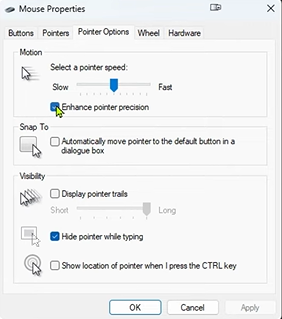
Here’s a step-by-step guide:
1. Disable in CS2 Settings
- Open CS2 → Settings → Mouse & Keyboard.
- Set Raw Input to Enabled (ensures Windows acceleration is ignored).
- Look for Mouse Acceleration and make sure it’s Disabled.
2. Disable in Windows Settings
- Go to Control Panel → Mouse → Pointer Options.
- Uncheck Enhance pointer precision.
3. Disable in Steam Launch Options (Optional but Recommended)
- Right-click CS2 → Properties → Launch Options.
- Add:
-nod3d9ex -high -novid -noforcemaccel -noforcemspd -tickrate 128
This ensures acceleration is fully disabled.
4. Test Your Settings
- Use an aim training map in CS2 to test mouse consistency.
- Check that flick shots and tracking feel natural.
For reviewing your gameplay after testing, you can also use the CS2 demo folder to analyze mouse movements and crosshair accuracy.
Mouse Acceleration vs Raw Input
| Feature | Mouse Acceleration | Raw Input |
| Affected by OS settings | Yes | No |
| Consistency | Low | High |
| Pro-level competitive use | Rarely used | Always used |
Always use Raw Input enabled for professional-level accuracy.
Why Disabling Mouse Acceleration Helps You in CS2
- Consistent Aim: Muscle memory becomes reliable.
- Better Spray Control: Tracking enemy movements is smoother.
- Faster Reaction: Flick shots are precise even under pressure.
- Easier Crosshair Placement: Predictable movements make angles easier to hold.
If you want to optimize even further, check out pro setups like Yekindar’s CS2 settings or guides on CS2 input lag fixes for smoother movement response.
Pro Tips for Perfect Mouse Control in CS2
- Use a gaming mouse with adjustable DPI for precise movements.
- Keep DPI between 400-800 and CS2 sensitivity around 1.5–2.5 for most players.
- Combine disabling acceleration with CS2 input lag fixes for ultra-responsive gameplay.
- Practice on maps like Train Callouts CS2 to build aim consistency.
Gamers often pair this with tips from why hands get cold when gaming for longer, more comfortable sessions.
Frequently Asked Question (FAQs)
Q1: Can mouse acceleration give you an advantage?
Rarely. Most pros find it inconsistent, especially in high-level CS2 matches.
Q2: Does enabling Raw Input fully disable acceleration?
Yes, Raw Input ignores Windows acceleration for the game.
Q3: Will turning off mouse acceleration instantly improve my aim?
Not instantly. You may need a few days of practice.
Q4: How do I test if acceleration is truly off?
Move your mouse at different speeds. The crosshair should move the same distance for the same physical motion.


