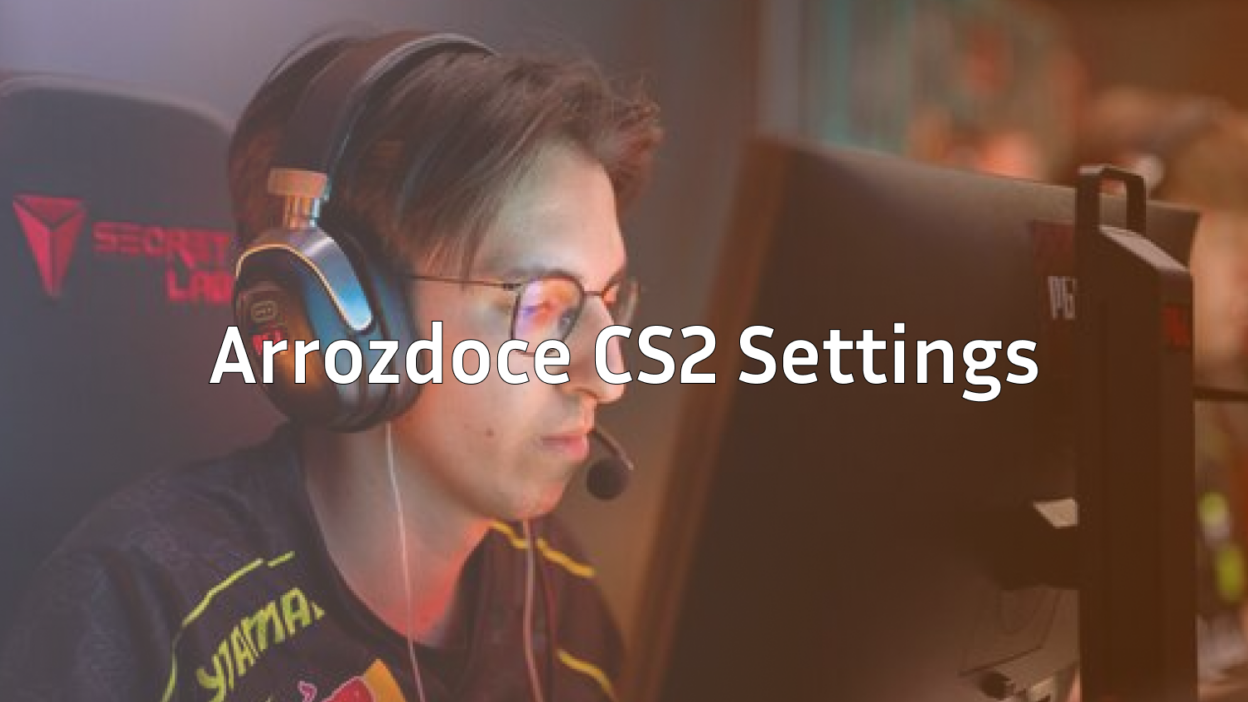
Looking to copy one of Portugal’s most promising talents? The arrozdoce CS2 settings and config have helped this young rifler make waves in the European scene with crisp aim and smart positioning.
In this guide, we’ll break down everything you need to replicate his setup from mouse sensitivity to video settings and his exact crosshair code.
Who Is Arrozdoce?
Arrozdoce (real name João Ribeiro) is a Portuguese professional CS2 player known for his aggressive rifling style and clutch potential. He’s competed for various European organizations and has built a reputation as a rising star in the Portuguese scene.
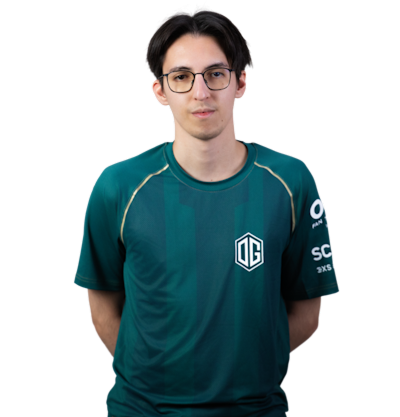
His playstyle emphasizes:
- Quick flicks and spray transfers
- Aggressive map control
- Strong pistol round performances
Understanding his settings gives insight into how he achieves that snappy aim.
Arrozdoce Mouse & Sensitivity Settings
Mouse settings are the foundation of consistent aim. Here’s what arrozdoce uses:
| Setting | Value |
|---|---|
| DPI | 800 |
| In-Game Sensitivity | 1.0 |
| eDPI | 800 |
| Zoom Sensitivity | 1.0 |
| Hz (Polling Rate) | 1000 |
| Windows Sensitivity | 6 |
| Raw Input | On |
His eDPI of 800 sits in the medium-low range, giving him enough speed for quick turns while maintaining precision for long-range duels. This is similar to many pro players who prefer controlled, consistent aim over flashy high-sens flicks.
If you’re looking to improve your rifle skills, check out the AK-47 skins or M4A1-S options to match your new settings with fresh visuals.
Arrozdoce Crosshair Settings & Code
A clean crosshair is essential for precise aim. Arrozdoce uses a small, static crosshair that doesn’t distract during sprays.
Crosshair Settings
| Setting | Value |
|---|---|
| Style | 4 (Classic Static) |
| Size | 2 |
| Thickness | 0.5 |
| Gap | -3 |
| Outline | No |
| Color | Green (1) |
| Dot | No |
Crosshair Code
Copy and paste this into your console:
CSGO-Os3yc-kDZpU-rTxYF-JvPqH-nCuKAOr apply these commands manually:
cl_crosshair_drawoutline 0cl_crosshair_dynamic_maxdist_splitratio 0.35
cl_crosshair_dynamic_splitalpha_innermod 1
cl_crosshair_dynamic_splitalpha_outermod 0.5
cl_crosshair_dynamic_splitdist 7
cl_crosshair_outlinethickness 1
cl_crosshair_sniper_width 1
cl_crosshair_t 0
cl_crosshairalpha 255
cl_crosshaircolor 1
cl_crosshaircolor_b 0
cl_crosshaircolor_g 255
cl_crosshaircolor_r 0
cl_crosshairdot 0
cl_crosshairgap -3
cl_crosshairsize 2
cl_crosshairstyle 4
cl_crosshairthickness 0.5
cl_crosshairusealpha 1
Arrozdoce Video Settings
Video settings balance visibility with performance. Arrozdoce prioritizes high frame rates over visual fidelity.
| Setting | Value |
|---|---|
| Resolution | 1280×960 |
| Aspect Ratio | 4:3 |
| Scaling Mode | Stretched |
| Display Mode | Fullscreen |
Graphics Settings
| Setting | Value |
|---|---|
| Global Shadow Quality | Medium |
| Model / Texture Detail | Low |
| Texture Filtering Mode | Bilinear |
| Shader Detail | Low |
| Particle Detail | Low |
| Ambient Occlusion | Disabled |
| High Dynamic Range | Performance |
| FidelityFX Super Resolution | Disabled |
| NVIDIA Reflex Low Latency | Enabled |
The 4:3 stretched resolution makes player models appear wider, which many pros find easier to track. Combined with low graphics settings, this ensures maximum FPS for smoother gameplay.
For optimal performance, you might also want to configure your CS2 launch options properly.
Arrozdoce Viewmodel Settings
Viewmodel positioning affects how much screen space your weapon takes up:
viewmodel_fov 68viewmodel_offset_x 2.5
viewmodel_offset_y 0
viewmodel_offset_z -1.5
viewmodel_presetpos 3
cl_righthand 1
This setup keeps the weapon model compact and out of the way, maximizing visibility in crucial areas of the screen.
Arrozdoce Keybinds
While personal preference varies, arrozdoce uses fairly standard binds with some optimizations:
| Action | Key |
|---|---|
| Jump | Space / Mouse Wheel Down |
| Crouch | Ctrl |
| Walk | Shift |
| Use | E |
| Drop Weapon | G |
| Inspect | F |
Jump-throwing grenades consistently requires proper binds. Our CS2 binds guide covers advanced binding techniques.
How to Apply These Settings
Follow these steps to copy arrozdoce’s config:
- Launch CS2 and open the settings menu
- Apply mouse settings in the Keyboard/Mouse tab
- Paste the crosshair code in console (enable developer console first)
- Set video options in the Video tab
- Apply viewmodel commands via console or autoexec
To create a permanent config file, check our guide on CS2 config location.
Should You Copy Pro Settings?
Copying arrozdoce’s settings is a great starting point, but remember:
- Sensitivity is personal—adjust based on your mousepad size and comfort
- Resolution depends on your monitor—4:3 stretched isn’t for everyone
- Hardware matters—his settings assume a capable PC
Use these settings as a baseline, then tweak over time. Many players find success with similar setups, like those covered in our NiKo CS2 settings guide.
Conclusion
The arrozdoce CS2 settings offer a balanced, competitive setup that prioritizes consistency and performance. His medium-low sensitivity, static crosshair, and stretched resolution are proven choices used by many professionals.
Start with his exact config, practice on CS2 maps you want to master, and adjust as needed. The best settings are ultimately the ones that feel right for your playstyle.
Ready to upgrade your loadout to match your new config? Browse CS2 skins to find the perfect look for your weapons.