Boombl4 CS2 Settings, Crosshair & Config Guide
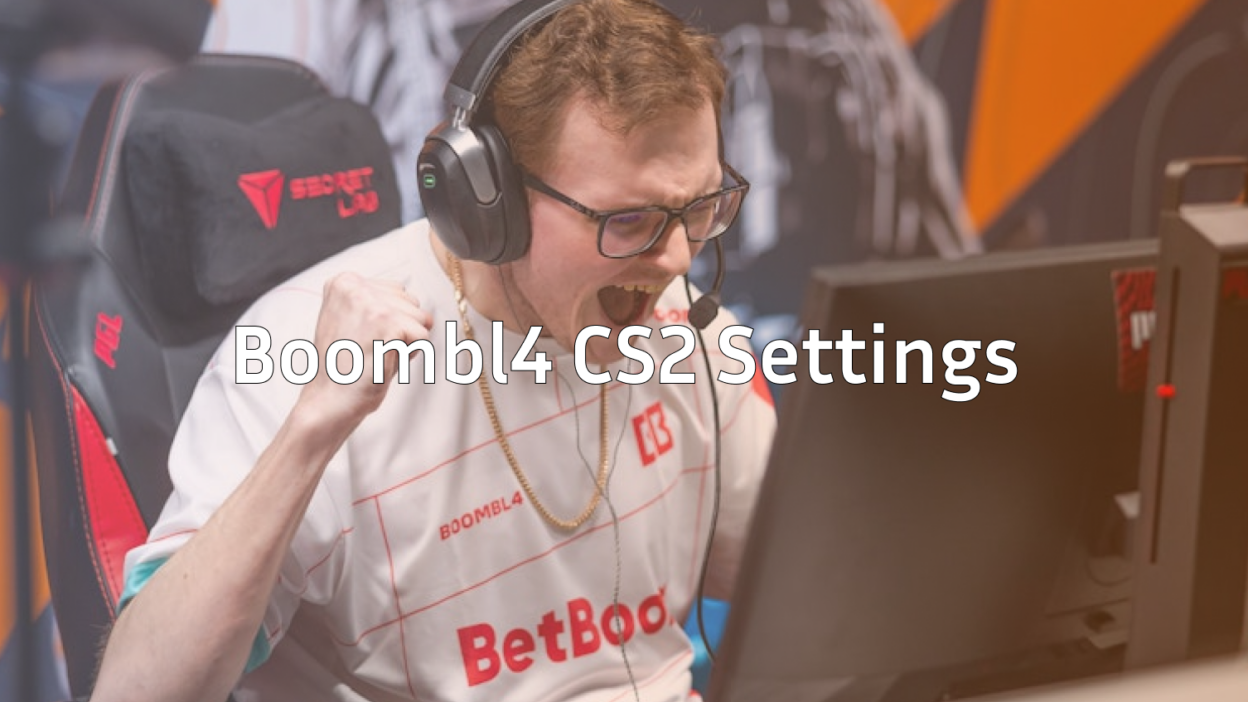
Kirill “Boombl4” Mikhailov made his name as one of the most respected in-game leaders in Counter-Strike history. Now playing in CS2, Boombl4 continues to demonstrate why his game sense and tactical prowess remain elite. This guide breaks down every aspect of his setup so you can replicate his settings.
Whether you’re looking to copy his crosshair, match his sensitivity, or understand his video settings philosophy, we’ve got you covered.
Who Is Boombl4?
Boombl4 is a Russian professional player best known for his time as the IGL of Natus Vincere, where he led the team to a historic PGL Stockholm Major 2021 victory. His calling style emphasizes structured executes, smart utility usage, and clutch decision-making.
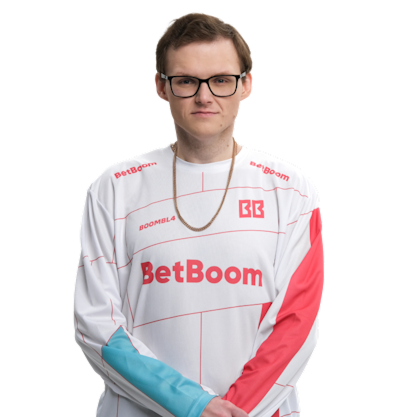
Key Career Highlights:
- PGL Major Stockholm 2021 Champion
- Multiple S-Tier tournament victories with Na’Vi
- Known for aggressive IGL style and impactful fragging
His settings reflect a balance between precision aiming and fast information gathering—exactly what you’d expect from a top-tier IGL.
Boombl4 CS2 Mouse Settings
Mouse settings are the foundation of any pro’s aim. Boombl4 uses a moderate sensitivity that allows for precise micro-adjustments while still enabling quick flicks.
| Setting | Value |
|---|---|
| DPI | 400 |
| In-Game Sensitivity | 1.52 |
| eDPI | 608 |
| Zoom Sensitivity | 1.00 |
| Hz (Polling Rate) | 1000 |
| Windows Sensitivity | 6 |
| Raw Input | On |
| Mouse Acceleration | Off |
Why this works: An eDPI of 608 sits in the low-to-medium range preferred by most pros. It gives Boombl4 enough control for holding angles while allowing quick 180° checks when needed.
If you’re transitioning from higher sensitivity, lower it gradually. Jumping straight to 608 eDPI can feel sluggish initially, but your spray control will improve dramatically.
Boombl4 CS2 Crosshair Settings
Boombl4’s crosshair is clean and minimal no distractions, just pure visibility. Here’s how to recreate it:
Crosshair Code
CSGO-vY7qK-DNm6W-KFz4V-YRdJP-zCthMManual Settings
| Setting | Value |
|---|---|
| Style | 4 (Classic Static) |
| Size | 2 |
| Gap | -2 |
| Thickness | 1 |
| Outline | Yes (Thickness 1) |
| Color | Green (1) |
| Center Dot | No |
| T-Style | No |
This crosshair provides excellent visibility on all map surfaces without cluttering your screen. The negative gap creates a tight center point for precise headshot placement.
Want to explore other pro crosshairs? Check out NiKo’s CS2 settings for a different approach to crosshair design.
Boombl4 CS2 Video Settings
Boombl4 prioritizes high frame rates over visual fidelity. As an IGL, he needs smooth gameplay to process information quickly and make split-second calls.
| Setting | Value |
|---|---|
| Resolution | 1280×960 |
| Aspect Ratio | 4:3 |
| Scaling Mode | Stretched |
| Display Mode | Fullscreen |
Graphics Settings
| Setting | Value |
|---|---|
| Global Shadow Quality | Medium |
| Model/Texture Detail | Low |
| Texture Filtering Mode | Bilinear |
| Shader Detail | Low |
| Particle Detail | Low |
| Ambient Occlusion | Disabled |
| High Dynamic Range | Performance |
| FidelityFX Super Resolution | Disabled |
| Boost Player Contrast | Enabled |
| V-Sync | Disabled |
The 4:3 stretched advantage: Player models appear wider, making targets easier to track horizontally. Many pros swear by this despite the reduced field of view.
For optimal performance, make sure you’ve configured your CS2 launch options correctly.
Boombl4 CS2 Viewmodel Settings
Viewmodel positioning affects how much screen real estate your weapon model occupies. Boombl4 uses a compact viewmodel that maximizes visibility.
| Setting | Value |
|---|---|
| Viewmodel FOV | 68 |
| Viewmodel Offset X | 2.5 |
| Viewmodel Offset Y | 0 |
| Viewmodel Offset Z | -1.5 |
| Viewmodel Presetpos | 3 |
| Bob | Disabled |
Console Commands
viewmodel_fov 68viewmodel_offset_x 2.5
viewmodel_offset_y 0
viewmodel_offset_z -1.5
viewmodel_presetpos 3
cl_bob_lower_amt 0
This setup keeps the weapon tucked into the corner, giving you maximum visibility on the right side of your screen crucial for peeking common angles.
Boombl4 CS2 Keybinds
Efficient keybinds separate good players from great ones. Boombl4’s binds emphasize quick utility access and smooth movement.
| Action | Key |
|---|---|
| Jump | Space / Mouse Wheel Down |
| Crouch | Ctrl |
| Walk | Shift |
| Use | E |
| Reload | R |
| HE Grenade | 4 |
| Flashbang | F |
| Smoke | X |
| Molotov | C |
| Decoy | – |
| Jump Throw | Mouse4 |
Pro tip: Binding jump to mouse wheel down enables consistent bunny hops and perfectly timed jump throws. Learn more about optimizing your CS2 binds for competitive play.
Boombl4’s Gear & Equipment
Using quality peripherals makes a difference at the highest level. Here’s what Boombl4 uses:
| Equipment | Model |
|---|---|
| Mouse | Logitech G Pro X Superlight |
| Mousepad | Logitech G640 |
| Keyboard | Logitech G Pro X |
| Monitor | BenQ ZOWIE XL2546K (240Hz) |
| Headset | Logitech G Pro X |
The G Pro X Superlight is a favorite among pros for its lightweight design (63g) and flawless sensor. Combined with a 240Hz monitor, Boombl4 gets buttery smooth visuals and zero input lag.
How to Apply Boombl4’s Settings
Follow these steps to implement his config:
- Copy the crosshair code and paste it in Settings > Crosshair > Share or Import
- Adjust mouse settings in Settings > Keyboard/Mouse
- Set video options in Settings > Video
- Open console and paste viewmodel commands
- Configure keybinds in Settings > Keyboard/Mouse > Keybinds
Need help finding your config files? Our guide on CS2 config location explains exactly where everything is stored.
Should You Copy Pro Settings Exactly?
Here’s the truth: pro settings are a starting point, not a destination.
Boombl4’s setup works for him because of thousands of hours of muscle memory. What you should take away:
- Low-to-medium eDPI (400-800) improves consistency
- 4:3 stretched can help with target acquisition
- Clean crosshairs reduce visual clutter
- High FPS matters more than pretty graphics
Experiment with his settings as a baseline, then adjust based on your playstyle. If you’re an entry fragger, you might want slightly higher sensitivity. If you hold angles like Boombl4, his settings might fit perfectly.
Practice Like a Pro
Having the right settings means nothing without practice. Use these resources to improve:
- Load up aim training maps in workshop
- Practice utility lineups on CS2 maps you frequently play
- Use CS2 practice commands for unlimited money and grenades
- Review your demos with CS2 replay commands
Final Thoughts
Boombl4’s CS2 settings reflect years of competitive experience at the highest level. His moderate sensitivity, clean crosshair, and performance-focused video settings create a setup optimized for consistent, tactical gameplay.
Copy his config as a foundation, but remember—the best settings are the ones you’ve practiced with. Put in the hours, and you’ll see improvement regardless of which pro you emulate.
Ready to look the part too? Browse CS2 skins to find the perfect loadout for your new setup.