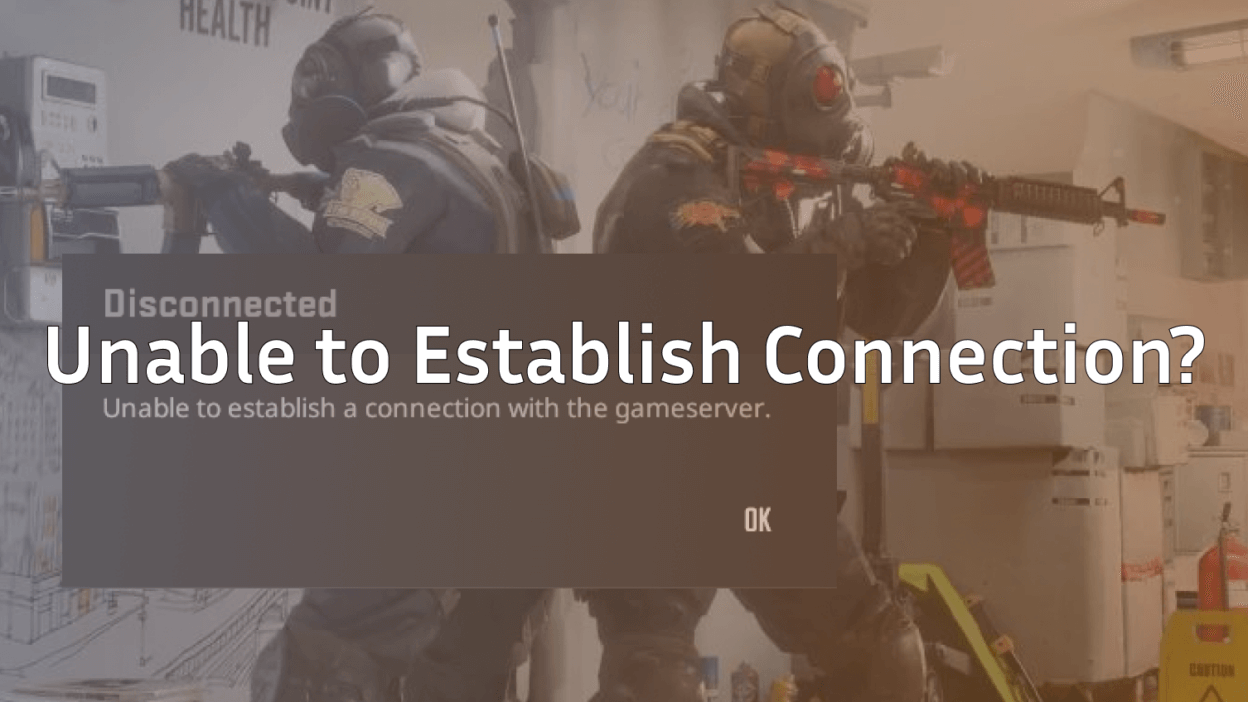
Getting hit with the “CS2 unable to establish connection” error is one of the most frustrating things in Counter-Strike 2—especially when you’re queued up, warmed up, and ready to play.
This issue usually appears as:
- Unable to establish connection to game server CS2
- Infinite “Connecting to Counter-Strike Network”
- Matchmaking stuck or failing to load
The good news? In most cases, it’s fixable in minutes. This guide breaks down why it happens, how to fix it step by step, and how to prevent it in the future.
What Does “Unable to Establish Connection” Mean in CS2?

This error means your CS2 client cannot properly communicate with Valve’s game servers. That failure can happen due to:
- Steam network issues
- CS2 server outages
- Local internet or router problems
- Corrupted game files
- VPN, firewall, or DNS conflicts
In short: your game is ready, but the connection isn’t.
Quick Checklist (Try These First)
Before deep troubleshooting, try these quick wins:
- Restart CS2 and Steam
- Restart your PC
- Switch Steam to Online mode
- Disable VPN temporarily
- Check if CS2 servers are down
If the error persists, move on to the fixes below.
Common Causes of CS2 Connection Issues
| Cause | Why It Breaks CS2 |
| Steam servers offline | CS2 relies fully on Steam networking |
| Valve matchmaking outage | You can’t connect even with perfect internet |
| Corrupted game files | Client fails handshake with server |
| ISP routing issues | Packet loss or unstable paths |
| VPN / Firewall | Blocks CS2 ports |
| DNS problems | Steam services fail to resolve |
Fix 1: Check CS2 Server Status (Very Important)
Before blaming your setup, confirm Valve servers are actually online.
If CS2 servers are down:
- You cannot fix this locally
- Wait 10–30 minutes
- Avoid repeatedly queuing (can cause cooldowns)
You can also see how server issues affect queue times in our CS2 queue times guide.
Fix 2: Restart Steam the Right Way
Don’t just close the window.
Proper restart steps:
- Exit Steam completely
- Open Task Manager
- End all Steam processes
- Relaunch Steam as Administrator
This refreshes Steam’s networking services and often fixes unable to establish connection CS2 instantly.
Fix 3: Verify CS2 Game Files (Most Reliable Fix)
Corrupted or missing files are a top cause of this error.
Steps:
- Open Steam
- Library → Counter-Strike 2
- Properties → Installed Files
- Click Verify integrity of game files
This takes 2–5 minutes and fixes most client-side issues.
If CS2 refuses to launch afterward, check our CS2 won’t launch fix guide.
Fix 4: Disable VPN, Proxy, or Network Accelerators
VPNs can:
- Block Valve matchmaking ports
- Route traffic through unstable regions
- Trigger connection timeouts
What to do:
- Disable VPN completely
- Restart Steam
- Re-queue for matchmaking
If you must use one, only trusted gaming VPNs work reliably.
Fix 5: Flush DNS (Underrated but Powerful)
DNS issues can stop CS2 from resolving Steam servers.
Windows steps:
- Press Win + R
- Type cmd
- Run as Administrator
- Enter:
ipconfig /flushdns
Restart Steam and CS2 afterward.
Fix 6: Change Steam Download Region
Sometimes your local Steam region is overloaded.
Steps:
- Steam → Settings
- Downloads
- Change Download Region
- Pick a nearby location
- Restart Steam
This often fixes cs2 connection issues during peak hours.
Fix 7: Allow CS2 Through Firewall
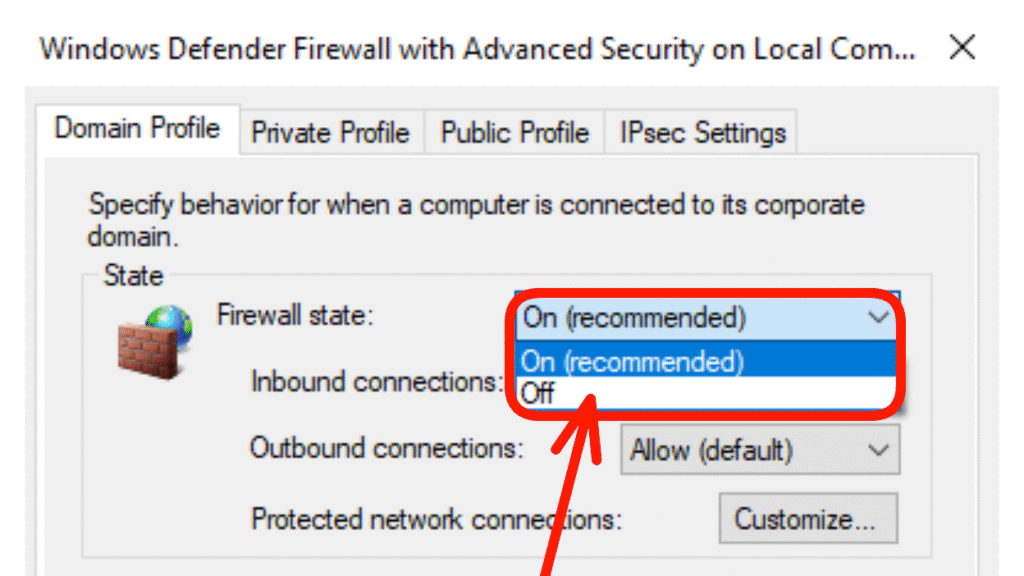
Windows Firewall can silently block CS2 networking.
Fix:
- Allow both cs2.exe and steam.exe
- Disable firewall temporarily to test
- Re-enable after confirming the issue
Fix 8: Reset Your Router (ISP-Related Fix)
If nothing else works:
- Power off router for 60 seconds
- Restart modem
- Avoid Wi-Fi if possible (use Ethernet)
Packet loss and routing issues are common causes of unable to establish connection to game server CS2.
For deeper networking issues, see our CS2 port forwarding guide.
Fix 9: Launch CS2 With Safe Network Options
Some launch settings can stabilize connections.
Add these launch options:
-novid -nojoy
Learn more in our CS2 launch options guide.
Still Not Working? Try These Advanced Fixes
- Log out and log back into Steam
- Reinstall CS2 (last resort)
- Check Windows date & time sync
- Disable background bandwidth-heavy apps
If the error appears alongside reserved server messages, read our CS2 server is reserved for game lobby guide.
How to Prevent CS2 Connection Errors in the Future
- Keep Steam always updated
- Avoid free VPNs
- Restart Steam weekly
- Use wired internet for competitive play
- Monitor packet loss (see CS2 rubberbanding guide)
Frequently Asked Questions (FAQs)
Why does CS2 keep saying unable to establish connection?
Usually due to Steam server outages, corrupted files, or VPN/firewall interference.
Is this a CS2 bug or my internet?
Most of the time it’s server-side or Steam-related, not your ISP.
Can this cause cooldowns?
Yes. Repeated failed queues can trigger temporary matchmaking cooldowns.
Does Faceit use the same servers?
No. Faceit runs separate servers, which is why Faceit may work while matchmaking doesn’t.
Final Thoughts
The CS2 unable to establish connection error is annoying—but rarely permanent.
In most cases, verifying files, restarting Steam, or disabling VPNs fixes it immediately.Bookmark this guide so next time the error pops up, you’re back in the server before your teammates finish warming up.