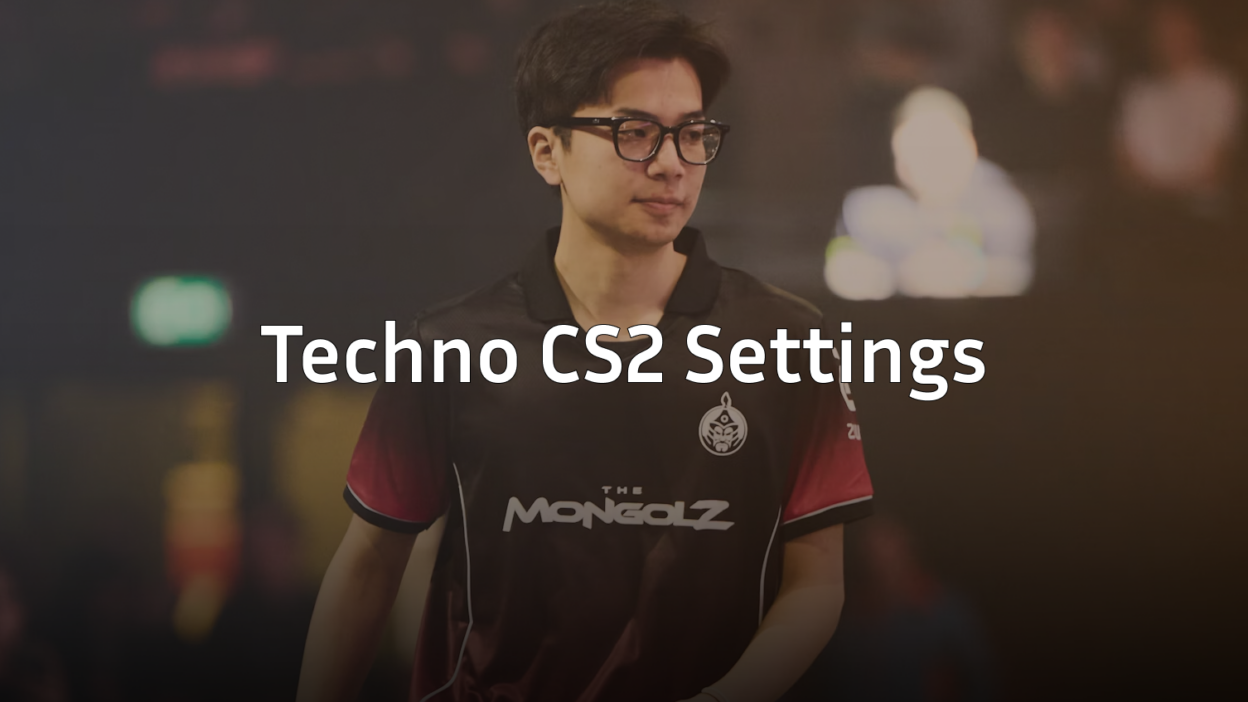
Want to frag like one of the rising stars in competitive CS2? Copying Techno CS2 settings gives you a solid foundation built on pro-level optimization. This guide breaks down his exact crosshair, sensitivity, video settings, and keybinds so you can implement them immediately.
Techno has made a name for himself with crisp aim and smart positioning. His settings reflect a balance between visibility and performance—something every competitive player needs.
Techno’s Mouse Settings
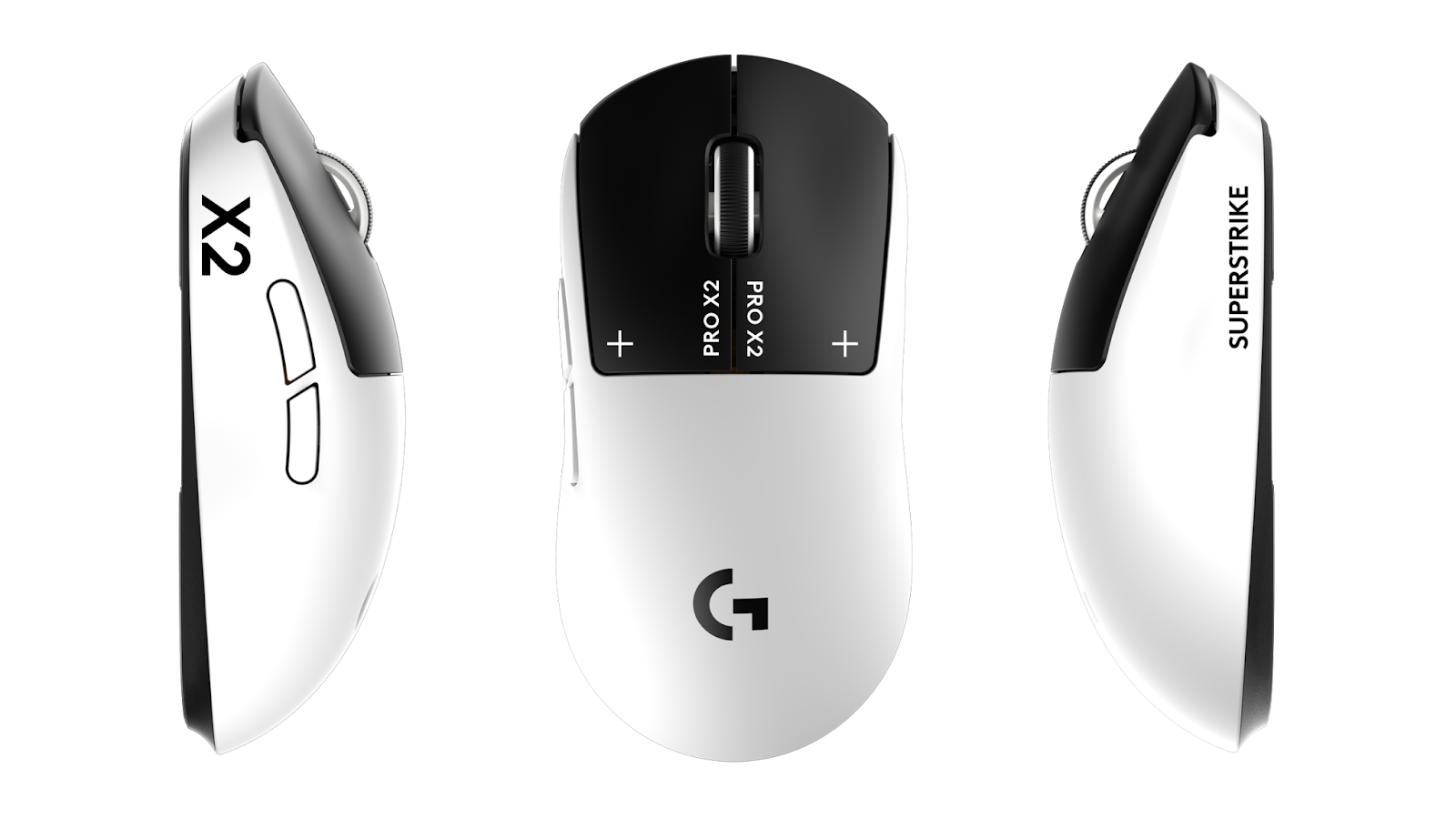
Mouse settings directly impact your aim consistency. Techno uses a setup optimized for precise tracking and flick shots.
| Setting | Value |
|---|---|
| DPI | 800 |
| In-Game Sensitivity | 1.0 |
| eDPI | 800 |
| Zoom Sensitivity | 1.0 |
| Polling Rate | 1000 Hz |
| Windows Sensitivity | 6 |
| Raw Input | On |
Key takeaway: An eDPI of 800 sits in the mid-range for pro players. It allows for controlled micro-adjustments while still enabling quick 180-degree turns when needed.
If you’re transitioning from higher sensitivity, lower it gradually over several days rather than switching cold. Your muscle memory needs time to adapt.
Crosshair Settings
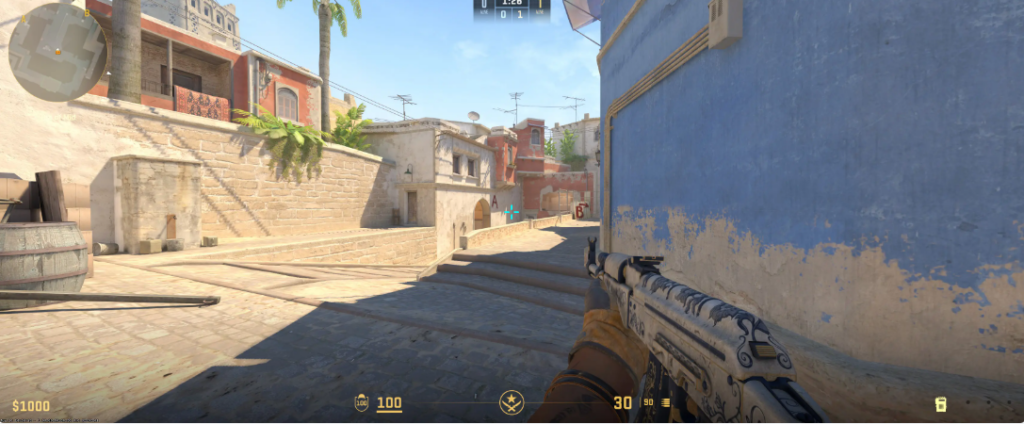
Techno’s crosshair prioritizes visibility without cluttering the screen. Here’s his exact configuration:
| Setting | Value |
|---|---|
| Style | 4 (Classic Static) |
| Color | Green (1) |
| Size | 2 |
| Gap | -2 |
| Thickness | 1 |
| Outline | Yes (0.5) |
| Dot | No |
Crosshair Code
Copy and paste this into your console:
cl_crosshair_drawoutline 1; cl_crosshair_outlinethickness 0.5; cl_crosshaircolor 1; cl_crosshairdot 0; cl_crosshairgap -2; cl_crosshairsize 2; cl_crosshairstyle 4; cl_crosshairthickness 1The static crosshair style means it won’t expand during movement or shooting. Many pros prefer this because it provides consistent reference points for spray control.
Video Settings

Performance matters more than eye candy in competitive CS2. Techno’s video settings maximize frame rates while maintaining enemy visibility.
| Setting | Value |
|---|---|
| Resolution | 1920×1080 |
| Aspect Ratio | 16:9 |
| Display Mode | Fullscreen |
| Refresh Rate | 360 Hz |
Advanced Video Settings
| Setting | Value |
|---|---|
| Boost Player Contrast | Enabled |
| V-Sync | Disabled |
| Multisampling Anti-Aliasing | 4x MSAA |
| Global Shadow Quality | Medium |
| Model/Texture Detail | Medium |
| Texture Filtering Mode | Bilinear |
| Shader Detail | Low |
| Particle Detail | Low |
| Ambient Occlusion | Disabled |
| High Dynamic Range | Performance |
| FidelityFX Super Resolution | Disabled |
Boost Player Contrast is crucial—it makes enemies stand out against backgrounds, especially in darker areas like Tunnels on Dust II or Apartments on Inferno.
For optimal performance, check out our cs2 video settings guide to understand how each option impacts your FPS.
Viewmodel Settings
Your viewmodel affects weapon positioning on screen. Techno uses a setup that keeps the gun visible without blocking sightlines.
viewmodel_fov 68; viewmodel_offset_x 2.5; viewmodel_offset_y 0; viewmodel_offset_z -1.5; viewmodel_presetpos 3These values push the weapon slightly right and down, clearing more screen space for spotting enemies.
Keybinds
Efficient keybinds reduce reaction time for utility usage. Here are Techno’s essential binds:
| Action | Key |
|---|---|
| Jump | Space / Mouse Wheel Down |
| Crouch | Left Ctrl |
| Walk | Left Shift |
| Smoke | 4 |
| Flashbang | F |
| HE Grenade | C |
| Molotov | X |
| Quick Switch | Q |
Having grenades on individual keys eliminates scroll wheel fumbling during clutch moments. The mouse wheel jump bind is essential for consistent bunny hopping.
Jump Throw Bind
alias "+jumpthrow" "+jump;-attack"; alias "-jumpthrow" "-jump"; bind "v" "+jumpthrow"This ensures pixel-perfect smoke lineups every time.
Launch Options
Techno keeps launch options minimal for stability:
-novid -tickrate 128Avoid cluttering launch options with outdated commands. Most optimization should happen through in-game settings and your cs2 nvidia settings panel.
Audio Settings
Sound positioning wins rounds. Techno’s audio setup prioritizes footstep clarity:
| Setting | Value |
|---|---|
| Master Volume | 50% |
| Audio Device | Headphones |
| EQ Profile | Crisp |
| L/R Isolation | On |
| Perspective Correction | No |
The Crisp EQ profile emphasizes higher frequencies where footsteps and reload sounds live.
How These Settings Compare to Other Pros
Techno’s eDPI of 800 aligns with many top-tier players. For comparison, you can check out NiKo CS2 settings or shroud CS2 settings to see how different pros approach their configs.
The key differences usually come down to:
- Resolution preference (native vs. stretched)
- Crosshair style (static vs. dynamic)
- Sensitivity range (low vs. medium eDPI)
Should You Copy These Settings Exactly?
Pro settings provide an excellent starting point, but personal adjustments matter. Consider these factors:
- Your hardware – A 360 Hz monitor requires different optimization than 144 Hz
- Your playstyle – AWPers often use lower sensitivity than riflers
- Your experience level – Beginners may need larger crosshairs for visibility
Start with Techno’s config, then tweak one setting at a time. Give each change at least a week before deciding if it works for you.
Conclusion
Techno’s CS2 settings combine performance optimization with competitive viability. His 800 eDPI, static crosshair, and performance-focused video config create a responsive setup that doesn’t sacrifice visibility.
Copy the settings above, practice your aim, and adjust based on your hardware and preferences. For more pro configurations and the latest CS2 skins to style your loadout, explore our complete guides.