If you’ve been playing CS2 or browsing Steam long enough, you’ve probably seen players with every achievement unlocked, even the impossible ones.
Most of the time, that’s done using Steam Achievement Manager (SAM).
But since SAM is not an official Steam tool, it comes with certain risks — especially if you care about your CS2 Trust Factor, skins, or matchmaking experience.
If you’re new to CS2, you can check out What Is MR12 in CS2? for general game structure knowledge.
This guide covers everything players need to know.
What Is Steam Achievement Manager (SAM)?

Steam Achievement Manager is a third-party tool that lets you:
- Unlock Steam achievements
- Remove (lock) achievements
- Fix bugged or unobtainable achievements
- Edit achievement states offline
Players mainly use it when an achievement is:
- Permanently bugged
- Server-dependent and no longer obtainable
- Broken after an update
- Stuck due to save corruption
If you’re a CS2 player who likes grinding stats and medals, see also:
CS2 Achievement Guide
Is Steam Achievement Manager Safe?
Here’s the truth.
SAM Does Not Trigger VAC
VAC bans only apply to gameplay cheats, not achievement tools.
If you’re curious about how VAC works, here’s a related article:
VAC Was Unable to Verify (covers VAC logic and common issues)
But SAM is still not 100% safe…
Risk 1: Developer/Game Bans
Some developers monitor achievement activity and can issue permanent game bans.
These bans show up as:
Game Ban(s) on Record
(Which can hurt your account reputation.)
Risk 2: Lowered Steam/CS2 Trust Factor
If you’re a CS2 player, this is the BIGGEST issue.
Artificial achievement behavior can negatively impact your Trust Factor, which results in:
- Worse teammates
- Higher cheater lobbies
- Longer queue times
- More toxic matches
Risk 3: Security Risk (Because It’s Third-Party)
Unverified downloads can contain malware.
If you store CS2 skins, keep your account protected:
What Is Steam Guard?
How to Use Steam Achievement Manager
Before using SAM, here is important advice.
Important Safety Tips
- Always use Steam Offline Mode.
- Do NOT instantly unlock everything.
- Avoid multiplayer games (especially CS2).
- Avoid games with anti-cheat.
- Only fix broken or unobtainable achievements.
If you’re playing CS2 competitively, you should especially read:
CS2 Cheating Problem
CS2 Rank Distribution
How to Use SAM (Simple Guide)
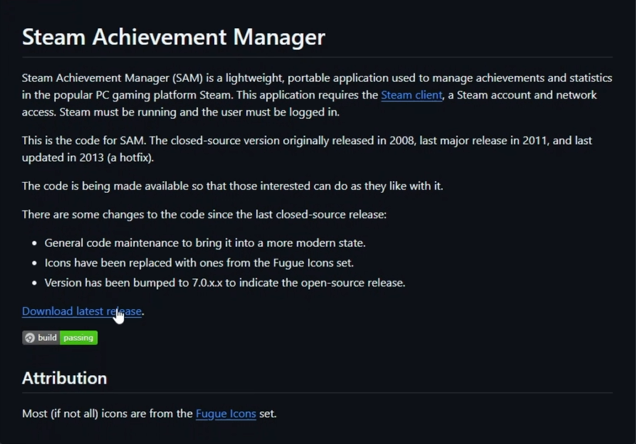
Step 1: Download SAM
From the original trusted developer’s GitHub page.

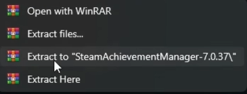
Step 2: Extract the ZIP
Inside you’ll find SAM.Picker and SAM.Game.
Step 3: Run SAM.Picker
This loads your Steam library.
Step 4: Select the Game
Search for the game whose achievements you want to modify.
Step 5: Unlock / Lock Achievements
Toggle them on or off.
If you’re fixing CS2 achievements, pair this with:
➡ Steam Cloud Saves
Step 6: Restart Steam
Your achievements will now sync.
Should You Use Steam Achievement Manager?
Here’s the practical gamer breakdown.
Yes, Use SAM If…
- A game has bugged achievements
- Servers are shut down
- Only one achievement is blocking 100% completion
Do NOT Use SAM If…
- The game has anti-cheat
- You care about your Steam/CS2 Trust Factor
- You own expensive skins (risk isn’t worth it)
- You play CS2 competitively
To genuinely improve in CS2, focus on legitimate progression using guides like:
CS2 Spray Patterns
Ancient Smokes
Common SAM Issues & Fixes
Achievements Not Syncing
Try doing the process in Steam Offline Mode first.
If Cloud overwrites your achievements, check:
➡ Steam Cloud Saves
Achievements Reverting Automatically
Some games verify them server-side — SAM cannot bypass that.
Game Ban Appears
Developer bans cannot be appealed.
Safer Alternatives to SAM
If you only want to fix broken achievements, try:
Verify Game Files
Similar to how CS2 fixes corrupted files:
Some Game Files Have Been Detected in CS2
Replay Certain Missions
Some games re-trigger achievements.
Use Built-In Commands
Some single-player titles allow console reset commands.
Use Workshop Maps (CS2 Achievements)
You might enjoy:
CS2 Practice Commands
CS2 Rethrow Last Grenade (fun training alternative)
Pros & Cons of Using SAM
| Pros | Cons |
| Fixes bugged achievements | Risk of game bans |
| Lets you relock achievements | Trust Factor impact |
| Works offline | Third-party security risk |
| Easy to use | Not recommended for CS2 |
Final Thoughts
SAM is useful only for fixing broken achievements.
But for competitive CS2 players, the downside is not worth it:
- Potential Trust Factor issues
- Possible developer bans
- Third-party security risks
- Zero support from Steam
Frequently Asked Questions (FAQs)
1. What is SAM Steam Achievement Manager?
A tool that unlocks, locks, or resets Steam achievements.
2. Is Steam Achievement Manager safe?
Safe from VAC — but not safe from game bans or trust factor drops.
3. How do I use Steam Achievement Manager?
Download → Open SAM.Picker → Select game → Modify achievements → Restart Steam.
4. Can SAM get me banned?
Yes — developer bans are possible.
5. Should CS2 players use SAM?
No. It can negatively affect matchmaking and trust factor.