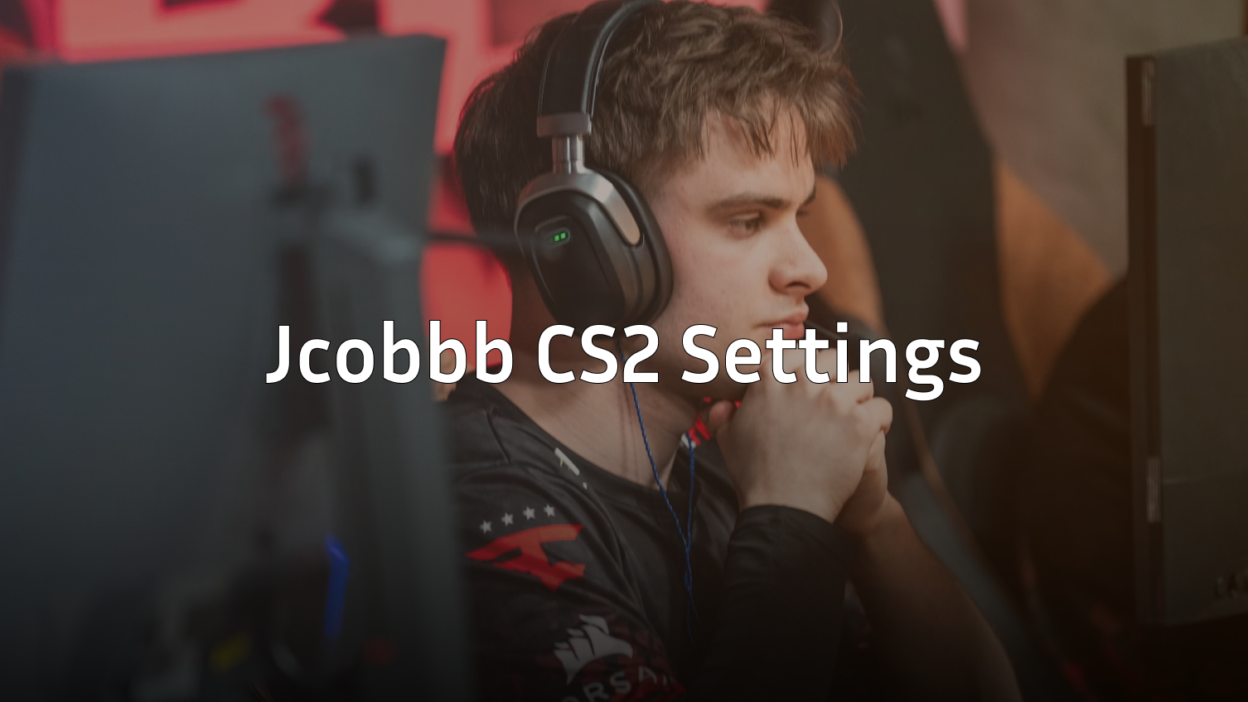
Looking to copy jcobbb CS2 settings and replicate this rising talent’s competitive edge? You’ve come to the right place.
Jcobbb has been making waves in the North American CS2 scene with crisp aim and smart positioning. His settings prioritize visibility, consistency, and raw performance – exactly what you need to climb the ranks.
Let’s break down every aspect of his config so you can implement it today.
Jcobbb’s Mouse Settings

Mouse settings form the foundation of your aim. Jcobbb runs a setup that balances precision with the ability to make quick flick shots.
| Setting | Value |
|---|---|
| DPI | 800 |
| In-Game Sensitivity | 0.9 |
| eDPI | 720 |
| Zoom Sensitivity | 1.0 |
| Hz (Polling Rate) | 1000 |
| Windows Sensitivity | 6 |
| Raw Input | On |
| Mouse Acceleration | Off |
His eDPI of 720 sits in the low-to-medium range, which is common among professional players. This gives you enough control for precise AWP flicks while maintaining the accuracy needed for rifle spray control.
Key takeaway: Keep raw input enabled and mouse acceleration disabled for consistent muscle memory.
Crosshair Settings
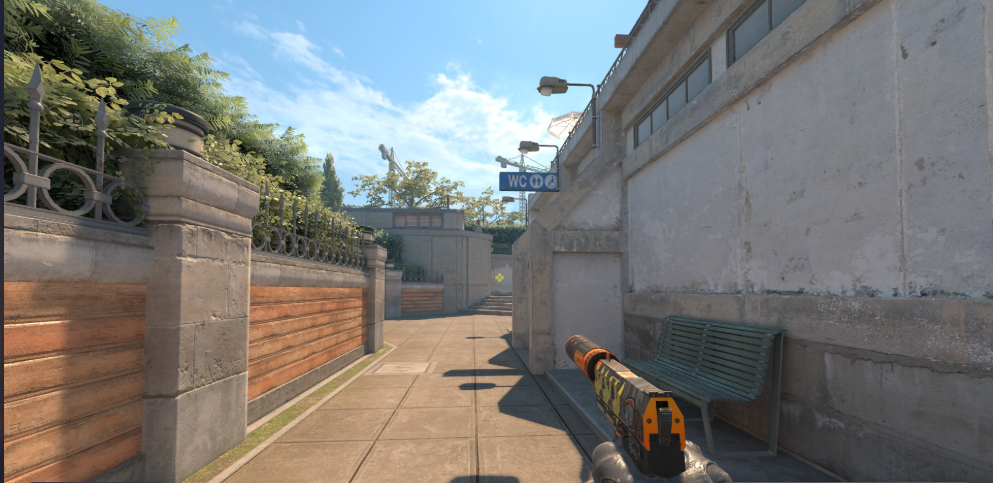
Jcobbb uses a clean, static crosshair that doesn’t distract during firefights. Here’s his exact configuration:
| Setting | Value |
|---|---|
| Style | 4 (Classic Static) |
| Size | 2 |
| Gap | -2 |
| Thickness | 1 |
| Outline | Yes (Thickness 1) |
| Color | Green (1) |
| Dot | No |
You can copy this crosshair using the following console command:
cl_crosshair_drawoutline 1; cl_crosshair_outlinethickness 1; cl_crosshaircolor 1; cl_crosshairdot 0; cl_crosshairgap -2; cl_crosshairsize 2; cl_crosshairstyle 4; cl_crosshairthickness 1The negative gap creates a tight crosshair that helps with headshot placement, especially when holding angles on maps like Mirage or Inferno.
Video Settings

Jcobbb prioritizes frame rate over visual fidelity. High FPS means smoother gameplay and reduced input lag – critical advantages in competitive matches.
| Setting | Value |
|---|---|
| Resolution | 1280×960 |
| Aspect Ratio | 4:3 |
| Scaling Mode | Stretched |
| Display Mode | Fullscreen |
Advanced Video Settings
| Setting | Value |
|---|---|
| Boost Player Contrast | Enabled |
| V-Sync | Disabled |
| Multisampling Anti-Aliasing | 4X MSAA |
| Global Shadow Quality | Medium |
| Model/Texture Detail | Low |
| Texture Filtering Mode | Bilinear |
| Shader Detail | Low |
| Particle Detail | Low |
| Ambient Occlusion | Disabled |
| High Dynamic Range | Performance |
| FidelityFX Super Resolution | Disabled |
The 4:3 stretched resolution makes player models appear wider, which many pros find easier to track. If you’re coming from 16:9, expect an adjustment period – but the benefits are worth it. For more optimization tips, check out our CS2 graphic settings guide.
Viewmodel Settings
A proper viewmodel keeps your weapon from blocking crucial visual information during gameplay.
viewmodel_fov 68; viewmodel_offset_x 2.5; viewmodel_offset_y 0; viewmodel_offset_z -1.5; viewmodel_presetpos 3; cl_righthand 1| Setting | Value |
|---|---|
| Viewmodel FOV | 68 |
| Offset X | 2.5 |
| Offset Y | 0 |
| Offset Z | -1.5 |
| Preset Position | 3 |
| Hand | Right |
This configuration pushes the weapon model toward the edge of your screen, maximizing your view of the battlefield.
Radar Settings
Jcobbb’s radar setup provides maximum map awareness without being intrusive:
| Setting | Value |
|---|---|
| Radar Centers Player | Yes |
| Radar Scale | 0.9 |
| Radar HUD Size | 1.0 |
| Radar Map Zoom | 0.5 |
| Toggle Shape With Scoreboard | Yes |
A zoomed-out radar helps you track teammate rotations and predict enemy positions – essential for reading eco rounds and planning AK-47 pushes.
Audio Settings
Sound cues win rounds. Here’s how jcobbb configures his audio:
| Setting | Value |
|---|---|
| Master Volume | 50% |
| Audio Device | Headphones |
| EQ Profile | Crisp |
| L/R Isolation | 50% |
| Perspective Correction | No |
The Crisp EQ profile emphasizes footsteps and gunshots, making it easier to pinpoint enemy locations through walls and around corners.
Keybinds
While keybinds are personal preference, jcobbb uses a fairly standard layout:
| Action | Key |
|---|---|
| Jump | Space / Mouse Wheel Down |
| Crouch | Ctrl |
| Walk | Shift |
| Inspect Weapon | F |
| Drop Weapon | G |
| Use | E |
Pro tip: Binding jump to mouse wheel down makes bunny hopping more consistent.
Gear and Peripherals
Your hardware matters. Here’s what jcobbb uses:
| Peripheral | Product |
|---|---|
| Mouse | Logitech G Pro X Superlight |
| Mousepad | Artisan FX Zero |
| Keyboard | Wooting 60HE |
| Headset | HyperX Cloud II |
| Monitor | 240Hz+ Gaming Monitor |
The Wooting 60HE features analog switches that allow for adjustable actuation points – a growing trend among competitive players who want faster key registration.
Why These Settings Work
Jcobbb’s configuration follows principles that most professional players share:
- Low eDPI for precise aim control
- Stretched 4:3 for wider player models
- Minimal visual clutter for maximum FPS
- Static crosshair for consistent placement
These aren’t flashy settings – they’re functional. The goal is removing variables so your skill determines the outcome, not your config.
If you want to see how other pros approach their setups, compare these with w0nderful CS2 settings or broky CS2 settings for different perspectives.
Final Thoughts
Copying jcobbb CS2 settings gives you a solid foundation, but remember – settings alone won’t make you a better player. Spend time in deathmatch and aim trainers to build muscle memory with your new config.
Start with these settings exactly as listed, then make small adjustments based on your preferences. Once you’ve dialed in your setup, browse CS2 skins to customize your loadout and look good while fragging out.