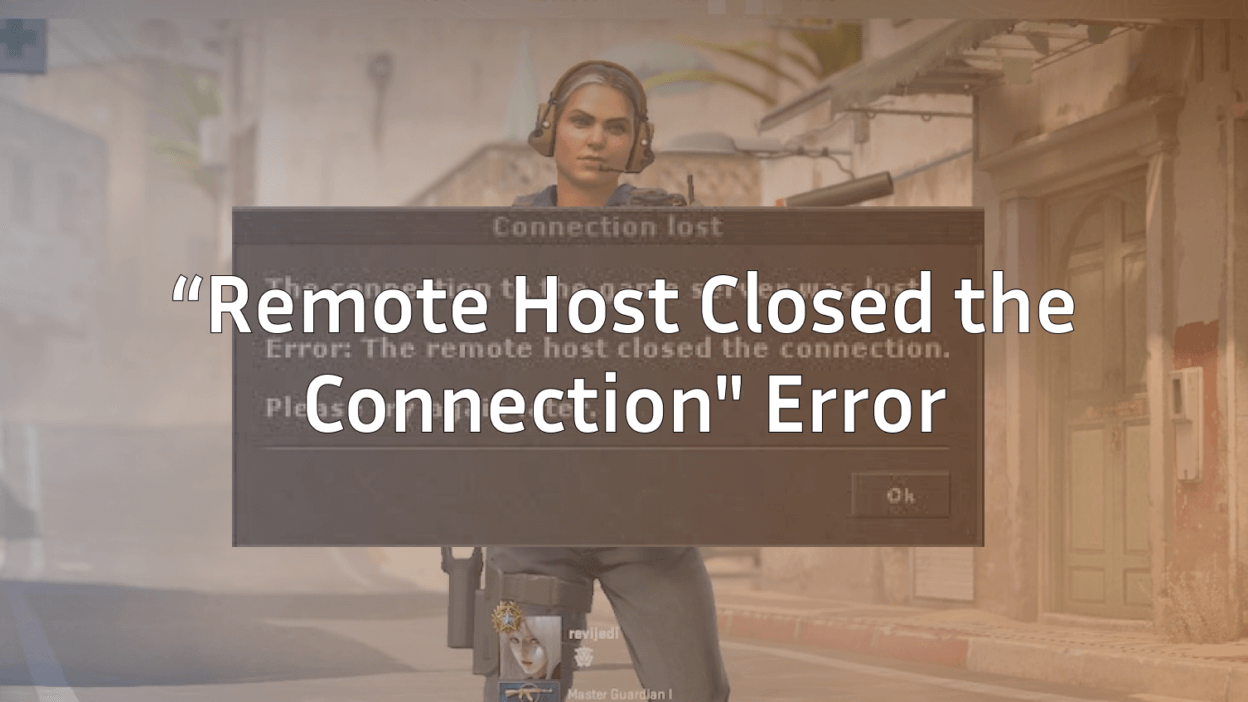
If you were in the middle of a clutch on CS2 Mirage callouts and suddenly got booted to the main menu with the message “The remote host closed the connection,” you know how tilting it can be. Unlike a standard “Connection Timed Out” error, this one specifically means the server (the “host”) decided to cut the cord on your session.
Whether you’re trying to unlock Premier in CS2 or just playing a casual game, this error can stem from your network, Steam’s servers, or even outdated game files. Here is the definitive guide to fixing remote host closed the connection in CS2.
Quick Fixes to Try First
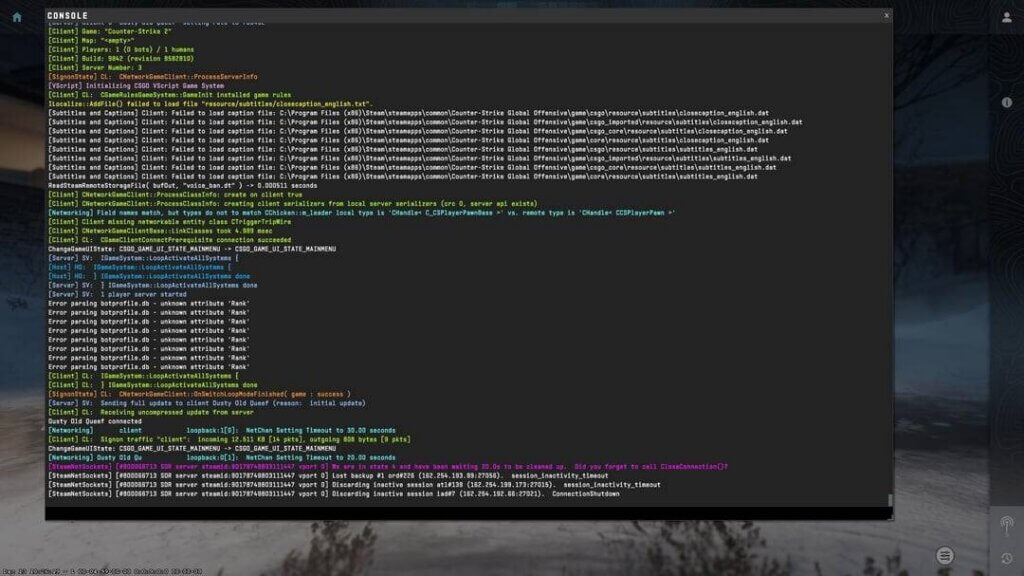
Before diving into deep technical settings, try these “gamer-certified” basics:
- Restart Steam & CS2: Simple, but it clears temporary session bugs.
- Check Server Status: Sometimes it’s not you; it’s Valve. Visit a third-party status tracker to see if the CS2 server status is down.
- Power Cycle Your Router: Unplug it for 60 seconds. This flushes the DNS cache at the hardware level.
1. Verify Integrity of Game Files
Corrupted files often cause the server to reject your connection for security or stability reasons.
- Open Steam Library.
- Right-click Counter-Strike 2 > Properties.
- Go to Installed Files.
- Click Verify integrity of game files.
If Steam finds missing files, it will redownload them. This is a common fix for many errors, including when VAC was unable to verify your session.
2. Adjust net_maxroutable Command
This is a “secret” fix that has helped players since the early days. If your network packets are too large for your router to handle, the remote host might drop you.
- Open your CS2 console.
- Type net_maxroutable 600 and hit Enter.
- The default is usually 1200. Lowering this can help unstable connections stay “under the radar” of strict firewalls.
3. Flush DNS and Reset IP Stack
Digital “cobwebs” in your Windows network settings can cause the remote host closed connection cs2 error.
Open Command Prompt (Admin) and run these commands one by one:
Plaintext
ipconfig /flushdns
ipconfig /release
ipconfig /renew
netsh winsock reset
Restart your PC after doing this to ensure a fresh handshake with your ISP.
4. Fix Your Launch Options
Using outdated launch options from CS:GO can cause serious stability issues in Source 2.
- Right-click CS2 in Steam > Properties.
- Look at the Launch Options box.
- Clear everything out. Modern CS2 is well-optimized; you rarely need complex strings anymore. If you must use them, stick to the basics found in our CS2 launch options guide.
Comparison of Connection Fixes
| Fix Method | Best For | Difficulty |
| Verify Files | Corrupted game data | Easy |
| Flush DNS | ISP routing issues | Medium |
| net_maxroutable | Packet size/Router issues | Easy |
| Ethernet Cable | CS2 packet loss | Physical |
5. Disable VPNs and Overlays
While a VPN can sometimes help with CS2 routing issues, it often does the opposite by adding an extra layer of latency that the server might reject. Similarly, third-party overlays (Discord, MSI Afterburner) can occasionally trigger a disconnect. Try turning them off to see if the remote host closed the connection cs2 error persists.
Why is this happening on Community Servers?
If you only get this error on CS2 custom maps or community servers, the issue is likely a server-side plugin crash. If the server restarts or a mod breaks, it will force-close all connections. If you can play on official Valve servers without issue, the fault lies with the community host.
Pro Tip: If you’re tired of technical errors and just want to see some cool skins, check out the cases with Butterfly knives while you wait for the server to come back online!
Troubleshooting Checklist
- [ ] Checked if Steam is down?
- [ ] Verified game integrity?
- [ ] Switched from Wi-Fi to Ethernet?
- [ ] Updated your CS2 graphic settings?
- [ ] Disabled “Energy Efficient Ethernet” in Device Manager?
By following these steps, you should be back to hitting headshots with s1mple’s CS2 settings in no time.