When CS2 freezes on “loading screen” or “downloading content,” it’s usually a mix of file errors, cache corruption, and driver problems. Outdated configs, overlays, and shader bugs also play a big role — especially after Steam or GPU driver updates.
If you’re jumping back in after exploring new skins or cases (like what cases have Karambits in CS2 or CS2 knife odds), these issues tend to appear more often because content downloads trigger extra shader compiling.
Quick Fixes (Try These First)
1. Verify Game Files
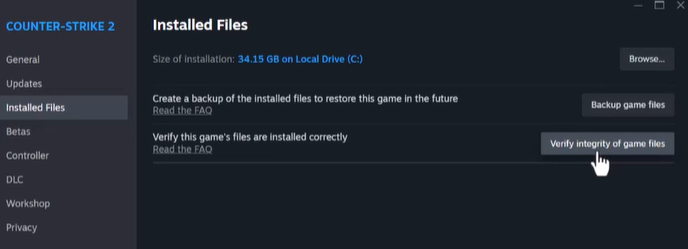
Steam → Library → CS2 → Properties → Local Files → “Verify Integrity”.
If the issue started after playing custom maps, this can fix missing assets. You can also learn more about safe Workshop setups in CS2 custom maps.
2. Run CS2 as Administrator
Right-click Steam or CS2 → Run as Administrator.
3. Clear Shader & Download Cache
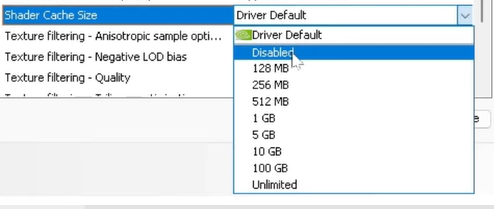
Steam → Settings → Downloads → Clear Download Cache.
Then clear Windows DirectX Shader Cache.
Useful if you recently changed video settings or used advanced tweaks like CS2 launch options.
4. Disable Overlays
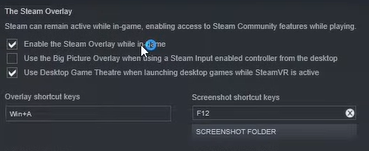
Turn off:
- Discord overlay
- NVIDIA/AMD overlay
- Steam overlay
5. Update GPU Drivers
Always install the latest stable version.
If CS2 shows a black screen afterward, refer to CS2 black screen on launch.
Advanced Fixes For Stubborn Loading Issues
Reset Video Config (cs2_video.txt)
Delete cs2_video.txt to reset graphics settings.
If you’re experimenting with different FOVs or crosshairs like in how to change FOV in CS2 or CS2 crosshair guide, old configs may conflict.
Full Cache + Steam Client Refresh
- Clear Shader & Download Cache
- Restart Steam
- Sign out → Sign in
- If still stuck: reinstall Steam (not CS2)
Clean GPU Driver Reinstall
Use DDU → Install new drivers.
Great if you recently used high-refresh-rate configs or pro settings like ZywOo CS2 settings or m0NESY CS2 settings.
Network / Disk Checks
- Ensure stable network
- Add CS2 to firewall exceptions
- Keep enough disk space for shader cache
- Avoid running downloads during CS2 launch
If Steam fails to connect at all, check unable to establish connection with gameserver.
Fix for Downloading Content (0%)
This specific issue is very common after updates or when switching between maps frequently, especially competitive maps that require heavy shader compiling like:
Do this:
- Clear Steam Download Cache
- Restart Steam
- Verify CS2 game files
- Update GPU drivers
- Disable overlays
If it loops endlessly, a full reinstall is often the fastest fix.
Prevent CS2 Loading Screen Problems in Future
- Clear shader cache after major updates
- Keep GPU drivers updated
- Avoid unstable overlays
- Maintain free disk space
- Use clean launch options (avoid long custom strings)
- If you switch settings often (FOV, viewmodel, crosshair), keep configs tidy — guides like how to change viewmodel and how to copy crosshair help with clean setups
Clean Start Routine (Ultimate Fix Checklist)
Do these in order:
- Update GPU driver (clean install)
- Clear Steam Download Cache
- Clear Windows Shader Cache
- Delete cs2_video.txt
- Disable overlays
- Launch CS2 in Windowed mode
- Verify game files
- Reinstall Steam or CS2 if still stuck
If CS2 still freezes or loads forever, you may also be facing deeper issues like CS2 freezing or CS2 crashing — both have dedicated guides.
Frequently Asked Questions (FAQs)
1. Why is CS2 stuck on the loading screen?
CS2 can freeze on the loading screen due to corrupted game files, outdated GPU drivers, overlay conflicts, or broken shader/cache files. Network issues can also cause “downloading content” loops.
2. How do I fix CS2 stuck on downloading content?
- Clear Steam Download Cache
- Verify game files
- Update GPU drivers
- Disable overlays
- Ensure stable network and free disk space
If the problem persists, a full reinstall may be necessary.
3. Does verifying game files fix CS2 loading issues?
Yes! Verifying files repairs missing or corrupted game assets, which is often the main reason CS2 freezes at startup.
4. Do GPU drivers affect CS2 loading?
Absolutely. Outdated or corrupted GPU drivers can prevent shaders from compiling correctly, causing CS2 to freeze on the loading screen or during “downloading content.”
5. Will disabling overlays help CS2 load faster?
Yes. Overlays like Discord, NVIDIA/AMD, or Steam can interfere with CS2’s startup, especially during shader compilation. Disabling them often solves freezes.
Final Thoughts
CS2 getting stuck on loading screen or “downloading content” is frustrating, but the fix is usually simple — corrupted cache, mismatched configs, or outdated drivers.