If you want smoother FPS, better visibility, faster practice setups, or just more control over Counter-Strike 2, learning CS2 console commands is one of the easiest upgrades you can make.
The CS2 developer console is basically your “gamer control panel” — where you can tweak performance, HUD settings, crosshair behavior, practice tools, and much more.
In this guide, you’ll find the best CS2 console commands, including a complete CS2 console commands list, plus commands specifically for:
- Higher FPS
- Better performance
- Practice & grenades
- Competitive quality-of-life
No fluff, no outdated junk — just commands that actually help.
What Are CS2 Console Commands?
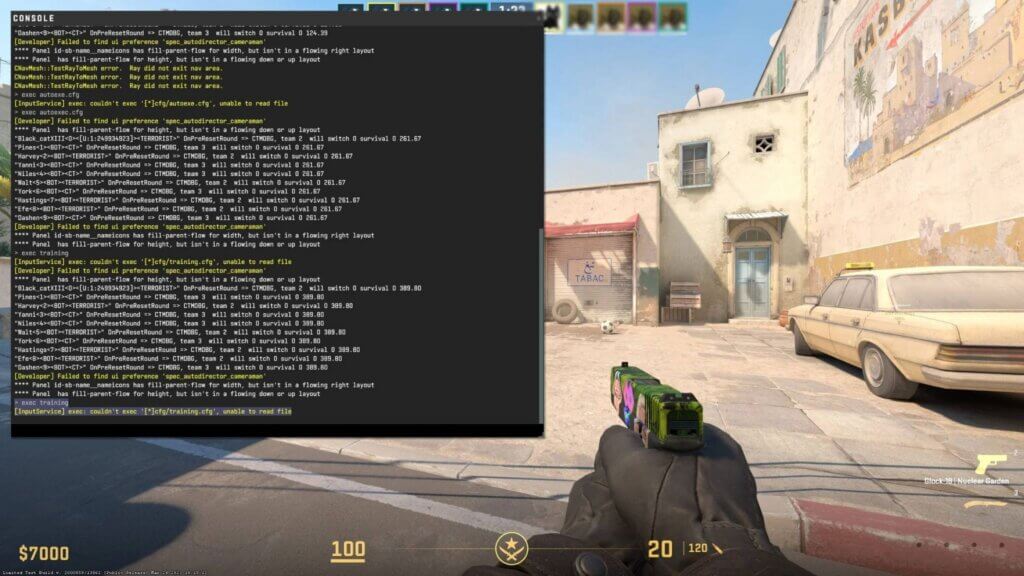
Console commands are text instructions you type into the CS2 developer console to change game settings instantly.
These commands can help you:
- Boost FPS
- Reduce distractions
- Improve practice sessions
- Customize your HUD
- Adjust networking
- Save configs
Think of them as shortcuts that pros and serious players use daily.
How to Enable the Console in CS2
Before using any commands, you need the console turned on:
- Open Settings
- Go to Game
- Enable Developer Console (~)
- Press the ~ key in-game to open it
Now you’re ready.
Best CS2 Console Commands (Quick Setup)
If you want a fast starter pack, these are some of the best CS2 console commands most players should use right away:
fps_max 0
cl_showfps 1
cq_netgraph 1
r_drawtracers_firstperson 0
volume 0.5
hud_scaling 0.85
These improve performance, visibility, and overall comfort.
CS2 Console Commands for FPS
Many players search for cs2 console commands for fps because CS2 can feel heavy on mid-range PCs.
Here are the top FPS-focused commands:
Uncap FPS
fps_max 0
- Removes the FPS limit completely
- Best for high-refresh monitors (144Hz/240Hz)
If you want a stable cap instead:
fps_max 300
Show FPS Counter
cl_showfps 1
Simple FPS display in the corner.
For deeper stats:
cq_netgraph 1
This shows ping, FPS, packet loss, and more.
Also check our full guide on FPS display: How to Show FPS in CS2
Reduce Visual Noise (Boost Clarity)
r_drawtracers_firstperson 0
- Removes your own bullet tracers
- Helps spraying feel cleaner
- Slight performance improvement
Disable Motion Blur (If Enabled)
r_motionblur 0
Motion blur can reduce clarity in fast fights.
CS2 Console Commands for Better Performance
If you want smoother gameplay overall, these cs2 console commands for better performance are worth using.
Improve Input Responsiveness
cl_input_enable_raw_keyboard 1
Reduces Windows interference with key inputs.
Optimize Networking Feel
rate 786432
cl_updaterate 128
cl_cmdrate 128
These help your connection stay consistent (especially on good internet).
If you’re struggling with lag spikes, check: Fix CS2 Packet Loss
Reduce Stuttering
engine_low_latency_sleep_after_client_tick 1
This can help reduce micro-stutters on some systems.
More stutter fixes here: CS2 Stuttering Fix Guide
CS2 Console Commands List (Most Useful Categories)
Below is a clean CS2 console commands list broken into the commands players actually use.
HUD & UI Commands
| Command | What It Does |
| hud_scaling 0.85 | Changes HUD size |
| cl_hud_color 5 | Adjust HUD color |
| cl_showloadout 1 | Always show weapon loadout |
| cl_hide_avatar_images 1 | Removes avatars for less clutter |
Want full HUD control?
CS2 HUD Guide
Crosshair & Viewmodel Commands
cl_crosshairsize 2.5
cl_crosshairgap -3
cl_crosshairthickness 1
For viewmodel tweaks:
viewmodel_fov 68
viewmodel_offset_x 2
viewmodel_offset_y 2
viewmodel_offset_z -2
Full guide here: Change CS2 Viewmodel
Crosshair guide: CS2 Crosshair Commands
Audio Commands
volume 0.5
snd_mute_losefocus 0
- Keeps sound active when tabbed out
- Helpful for Discord + CS2 multitasking
Best full audio setup: Best CS2 Audio Settings Guide in 2026
Practice & Offline Commands
Practice commands are essential for improving utility.
Enable cheats in offline:
sv_cheats 1
Infinite ammo:
sv_infinite_ammo 1
Grenade trajectory:
sv_grenade_trajectory_prac_pipreview 1
Restart round instantly:
mp_restartgame 1
Full practice guide: CS2 Practice Commands
Smoke practice: CS2 Smoke Practice Commands
Bot Commands
Add bots:
bot_add
Kick bots:
bot_kick
Stop bots:
bot_stop 1
Bot control guide: CS2 Bot Commands
Fun & Movement Commands
Noclip bind:
bind v noclip
Bhop practice:
sv_autobunnyhopping 1
sv_enablebunnyhopping 1
More movement commands: CS2 Bhop Commands
Best CS2 Console Commands for Competitive Players
If you mostly play Premier or Faceit, these are must-haves:
fps_max 0
cq_netgraph 1
r_drawtracers_firstperson 0
snd_mute_losefocus 0
hud_scaling 0.85
cl_showloadout 1
Want pro-level settings inspiration?
Check these player configs:
How to Save Commands (Autoexec Method)

Typing commands every launch is annoying.
Instead, create an autoexec.cfg file.
Check this CS2 Autoexec Guide.
Once done, your commands apply automatically every time you start CS2.
Frequently Asked Questions (FAQs)
What are the best CS2 console commands?
The best ones include:
- fps_max 0
- cq_netgraph 1
- r_drawtracers_firstperson 0
- hud_scaling 0.85
Do console commands increase FPS?
Yes — especially commands that reduce visual clutter or uncap FPS.
Are CS2 console commands allowed?
Yes, as long as they are built-in commands and not third-party cheats.
What is the full CS2 console commands list?
CS2 has hundreds, but this guide covers the most useful commands for performance, FPS, HUD, practice, and competitive play.
Final Thoughts
Mastering CS2 console commands is one of the fastest ways to level up your game without changing hardware.
Whether you want more FPS, smoother performance, better practice tools, or cleaner competitive settings, the console gives you full control.
If you’re building your own setup, start with the commands above, save them in autoexec, and tweak from there.