What is Packet Loss in CS2?
Packet loss happens when data packets fail to travel from your PC to the CS2 server and back. Even small packet loss can cause:
- Rubberbanding or teleporting players
- Skipped animations or shots not registering
- Inconsistent hit registration
- Sudden FPS drops or stutters
Anything above 1–2% packet loss will noticeably affect competitive gameplay.
Check out our CS2 rubberbanding guide if you’re experiencing teleporting alongside packet loss.
Common Causes of CS2 Packet Loss
| Cause | Description | How it Affects CS2 |
| Weak Wi-Fi | Interference, distance, or congested networks | Dropped packets, stutters |
| ISP Throttling | Provider limits traffic | High ping spikes & lost data |
| Background Apps | Downloads, streaming, or updates | Reduced bandwidth, lag spikes |
| Network Hardware | Old router, cables | Unstable connection |
| Game Server Issues | Server-side latency | Out-of-control packet loss |
Pro Tip: Sometimes CS2 packet loss feels local but the root is server-side. Switching to a closer server can reduce packet loss drastically.
How to Check Packet Loss in CS2
- Open CS2 console (~)
- Type: net_graph 1
- Look at loss value:
- 0–1%: Normal
- 2–5%: Minor issues
- 5%+: Needs immediate attention
- Optional: Use ping to check server latency
For a complete guide to commands, see CS2 practice commands.
Also, check your Trust Factor in CS2 if your network is fine but matchmaking feels unstable.
Step by Step CS2 Packet Loss Fix
Here’s what actually works in 2026 to reduce packet loss in CS2:
1. Optimize Your Network
- Switch from Wi-Fi to wired Ethernet (best stability).
- Close apps using bandwidth: Discord streaming, YouTube, downloads.
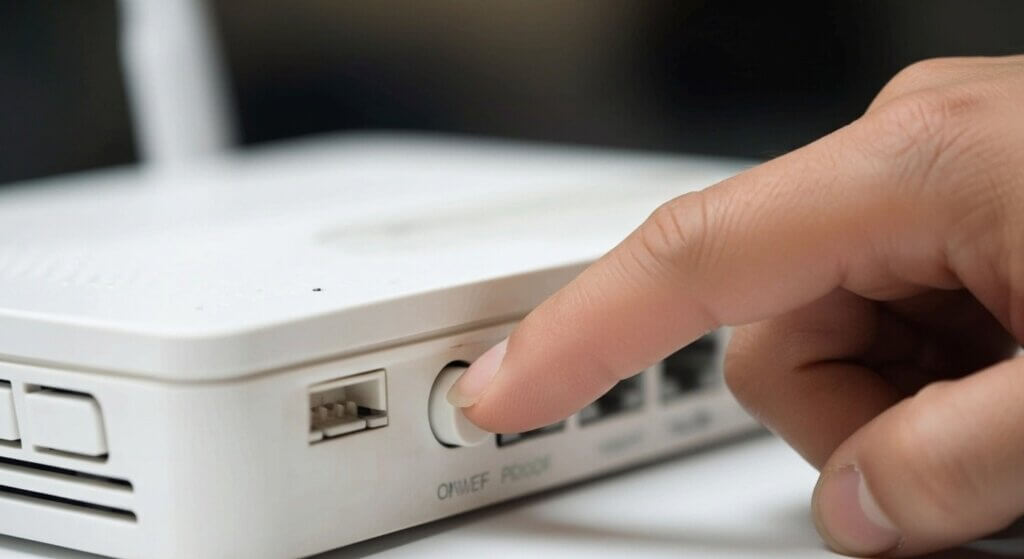
- Restart router to clear temporary issues.
- If using Wi-Fi, prefer 5GHz over 2.4GHz.
- Enable QoS on the router to prioritize CS2 traffic.
2. Adjust CS2 Network Settings
Open console (~) and enter:
rate 786432
cl_cmdrate 128
cl_updaterate 128
cl_interp 0
cl_interp_ratio 1
These settings match server tick rates and reduce packet buffering.
More on network tweaks in CS2 interp settings guide.
3. Use Launch Options
In Steam, right-click CS2 → Properties → Launch Options, add:
-tickrate 128 -high -nojoy -novid
Learn advanced launch settings in our CS2 launch options guide.
4. Update Hardware and Drivers
- Update network drivers.
- Upgrade old routers (prefer Wi-Fi 6).
- Use Cat6 Ethernet cables if possible.
5. Contact Your ISP
Persistent packet loss may indicate ISP throttling or unstable routing. Ask if they can:
- Reduce traffic shaping
- Provide gaming-friendly routing or a static IP
6. Update Network Interface Card (NIC) Drivers
Outdated NIC drivers are a common cause of packet loss and network instability in CS2. Updating them ensures your PC communicates efficiently with your router and the game servers, reducing dropped packets and lag spikes.
How to update your NIC drivers on Windows:
- Press Windows Key + X and select Device Manager.
- Expand the Network adapters section.
- Right-click your network card and select, Update driver.
- Choose Search automatically for updated driver software.
- For best results, visit your motherboard or network card manufacturer’s website and download the latest drivers manually.
Why this helps: New drivers include performance improvements and bug fixes that directly reduce packet loss, jitter, and stuttering in CS2.
CS2 Packet Loss Commands for Quick Fixes
| Command | Purpose |
| net_graph 1 | Real-time network stats |
| ping | Checks latency to server |
| cl_showfps 1 | FPS + network info |
| cl_interp_ratio 1 | Reduces packet buffering |
| cl_cmdrate 128 | Matches server tick rate |
| rate 786432 | Maximizes bandwidth |
Tips to Prevent Packet Loss in CS2
- Always play on low-ping servers near your location.
- Avoid peak ISP congestion hours.
- Reboot your router weekly.
- Close background downloads while playing.
- Use CS2 best audio settings for smoother gameplay.
- Customize crosshair for visibility with CS2 crosshair guide.
Advanced Solutions & VPN Tips
- Jitter Reduction: Some ISPs introduce jitter that causes packet loss. Use a wired connection and enable “gaming mode” on routers.
- VPN: Use a gaming-optimized VPN only if your ISP routes traffic poorly. Sometimes reduces packet loss to distant servers. For recommendations, check out our guide on best VPNs for CS2.
- Server Hopping: Test servers near your region some CS2 servers are more stable than others.
FAQs
Q1: Is CS2 packet loss worse than CS:GO?
Yes, CS2 uses updated netcode and tick rates. Higher tick rates expose packet loss more than CS:GO.
Q2: Can packet loss affect hit registration?
Absolutely. Even 2–3% loss can cause missed shots and teleporting enemies.
Q3: Will a VPN always fix packet loss?
Not always only if ISP routing is the issue. Test first with low-ping servers.
Q4: Can background apps cause CS2 packet loss?
Yes. Streaming, downloads, and software updates can saturate bandwidth.
Conclusion
CS2 packet loss is frustrating but mostly fixable. Follow these real solutions:
- Wired network + QoS ( Quality of Service )
- Console commands & launch options
- Updated hardware & drivers
- ISP troubleshooting or server hopping
With proper monitoring (net_graph 1) and consistent network optimization, you’ll experience smooth, lag free CS2 gameplay.