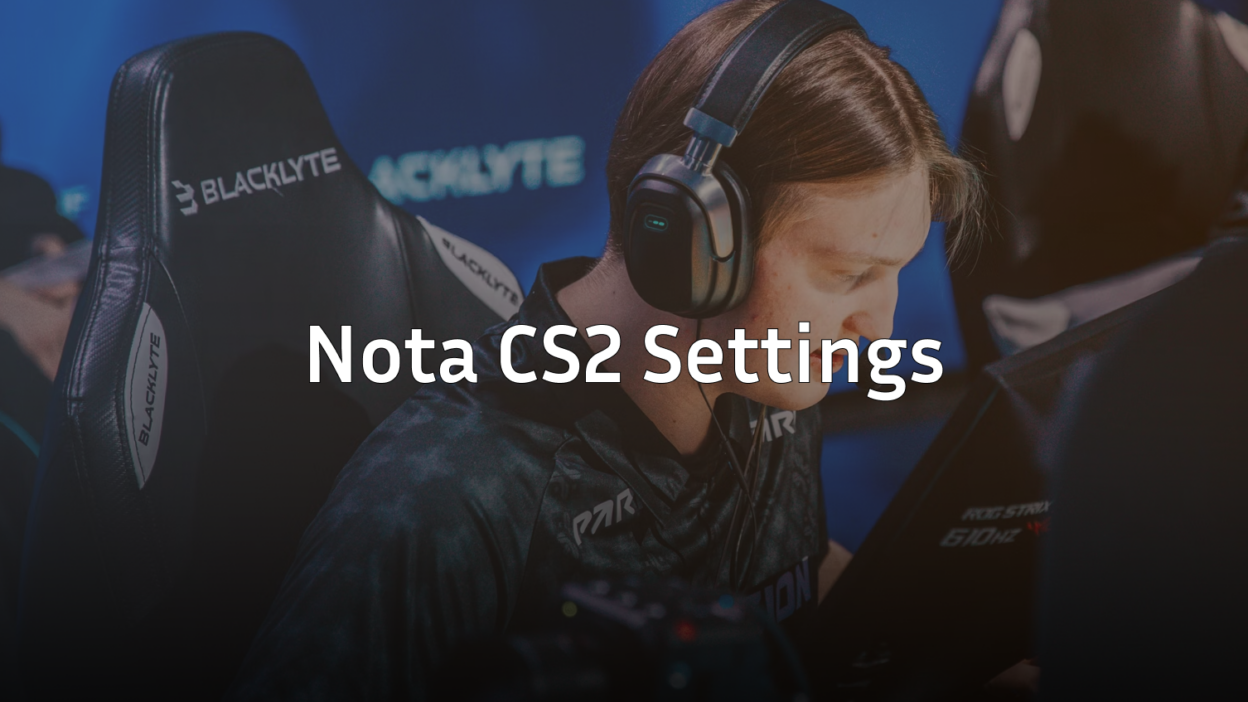
Want to frag like one of CS2’s rising stars? Nota CS2 settings give you the exact configuration used by Oleksandr “Nota” Nosko, the talented Ukrainian rifler who’s been turning heads in professional Counter-Strike.
Nota has established himself as a key player known for his sharp aim and intelligent positioning. In this guide, we break down his complete setup so you can test these settings in your own games.
Nota’s Mouse Settings
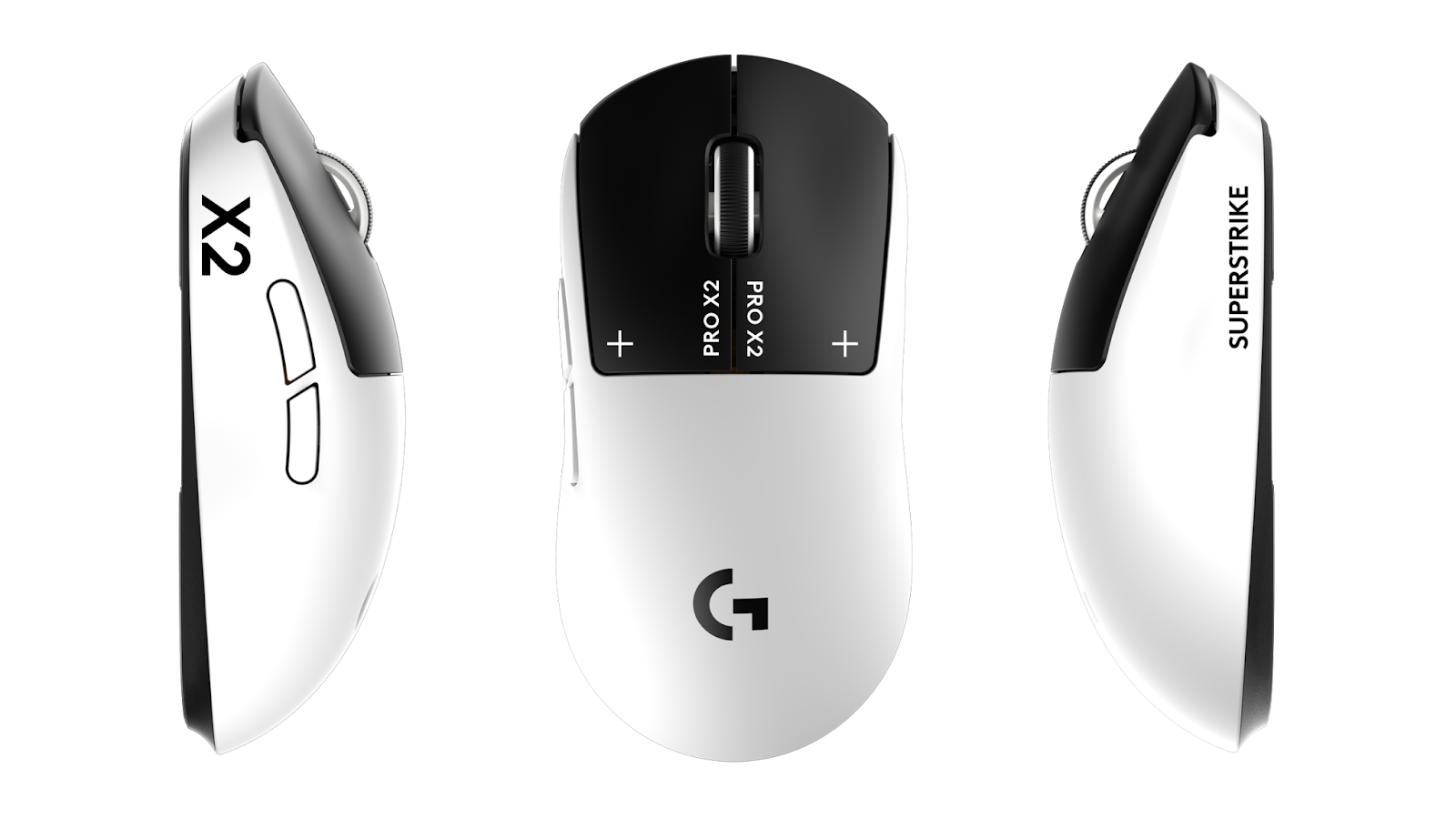
Nota’s sensitivity setup prioritizes precision over speed, a common choice among pro riflers who need consistent spray control with the AK-47 and M4A1-S.
| Setting | Value |
|---|---|
| DPI | 800 |
| In-Game Sensitivity | 0.85 |
| eDPI | 680 |
| Zoom Sensitivity | 1.0 |
| Polling Rate | 1000 Hz |
| Windows Sensitivity | 6 |
| Raw Input | On |
His 680 eDPI sits in the low-medium range, allowing for precise micro-adjustments while still enabling comfortable 180-degree turns. This works well for players who rely on crosshair placement rather than flick shots.
Crosshair Settings
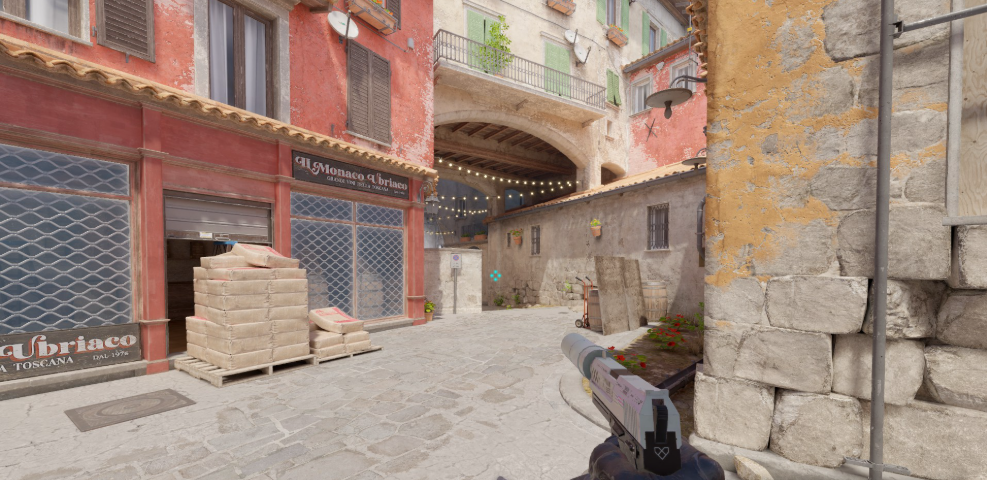
Nota uses a clean, static crosshair that provides clear visibility without distraction.
cl_crosshairsize 1.5cl_crosshairgap -3
cl_crosshairthickness 0
cl_crosshairdot 0
cl_crosshaircolor 1
cl_crosshair_drawoutline 0
cl_crosshairstyle 4
cl_crosshairalpha 255
Key features:
- Small size (1.5) – Keeps the crosshair tight for headshot accuracy
- Negative gap (-3) – Creates a compact center point
- Green color – High visibility against most map backgrounds
- No outline – Reduces visual clutter
This crosshair style works exceptionally well on maps with varied lighting. If you’re looking to optimize other visual elements, check out our CS2 video settings guide for maximum clarity.
Video Settings

Nota runs a performance-focused video configuration that prioritizes frame rate and enemy visibility.
| Setting | Value |
|---|---|
| Resolution | 1280×960 |
| Aspect Ratio | 4:3 |
| Scaling Mode | Stretched |
| Display Mode | Fullscreen |
Advanced Video Options
| Setting | Value |
|---|---|
| Boost Player Contrast | Enabled |
| V-Sync | Disabled |
| Multisampling Anti-Aliasing | 4x MSAA |
| Global Shadow Quality | Medium |
| Model/Texture Detail | Low |
| Texture Filtering Mode | Bilinear |
| Shader Detail | Low |
| Particle Detail | Low |
| Ambient Occlusion | Disabled |
| High Dynamic Range | Performance |
| FidelityFX Super Resolution | Disabled |
The 4:3 stretched resolution makes player models appear wider, which many pros find helpful for tracking enemies. Combined with Boost Player Contrast, this setup ensures opponents stand out clearly.
For additional optimization tips, our CS2 graphic settings guide covers everything you need for competitive play.
Viewmodel Settings
Nota’s viewmodel keeps weapons positioned for minimal screen obstruction.
viewmodel_fov 68viewmodel_offset_x 2.5
viewmodel_offset_y 0
viewmodel_offset_z -1.5
viewmodel_presetpos 3
cl_righthand 1
This configuration pushes the weapon model to the right side while maximizing field of view, keeping more of your screen clear for spotting enemies.
Radar Settings
A properly configured radar provides crucial information during rounds.
| Setting | Value |
|---|---|
| Radar Centers Player | Yes |
| Radar Rotation | Yes |
| Radar Size | 1.0 |
| Radar Map Zoom | 0.5 |
| Radar HUD Size | 1.1 |
For a deeper dive into radar optimization, our CS2 radar settings guide explains how to maximize map awareness.
Key Binds
Nota uses standard competitive binds with a few optimizations:
| Action | Key |
|---|---|
| Jump | Space / Mouse Wheel Down |
| Crouch | Left Ctrl |
| Walk | Left Shift |
| Reload | R |
| Drop Weapon | G |
| Inspect | F |
| Voice Chat | V |
Mouse wheel jump is essential for consistent bunny hops and movement techniques.
Hardware Setup
Nota’s peripherals complement his settings:
- Mouse: Logitech G Pro X Superlight
- Mousepad: Large cloth pad (450mm+)
- Monitor: 360Hz
- Keyboard: Mechanical with linear switches
The 360Hz monitor provides the smoothest visual feedback, though you’ll still benefit from his settings on 144Hz or 240Hz displays.
Tips for Using Nota’s Settings
Before copying these settings directly, consider these adjustments:
- Start with his sensitivity – Give it at least a week before changing
- Try the resolution – 4:3 stretched feels different; practice in deathmatch first
- Keep his crosshair – It’s versatile enough for most playstyles
- Adjust video settings – If you’re below 200 FPS, lower MSAA to 2x
Compare these settings with other pro configurations like NiKo’s CS2 settings or shroud’s CS2 settings to find what works best for your playstyle.
Conclusion
Nota’s CS2 settings offer a balanced configuration that emphasizes precision aiming and visual clarity. His low-medium sensitivity, clean crosshair, and performance-focused video options create a setup suitable for competitive play at any rank.
Copy these settings, practice consistently, and adapt what doesn’t feel natural. Looking to upgrade your loadout while you improve? Browse CS2 skins to find the perfect look for your weapons.