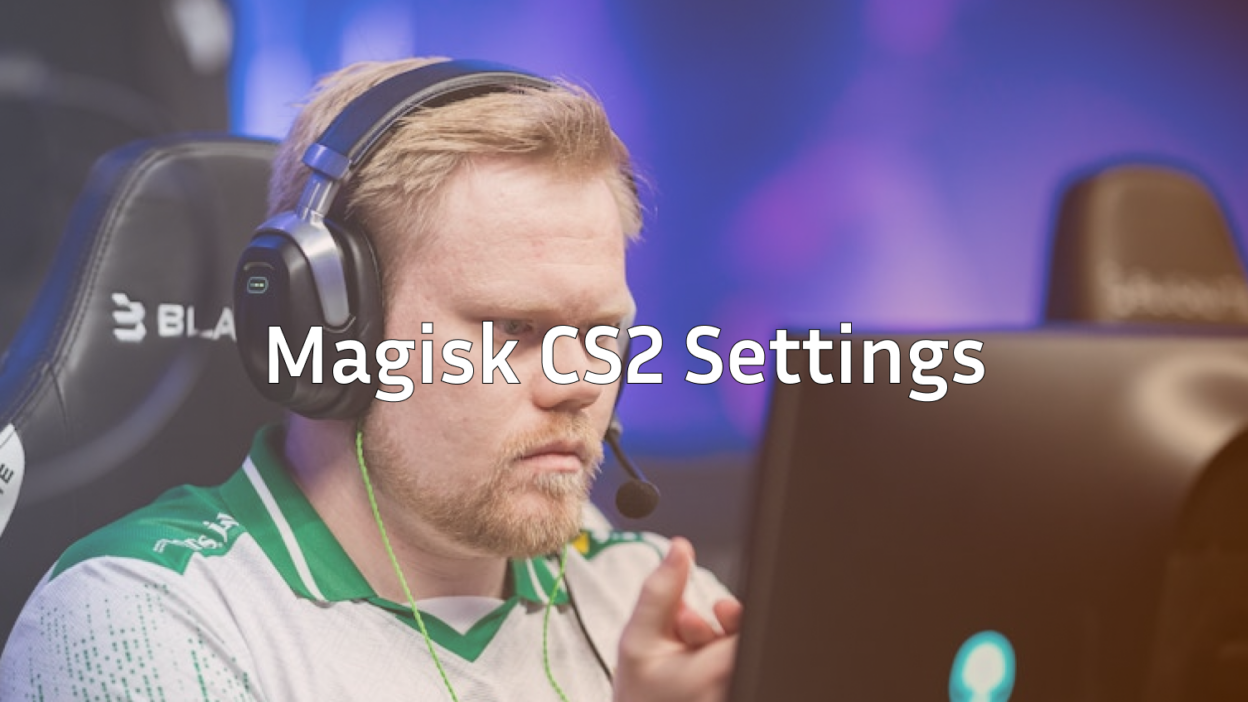
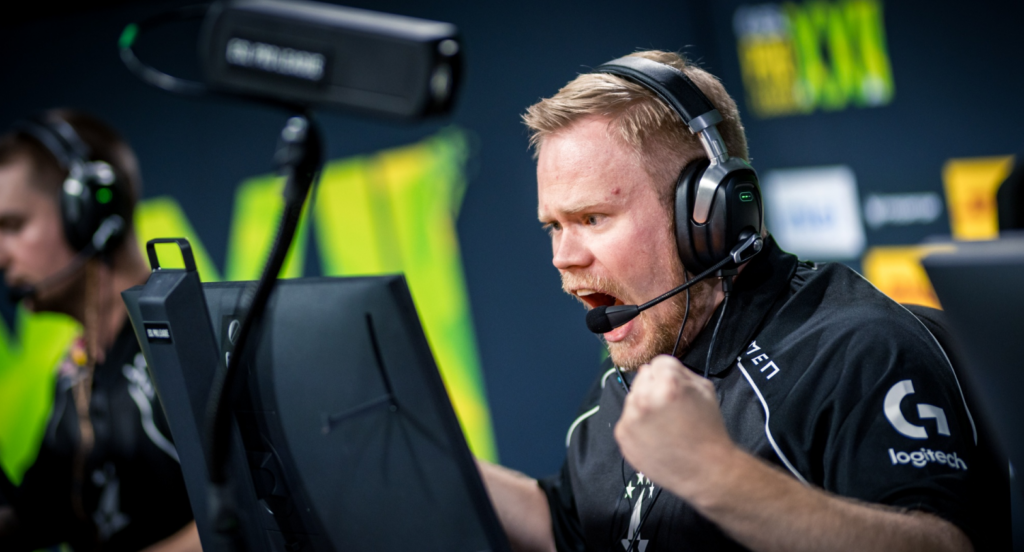
Emil “Magisk” Reif has been a cornerstone of Danish Counter-Strike for years. Now competing with Astralis, Magisk CS2 settings reflect his versatile rifler playstyle clean visuals, responsive controls, and consistent crosshair placement.
In this guide, we break down his complete setup so you can test his configuration yourself.

Magisk’s Mouse Settings
Magisk uses a moderate sensitivity that balances precision aim with quick flick potential. His setup allows for controlled spray transfers while still enabling fast 180-degree turns when needed.
| Setting | Value |
|---|---|
| DPI | 400 |
| In-Game Sensitivity | 2.0 |
| eDPI | 800 |
| Zoom Sensitivity | 1.0 |
| Hz (Polling Rate) | 1000 |
| Windows Sensitivity | 6 |
| Raw Input | On |
An eDPI of 800 sits in the mid-range for professional players. This gives Magisk enough control for holding angles while maintaining mobility during site takes.
If you’re coming from a higher sensitivity, lower it gradually over a few days rather than switching immediately.
Crosshair Settings
Magisk runs a classic static crosshair small, visible, and distraction-free. This style works well for players who rely on crosshair placement rather than dynamic feedback.
| Setting | Value |
|---|---|
| Style | 4 (Static) |
| Size | 2 |
| Thickness | 0 |
| Gap | -3 |
| Outline | No |
| Dot | No |
| Color | Green (1) |
Crosshair Code:
CSGO-pdhQn-DmYjR-EoFQX-kWzJC-zYDoGTo apply this crosshair, open your CS2 console and paste:
cl_crosshair_drawoutline 0; cl_crosshair_dynamic_maxdist_splitratio 0.35; cl_crosshair_dynamic_splitalpha_innermod 1; cl_crosshair_dynamic_splitalpha_outermod 0.5; cl_crosshair_dynamic_splitdist 7; cl_crosshair_outlinethickness 1; cl_crosshair_sniper_show_normal_inaccuracy 0; cl_crosshair_sniper_width 1; cl_crosshair_t 0; cl_crosshairalpha 255; cl_crosshaircolor 1; cl_crosshaircolor_b 0; cl_crosshaircolor_g 255; cl_crosshaircolor_r 0; cl_crosshairdot 0; cl_crosshairgap -3; cl_crosshairgap_useweaponvalue 0; cl_crosshairsize 2; cl_crosshairstyle 4; cl_crosshairthickness 0; cl_crosshairusealpha 1The tight negative gap creates a compact crosshair that doesn’t obscure enemy heads at distance. This matters most when holding long angles on maps like Dust II or Mirage.
Video Settings
Magisk prioritizes frame rate over visual fidelity. His video settings strip away unnecessary effects to maintain maximum FPS and reduce visual clutter.
| Setting | Value |
|---|---|
| Resolution | 1920×1080 |
| Aspect Ratio | 16:9 |
| Display Mode | Fullscreen |
| Refresh Rate | 240 Hz |
Advanced Video Settings
| Setting | Value |
|---|---|
| Boost Player Contrast | Enabled |
| V-Sync | Disabled |
| Multisampling Anti-Aliasing | 4x MSAA |
| Global Shadow Quality | Medium |
| Model / Texture Detail | Low |
| Texture Filtering Mode | Bilinear |
| Shader Detail | Low |
| Particle Detail | Low |
| Ambient Occlusion | Disabled |
| High Dynamic Range | Performance |
| FidelityFX Super Resolution | Disabled |
Boost Player Contrast is the most important setting here. It makes enemy models stand out against backgrounds, which directly impacts your ability to spot opponents quickly.
Running native 1080p at 16:9 gives Magisk the widest field of view possible. Some pros prefer stretched 4:3 for larger player models, but Magisk values peripheral vision for his rifler role.
Viewmodel Settings
Magisk uses a viewmodel that keeps his weapon positioned cleanly without blocking sightlines. These settings affect how your gun appears on screen.
| Setting | Value |
|---|---|
| Viewmodel FOV | 68 |
| Viewmodel Offset X | 2.5 |
| Viewmodel Offset Y | 0 |
| Viewmodel Offset Z | -1.5 |
| Viewmodel Presetpos | 3 |
| Bob | Minimal |
Apply these settings with:
viewmodel_fov 68; viewmodel_offset_x 2.5; viewmodel_offset_y 0; viewmodel_offset_z -1.5; viewmodel_presetpos 3; cl_bob_lower_amt 5; cl_bobamt_lat 0.1; cl_bobamt_vert 0.1The viewmodel_presetpos 3 command sets a classic viewmodel position that most veteran players prefer. Combined with reduced bob values, your screen stays stable during movement.
Keybinds
Magisk’s keybinds follow a fairly standard layout with utility optimized for quick access during executes.
| Action | Key |
|---|---|
| Jump | Space / Mouse Wheel Down |
| Crouch | Ctrl |
| Walk | Shift |
| Use | E |
| Reload | R |
| Inspect | F |
| Drop | G |
| Flashbang | 4 |
| Smoke | Mouse 4 |
| HE Grenade | Mouse 5 |
| Molotov | C |
Binding jump to mouse wheel down enables consistent bunny hopping. If you’re learning movement mechanics, check out cs2 binds for more advanced configurations.
Having smoke and flash on mouse buttons allows Magisk to throw utility without taking his fingers off movement keys critical during fast-paced site executes.
Launch Options
Magisk keeps his launch options minimal. Modern CS2 handles most optimizations automatically, so excessive launch parameters can actually cause issues.
-novid -tickrate 128| Option | Purpose |
|---|---|
| -novid | Skips intro video |
| -tickrate 128 | Sets offline server tick rate |
For a deeper dive into performance optimization, read our cs2 launch options guide.
Gear Setup
Professional performance requires professional equipment. Here’s what Magisk uses:
| Component | Product |
|---|---|
| Mouse | Logitech G Pro X Superlight |
| Mousepad | Logitech G640 |
| Keyboard | Logitech G Pro X |
| Monitor | BenQ ZOWIE XL2546K (240Hz) |
| Headset | Logitech G Pro X |
The G Pro X Superlight weighs just 63 grams, making it one of the lightest wireless gaming mice available. Combined with 400 DPI, this allows for smooth, controlled movements across his large mousepad.
How to Apply Magisk’s Config
Want to try his complete setup? Follow these steps:
- Locate your config folder using our cs2 config location guide
- Create a backup of your current autoexec.cfg
- Copy the settings from this guide into your config
- Launch CS2 and test in a private match
Use cs2 practice commands to set up a proper testing environment with unlimited ammo and no bots.
Should You Copy Pro Settings?
Magisk’s settings work for his playstyle and thousands of hours of muscle memory. They won’t instantly make you better.
However, his configuration provides an excellent starting point because:
- His eDPI falls within the optimal range for most players
- Video settings maximize competitive advantage
- Keybinds follow ergonomic principles
Start with his settings, then adjust sensitivity and crosshair based on your comfort. The goal is finding what feels natural for your aim style.
Complete Your Setup
Now that you’ve got Magisk’s settings dialed in, your loadout deserves attention too. Browse cs2 skins to find the perfect AK-47 or M4A4 to match your new config.
Looking for more pro configurations? Check out NiKo’s CS2 settings or Shroud’s CS2 settings for alternative approaches from other elite players.