There is nothing more frustrating than warming up your aim, getting your squad together, and hitting that “Accept” button only to be slapped with a connection error. You are ready to rush B, but the game decides you are not going anywhere. If you are staring at the “Server is Reserved for Game Lobby” error message, you are not alone. This is one of the most common hiccups in Counter-Strike 2 right now, and it usually happens right when the match is trying to establish a connection.
Don’t worry, you do not need to reinstall the entire game or buy a new PC. As an experienced gamer who has spent way too many hours tweaking CS2 launch options and config files, I have compiled the best methods to get you past this error and back into the server. Let’s get this fixed so you can get back to grinding your rating.
What Does “Server is Reserved for Game Lobby” Mean in CS2?
Before we start fixing things, it helps to know what is actually breaking. Unlike a total crash where you get a CS2 black screen on launch, this error is specifically about network negotiation.
Understanding the connection handshake failure
When a match is found, a specific dedicated server is assigned to your lobby. Your game client tries to send a “handshake” to that server to say, “Hey, I am here, let me in.” The server effectively replies, “Hold on, I am saving this spot for the players in the lobby.”
The error occurs when there is a miscommunication during this handshake. The server knows you are supposed to be there, but your client cannot finalize the connection before the timeout triggers. This often looks like CS2 freezing on the loading screen before booting you back to the main menu.
Common scenarios: Premier, Competitive, and Private Queues
This issue does not discriminate. It happens whether you are queuing for Premier mode to climb the leaderboard or just trying to set up some CS2 private matchmaking for a 5v5 against friends. It is particularly annoying in Premier because if the connection fails completely, you might catch a temporary cooldown for “abandoning” a match you never even got to join.
Method 1: The Quickest Fixes (Lobby & Updates)
Before we start messing with Windows settings or router configs, let’s try the simplest solutions first. These solve the problem about 50% of the time.
Disbanding and re-creating the lobby
Sometimes the lobby session ID just gets bugged. If you are playing with friends, the lobby leader should kick everyone and leave the lobby themselves. Everyone should restart their game. Once you are back in, create a fresh lobby. This forces the game to generate a new session ID, which often clears out the “reserved” conflict. While you are waiting for your friends to restart, you can double check your CS2 loadout to make sure your skins are equipped properly.
Checking for pending Steam client updates
Valve pushes updates frequently. If your client version and the server version do not match perfectly, you will get rejected.
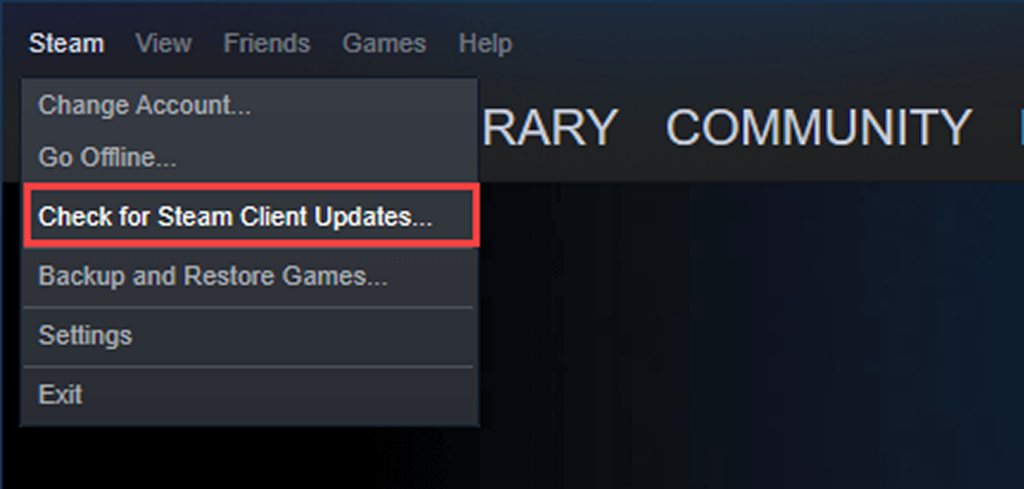
- Tab out of CS2.
- Open your main Steam window.
- Click “Steam” in the top left corner and select “Check for Steam Client Updates.”
- If there is a CS2 update log pending, download it immediately.
Verifying Valve server status (SteamStat.us)
Sometimes, it is not you; it is them. If Valve’s coordinator servers are down, no amount of troubleshooting on your end will fix it. You can check the CS2 server status to see if there are widespread outages. If the load is “High” or the status is “Offline,” you might just have to wait it out.
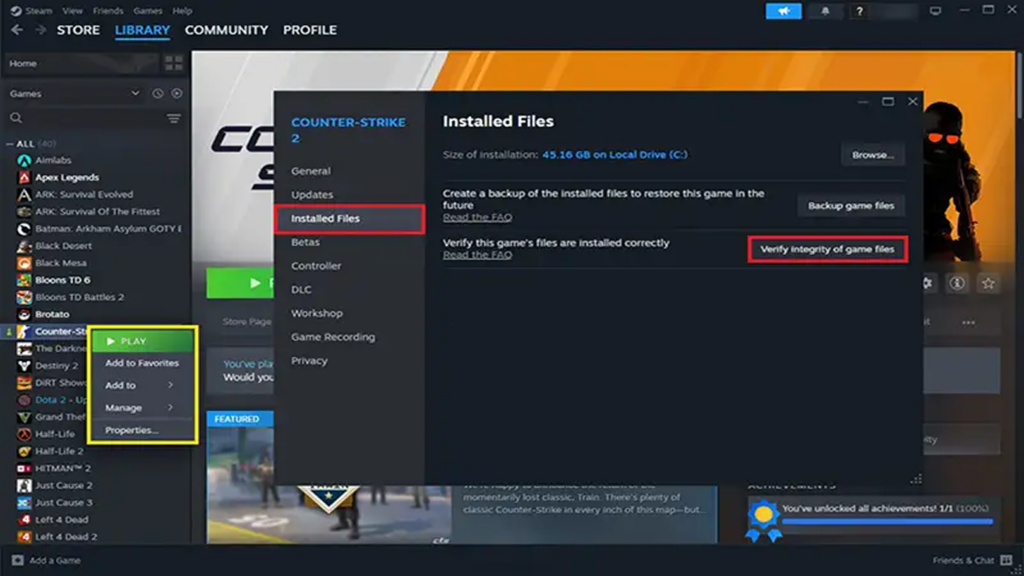
Method 2: Verify Integrity of Game Files
Corrupted local files are a classic cause of connection issues. If your game thinks a map file or a texture looks one way, but the server sees it differently, the connection will be refused to prevent cheating or errors. This is also a common fix if you see the VAC was unable to verify your game session error.
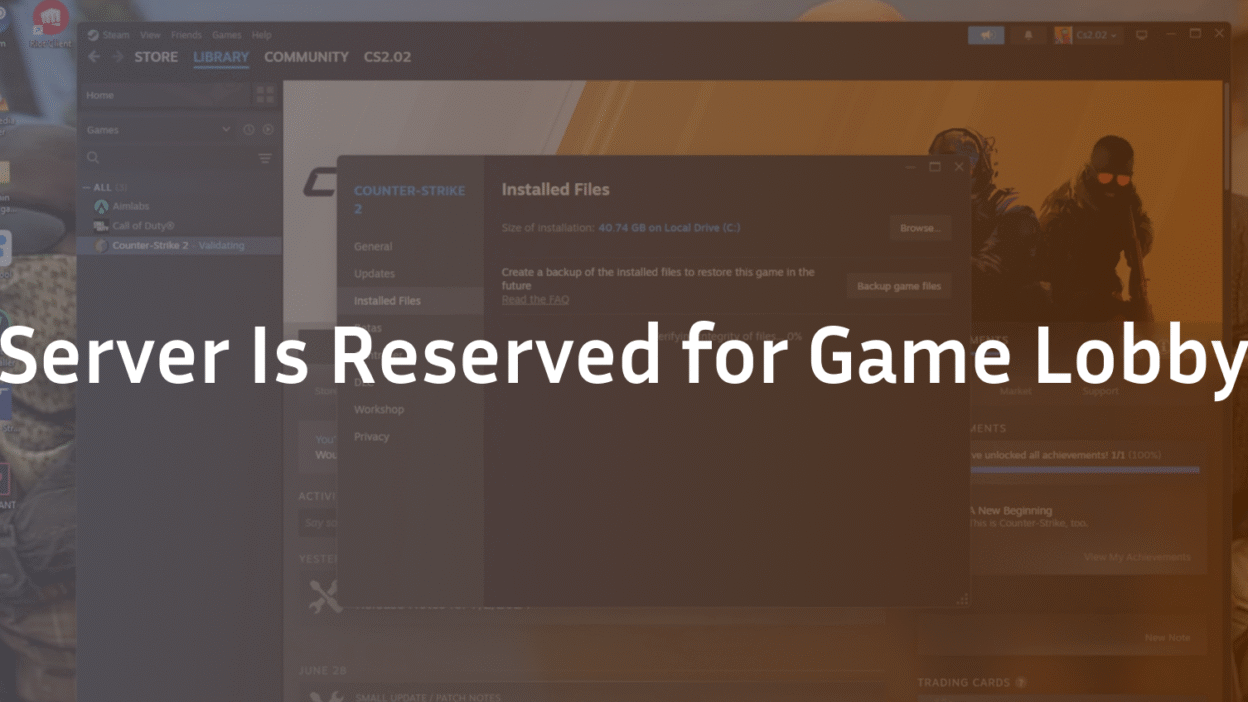
How to access CS2 properties in Steam Library
- Open your Steam Library.
- Right-click on Counter-Strike 2 in your game list.
- Select Properties from the dropdown menu.
- Navigate to the Installed Files tab on the left sidebar.
Running the validation process to fix corrupted local files
Click the button that says “Verify integrity of game files.” Steam will take a few minutes to scan every single file in your installation folder. If it finds anything missing or broken—like a corrupted map file from a recent update—it will automatically redownload that specific file. This ensures your game matches the CS2 system requirements and file structure the server expects.
Method 3: Using CS2 Developer Console Commands
If you consider yourself a power user, you should already be comfortable with the console. If not, check out this guide on how to open console in CS2 because we need to input some network commands.
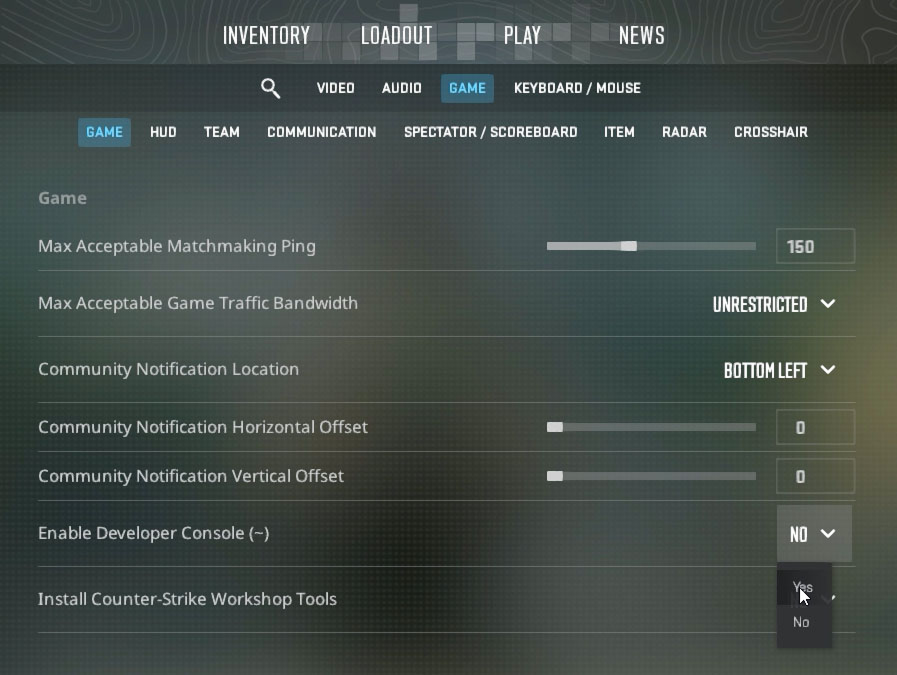
Enabling the Developer Console in settings
Go to the Settings menu (the gear icon), click on the “Game” tab, and ensure “Enable Developer Console ()” is set to YES. You can now press the tilde key (“) to open the command line.
Changing the clientport range (Troubleshooting port conflicts)
Sometimes your router or ISP gets confused if multiple devices are using the same game port, or if the default port is “stuck.” You can force CS2 to use a different client port.
- Open the console.
- Type clientport 27006 and press Enter (the default is usually 27005).
- Try to queue for a match again.
- If that fails, try clientport 27007.
Using the connect command for community servers
If this error is happening when you are trying to join a specific server (like a surf map or a retake server), using the server browser might be buggy. Instead, get the IP address of the server and use the direct connect command.
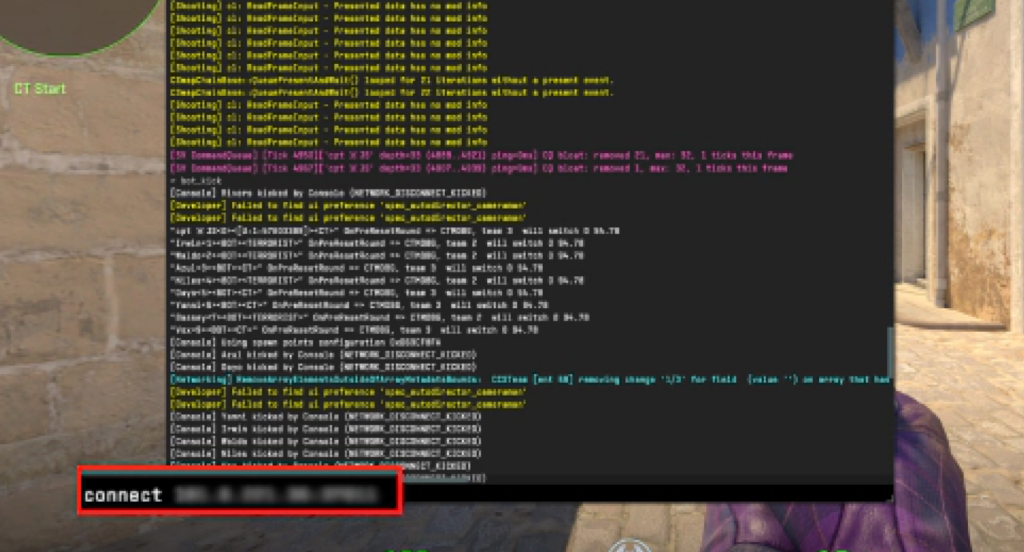
- Type connect [IP ADDRESS] in the console. Example: connect 192.168.1.1:27015 This bypasses the lobby reservation system entirely for CS2 community servers.
Method 4: Network and DNS Troubleshooting
Lag and packet loss can cause the handshake to time out. If your internet is acting up, you might also be experiencing CS2 rubberbanding, which is a sign your connection is unstable.
Flushing DNS and renewing IP via Command Prompt
This clears out any bad cached data your computer has about how to connect to the internet.
- Press the Windows Key and type “cmd”.
- Right-click “Command Prompt” and select “Run as Administrator”.
- Type the following commands, pressing Enter after each one:
- ipconfig /release
- ipconfig /renew
- ipconfig /flushdns
Disabling VPNs and Proxy software to reduce latency
While there are some best VPNs for CS2 that claim to lower ping, they often add an extra “hop” between you and the Valve server. This extra step can cause the “Reserved for Game Lobby” timeout. Turn off your VPN completely and try to connect again.
Switching to a wired Ethernet connection
WiFi is convenient, but it is terrible for consistent packet delivery. Interference can cause micro-stutters that break the connection process. Always play on a wired Ethernet connection if possible. This is the single best way to fix packet loss in CS2.
Method 5: Firewall and Antivirus Exceptions
Your security software might be identifying the CS2 connection attempt as a threat and blocking it.
Whitelisting cs2.exe in Windows Defender
- Type “Firewall” into your Windows search bar and open “Firewall & Network Protection.”
- Click “Allow an app through firewall.”
- Click “Change Settings” and look for cs2.exe or Counter-Strike 2.
- Make sure both “Private” and “Public” boxes are checked.
Checking router strict NAT types
If your router is set to a “Strict” NAT type, it will struggle to connect to game servers. You may need to look into CS2 port forwarding to open up the specific ports Valve uses (UDP 27000-27015). This varies by router model, so you will need to check your specific router’s manual.
When to Wait for a Valve Hotfix
If you have tried disbanding the lobby, verifying files, flushing DNS, and changing client ports, and you are still getting the error, the issue is likely on Valve’s end.
Identifying widespread server outages
Check community hubs like Reddit or Twitter (X). If you see hundreds of other players complaining about the same thing, stop troubleshooting. You cannot fix a server-side outage. Take a break, maybe watch some demos to study CS2 pro settings, and try again in an hour.
Reporting persistent bugs to Valve
If this keeps happening to you specifically over days or weeks, you should submit a formal report. You can send a CS2 bug report directly to the developers. Include your system specs and a description of when the error happens. Valve does read these, and it helps them patch these annoying connection bugs in future updates.