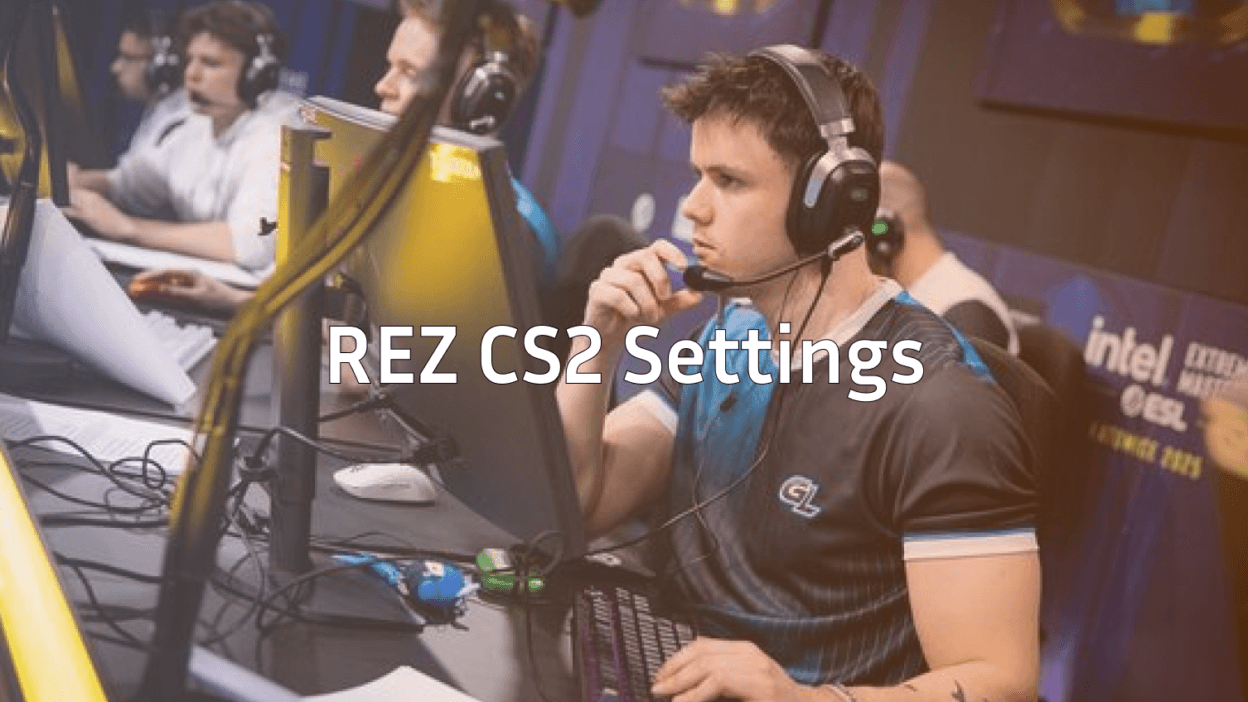
Fredrik “REZ” Sterner has established himself as one of Sweden’s most consistent professional players, bringing explosive AWP plays and clutch rifle moments to every match. If you’re looking to learn from REZ CS2 settings, you’ve come to the right place.
In this guide, we break down his complete setup from sensitivity and crosshair to video settings and gear so you can test what works for one of Ninjas in Pyjamas’ star players.
REZ Mouse Settings
REZ uses a relatively low sensitivity setup, which is standard among professional AWPers who need precision for those crucial flick shots.

| Setting | Value |
|---|---|
| DPI | 400 |
| In-Game Sensitivity | 2.0 |
| eDPI | 800 |
| Zoom Sensitivity | 1.0 |
| Hz (Polling Rate) | 1000 |
| Windows Sensitivity | 6 |
| Raw Input | On |
| Mouse Acceleration | Off |
An eDPI of 800 sits in the mid-range for professionals. It provides enough speed for quick target acquisition while maintaining the control needed for precise AWP flicks. If you’re transitioning from higher sensitivity, lower it gradually over several days.
REZ Crosshair Settings
REZ opts for a clean, static crosshair that doesn’t distract during intense firefights.
cl_crosshairsize 2cl_crosshairgap -3
cl_crosshairthickness 0
cl_crosshairdot 0
cl_crosshaircolor 1
cl_crosshair_drawoutline 0
cl_crosshairstyle 4
Key characteristics:
- Small and tight – Minimizes screen clutter
- Green color – High visibility on most map backgrounds
- No outline – Keeps the crosshair crisp
- Static style – No movement during spraying
This crosshair works exceptionally well for both AWPing and rifle play. The small size helps with headshot precision on weapons like the AK-47 and M4A1-S.
REZ Video Settings
Professional players prioritize frame rate over visual quality. REZ’s video settings reflect this philosophy.
| Setting | Value |
|---|---|
| Resolution | 1280×960 |
| Aspect Ratio | 4:3 |
| Scaling Mode | Stretched |
| Display Mode | Fullscreen |
Graphics Settings
| Setting | Value |
|---|---|
| Global Shadow Quality | Medium |
| Model/Texture Detail | Low |
| Shader Detail | Low |
| Particle Detail | Low |
| Ambient Occlusion | Disabled |
| High Dynamic Range | Performance |
| FidelityFX Super Resolution | Disabled |
| Multisampling Anti-Aliasing | 4x MSAA |
| Texture Filtering Mode | Bilinear |
| V-Sync | Disabled |
The 4:3 stretched resolution makes player models appear wider, potentially easier to hit. Many pros, including REZ, swear by this setup despite the reduced field of view. Combined with proper CS2 launch options, these settings maximize performance.
REZ Viewmodel Settings
REZ uses a viewmodel that keeps weapons compact and unobtrusive.
viewmodel_fov 68viewmodel_offset_x 2.5
viewmodel_offset_y 0
viewmodel_offset_z -1.5
viewmodel_presetpos 3
cl_righthand 1
This configuration pushes the weapon model toward the bottom-right corner, giving you maximum screen visibility for spotting enemies.
REZ Keybinds
While personal preference plays a huge role in keybinds, here are some notable bindings from REZ’s config:
| Action | Key |
|---|---|
| Jump | Space / Mouse Wheel Down |
| Crouch | Ctrl |
| Walk | Shift |
| Use | E |
| Drop Weapon | G |
| Quick Switch | Q |
Using mouse wheel for jumping is essential for consistent bunny hops and movement techniques. If you want to explore more binding options, check out our CS2 binds guide.
REZ Gear & Equipment
Your hardware matters. Here’s what REZ uses:
| Equipment | Model |
|---|---|
| Mouse | Logitech G Pro X Superlight |
| Mousepad | Artisan FX Zero |
| Keyboard | Wooting 60HE |
| Monitor | BenQ ZOWIE XL2546K (240Hz) |
| Headset | HyperX Cloud II |
The Logitech G Pro X Superlight is incredibly popular among professionals due to its lightweight design (63g) and flawless sensor. The 240Hz monitor ensures REZ sees every frame without tearing or input lag.
How to Apply REZ’s Settings
To implement these settings:
- Locate your config folder – Check our CS2 config location guide if you’re unsure
- Create an autoexec.cfg file – Add the crosshair and viewmodel commands
- Adjust video settings in-game – Resolution changes require game restart
- Test in practice mode – Use CS2 practice commands to warm up
Important: Don’t copy everything blindly. REZ has thousands of hours developing muscle memory with these settings. Start with his sensitivity and crosshair, then adjust based on your comfort level.

Should You Use REZ’s Settings?
REZ’s configuration excels for players who:
- Prefer AWPing – The low eDPI rewards patient, precise aim
- Want a clean HUD – Minimal crosshair and viewmodel clutter
- Prioritize frames – Low graphics settings ensure consistent performance
However, if you’re coming from high sensitivity or 16:9 resolution, the transition period can feel uncomfortable. Give yourself at least a week before judging whether these settings work for you.
Conclusion
REZ CS2 settings showcase a precision-focused setup built around low sensitivity, stretched resolution, and maximum frame rates. His configuration has helped him compete at the highest level of Counter-Strike for years.
Start by implementing his crosshair and sensitivity, then gradually adopt other elements. Want to explore more professional configurations? Browse CS2 skins that pros use, or check out NiKo’s CS2 settings for another top-tier perspective.