Playing music through your mic in CS2 is a classic way to keep the vibes high during a long win streak or to provide some entertainment in casual lobbies. However, since the transition to the Source 2 engine, the old methods many of us used in CS:GO—specifically SLAM (Source Live Audio Mixer)—don’t work the same way they used to.
If you’ve been wondering how to use SLAM in CSGO logic for the new game, or just want a reliable way to play music in CS2, you’re in the right place. In this guide, we’ll walk you through the best modern methods to become the lobby DJ without ruining your audio quality.
Does SLAM Work in CS2?
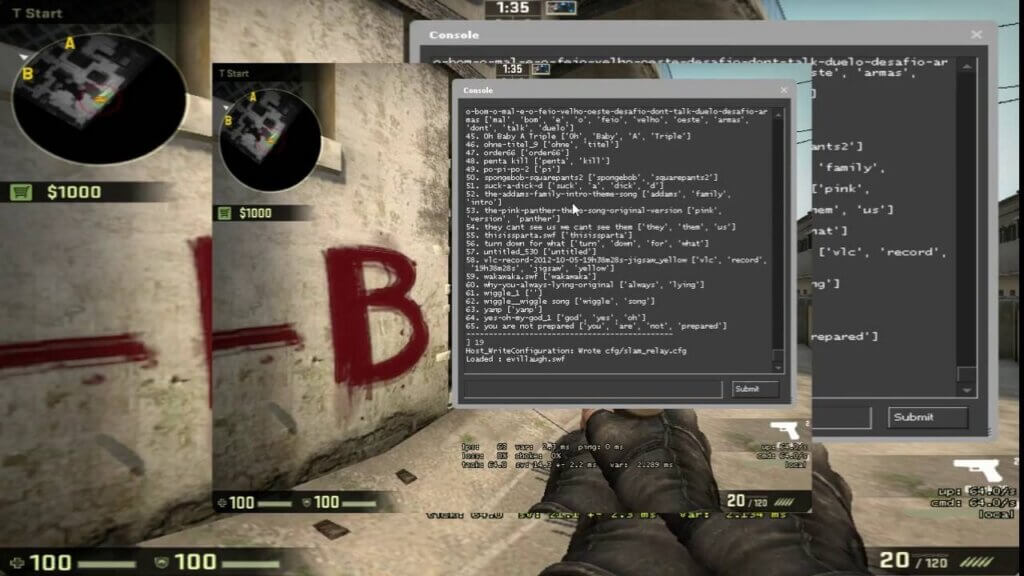
The short answer is: Not officially. SLAM (Source Live Audio Mixer) was a staple for years, but because CS2 uses a different file structure and console command system, the original SLAM often fails to execute the necessary .cfg files. While some community workarounds exist to move files into the new game/csgo/cfg folder, they are often buggy and can cause your game to stutter.
If you are looking for the modern equivalent of SLAM CSGO, most players have moved on to virtual audio routing or dedicated soundboard apps like Soundpad.
Method 1: The “New SLAM” (Soundpad)
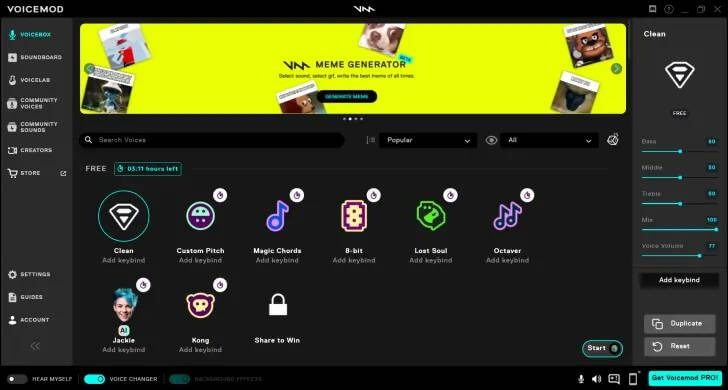
The easiest and most “gamer-friendly” way to play music in CS2 today is using Soundpad. It’s available on Steam and essentially acts as a modern, more stable version of SLAM.
How to set it up:
- Download Soundpad: Get it from the Steam store. There is a free trial, but the full version is worth the few bucks for unlimited sounds.
- Add Your Tracks: Drag and drop your MP3s or WAV files into the app.
- Configure Hotkeys: Assign a key (e.g., “Numpad 1”) to your favorite songs.
- In-Game Settings: Ensure your CS2 audio settings are set to your main microphone. Soundpad automatically “injects” the audio into your mic signal.
- Play: Just hit your hotkey while holding your push to talk button.
Method 2: Using VoiceMeeter (The Pro Way)
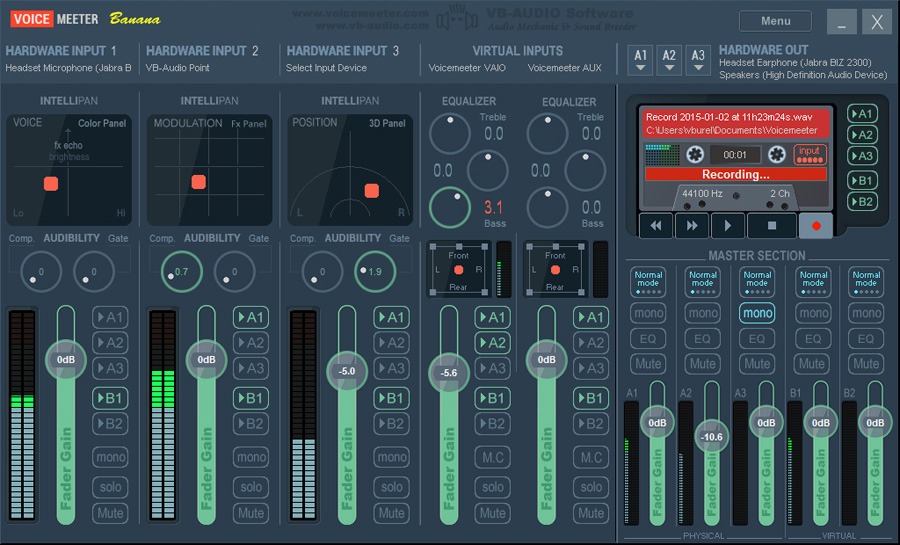
If you want to play music from Spotify or YouTube directly through your mic while still being able to talk, VoiceMeeter Banana is the gold standard.
Step-by-Step Configuration
To get this working, you’ll need a “Virtual Cable.” This acts as a bridge between your music player and CS2.
| Step | Action | Why it matters |
| 1 | Install VB-Audio Cable | Creates the “virtual mic” device. |
| 2 | Set Music Output | Set Spotify/Chrome output to “Cable Input” in Windows Sound Settings. |
| 3 | Open CS2 Audio | Go to settings and change “Voice Input Device” to Cable Output. |
| 4 | Use Console | Enable your mic via CS2 voice enable command if it’s not picking up. |
Pro Tip: If your teammates say the music sounds like a jet engine, check your CS2 mic not working guide to fix gain and distortion issues.
Essential Console Commands for Music
To make sure you can actually hear what you’re playing and that the game is ready for audio input, keep these CS2 binds handy:
- voice_modenable 1 – Ensures voice chat is active.
- voice_loopback 1 – Allows you to hear your own music so you can check the volume.
- bind [key] +voicerecord – Your standard push-to-talk bind.
If you are practicing on CS2 custom maps, these commands are essential for testing your sound levels before jumping into a Premier match.
Etiquette: Don’t Get Banned
While playing music isn’t a VAC-bannable offense, it can get you “Griefing” reports. If you’re playing a high-stakes relegation match in CS2, maybe keep the tunes off.
- Ask First: A quick “Yo, want some music?” goes a long way.
- Volume Control: Use voice_loopback 1 to make sure you aren’t deafening your team.
- Know When to Stop: If someone is trying to hear footsteps on a Mirage execute, hit the mute button.
Summary: Which Method Should You Use?
- For Memes/Soundbites: Use Soundpad. It’s the closest thing to the old slam csgo experience.
- For High-Quality Music: Use VoiceMeeter or VB-Audio Cable.
- For Beginners: Stick to Discord if you’re playing with a 5-stack.
If you’re looking to upgrade your in-game look while you DJ, check out our guide on the best cases for butterfly knives or see which knife cases are worth opening this week.
Frequently Asked Questions (FAQs)
1. Can I still use SLAM in CS2?
Technically, the original SLAM CSGO software is outdated for the Source 2 engine. While you can manually move files into the game/csgo/cfg folder, it is prone to crashing. Most players now prefer using Soundpad or VoiceMeeter as more reliable alternatives for playing music in CS2.
2. Is playing music through my mic bannable?
No, you will not receive a VAC ban for playing music. However, if you play music excessively in competitive modes and your teammates report you for “Abusive Voice/Griefing,” you could receive a temporary communication ban or a matchmaking cooldown. Always check with your team first!
3. Why can’t my teammates hear the music?
This is usually due to the “Streamlined Push-to-Talk” setting in CS2. Ensure this is turned Off in your audio settings, as it can sometimes clip virtual audio inputs. Also, make sure your CS2 voice enable command is set to 1.
4. How do I hear my own music to check the volume?
Open the developer console and type voice_loopback 1. This allows you to hear exactly what your microphone is broadcasting. Once you’ve balanced your volume, type voice_loopback 0 to turn it off.
5. Does this work on Faceit or Premier?
Yes, these methods work on all platforms, including Premier and Faceit. However, communication is vital for your CS2 rank distribution progress, so be prepared to stop the music immediately during clutch situations.