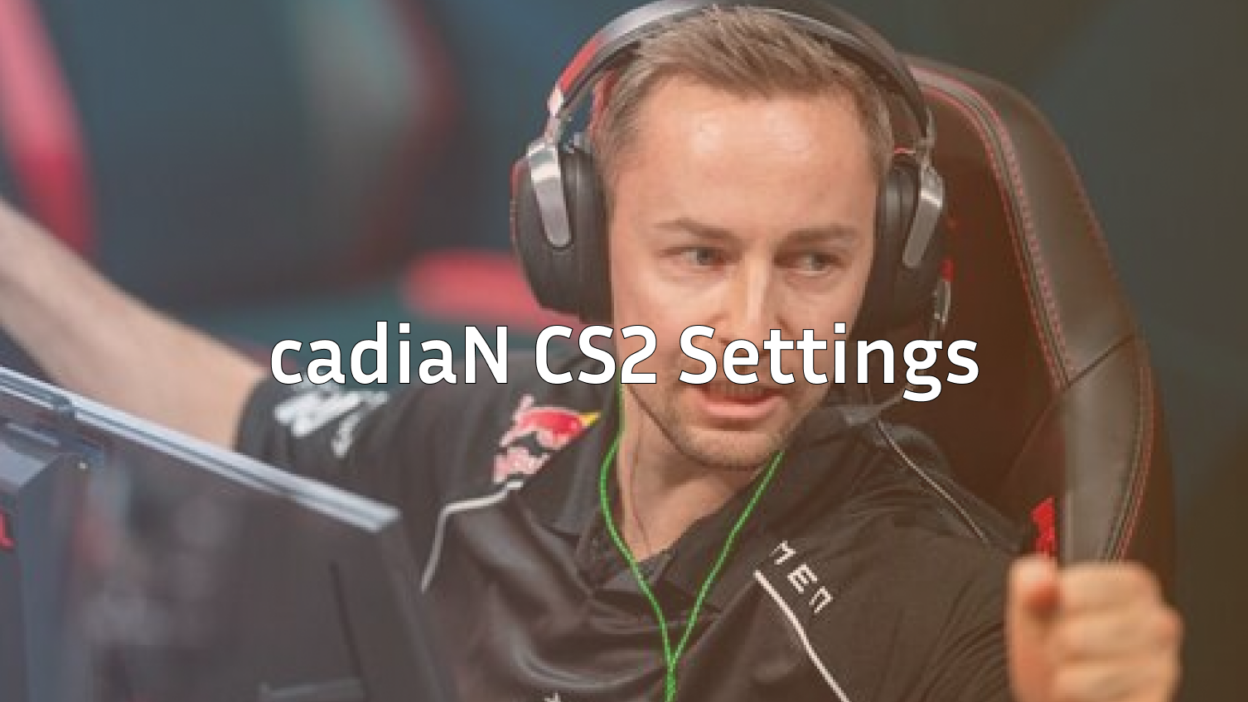
Casper “cadiaN” Møller stands as one of the most entertaining and skilled AWPers in professional Counter-Strike. His cadiaN CS2 settings combine precision aiming with aggressive positioning, making him a threat on every map. Whether you’re looking to improve your AWP game or simply want to try a pro’s configuration, this guide covers everything you need.
Who Is cadiaN?
cadiaN is a Danish professional player known for his flashy AWP plays and in-game leadership abilities. He gained international recognition during his time with Heroic, where he led the team to multiple tournament victories and consistent top-tier performances.
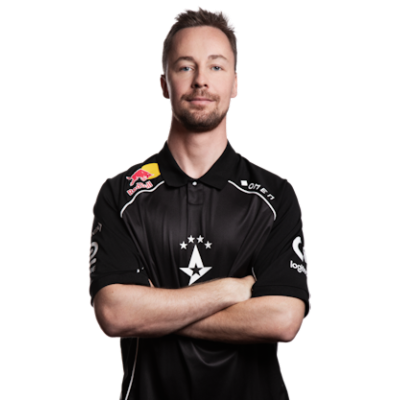
His playstyle emphasizes:
- Aggressive AWP positioning that catches opponents off-guard
- Quick flick shots and confident peeks
- Strong communication and team coordination
cadiaN’s Mouse Settings
cadiaN uses relatively low sensitivity settings, which is standard among professional AWPers who need precise aim for hitting difficult shots.
| Setting | Value |
|---|---|
| DPI | 400 |
| In-Game Sensitivity | 2.0 |
| eDPI | 800 |
| Zoom Sensitivity | 1.0 |
| Mouse Hz | 1000 |
| Windows Sensitivity | 6 |
| Raw Input | On |
His eDPI of 800 sits in the comfortable middle range for pros. This allows smooth tracking while still enabling quick 180-degree turns when needed. If you’re using an AWP frequently, this sensitivity range gives you the control needed for precise scope adjustments.
Crosshair Settings
cadiaN uses a small, static crosshair that provides clear visibility without cluttering the screen during intense firefights.
cl_crosshair_drawoutline 0cl_crosshair_dynamic_maxdist_splitratio 0.35
cl_crosshair_dynamic_splitalpha_innermod 1
cl_crosshair_dynamic_splitalpha_outermod 0.5
cl_crosshair_dynamic_splitdist 7
cl_crosshair_outlinethickness 1
cl_crosshair_sniper_width 1
cl_crosshairalpha 255
cl_crosshaircolor 1
cl_crosshaircolor_b 50
cl_crosshaircolor_g 250
cl_crosshaircolor_r 50
cl_crosshairdot 0
cl_crosshairgap -3
cl_crosshairsize 2
cl_crosshairstyle 4
cl_crosshairthickness 0
cl_crosshair_t 0
The green color offers excellent visibility against most map backgrounds, from the sandy tones of Dust II to the darker corners of Inferno. You can experiment with these values using CS2 practice commands to find what works best for your eyes.
Video Settings
cadiaN prioritizes maximum frames over visual quality, which is standard practice among professional players.
| Setting | Value |
|---|---|
| Resolution | 1280×960 |
| Aspect Ratio | 4:3 |
| Scaling Mode | Stretched |
| Display Mode | Fullscreen |
| Boost Player Contrast | Enabled |
| Multisampling | 4x MSAA |
| Shadow Quality | Medium |
| Texture Detail | Low |
| Shader Detail | Low |
The 4:3 stretched resolution makes player models appear wider, which many AWPers prefer for easier target acquisition. This visual trick doesn’t actually change hitboxes, but the psychological benefit of larger-looking enemies helps many players land shots more consistently.
Viewmodel Settings
cadiaN’s viewmodel keeps weapons positioned for minimal screen obstruction while maintaining a natural feel.
viewmodel_fov 68viewmodel_offset_x 2.5
viewmodel_offset_y 0
viewmodel_offset_z -1.5
viewmodel_presetpos 3
cl_righthand 1
These settings push the weapon model toward the edge of the screen, giving you clearer sightlines when holding angles. If you prefer a different hand orientation, check out the left hand command guide for switching sides.
Launch Options
cadiaN keeps his launch options minimal, letting the game handle most optimizations automatically.
-novid -tickrate 128Modern CS2 handles most performance optimizations internally, so excessive launch options often cause more problems than they solve. The -novid flag simply skips the intro video for faster game startup. Learn more about available options in our CS2 launch options guide.
Key Binds
Professional players customize their binds for faster utility usage and smoother gameplay. Here are some essential binds cadiaN uses:
bind "mouse4" "slot6"bind “mouse5” “slot7”
bind “4” “slot4”
bind “mwheeldown” “+jump”
Binding jump to mouse wheel enables consistent bunny hopping and makes certain movement techniques easier to execute. For a complete breakdown of useful keybinds, see our CS2 binds guide.
Gear Setup
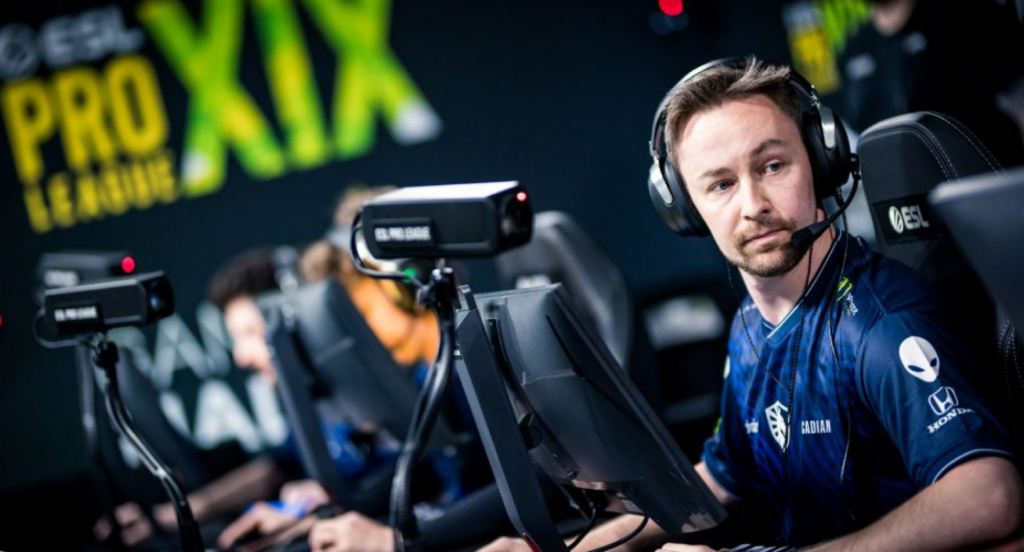
cadiaN’s peripherals match his precise playstyle:
| Gear Type | Product |
|---|---|
| Mouse | Logitech G Pro X Superlight |
| Mousepad | ZOWIE G-SR |
| Keyboard | Wooting 60HE |
| Monitor | BenQ ZOWIE XL2546K (240Hz) |
| Headset | HyperX Cloud II |
The G Pro X Superlight is popular among AWPers for its lightweight design, reducing fatigue during long sessions. The ZOWIE G-SR mousepad provides consistent glide with good stopping power—essential for precise flick shots.
Tips for Using cadiaN’s Settings
Before copying these settings exactly, consider these factors:
- Sensitivity adjustment period — Give yourself at least a week to adapt to new sensitivity settings before judging them
- Resolution preference — 4:3 stretched isn’t for everyone; try native resolution first if you’re new to CS2
- Hardware differences — Your mouse sensor and mousepad affect how sensitivity feels
Start with his crosshair and viewmodel settings, as these have the least impact on muscle memory while still improving your visual clarity. Then gradually adjust sensitivity if your current setup isn’t working.
Conclusion
cadiaN’s CS2 settings reflect years of professional experience and optimization for AWP-focused gameplay. His 800 eDPI, 4:3 stretched resolution, and clean crosshair create a setup built for precision shooting. While copying pro settings won’t instantly make you a better player, using a proven configuration as your starting point eliminates guesswork.
Try these settings in your next session, and don’t forget to browse CS2 skins to customize your AWP while you practice those flick shots.