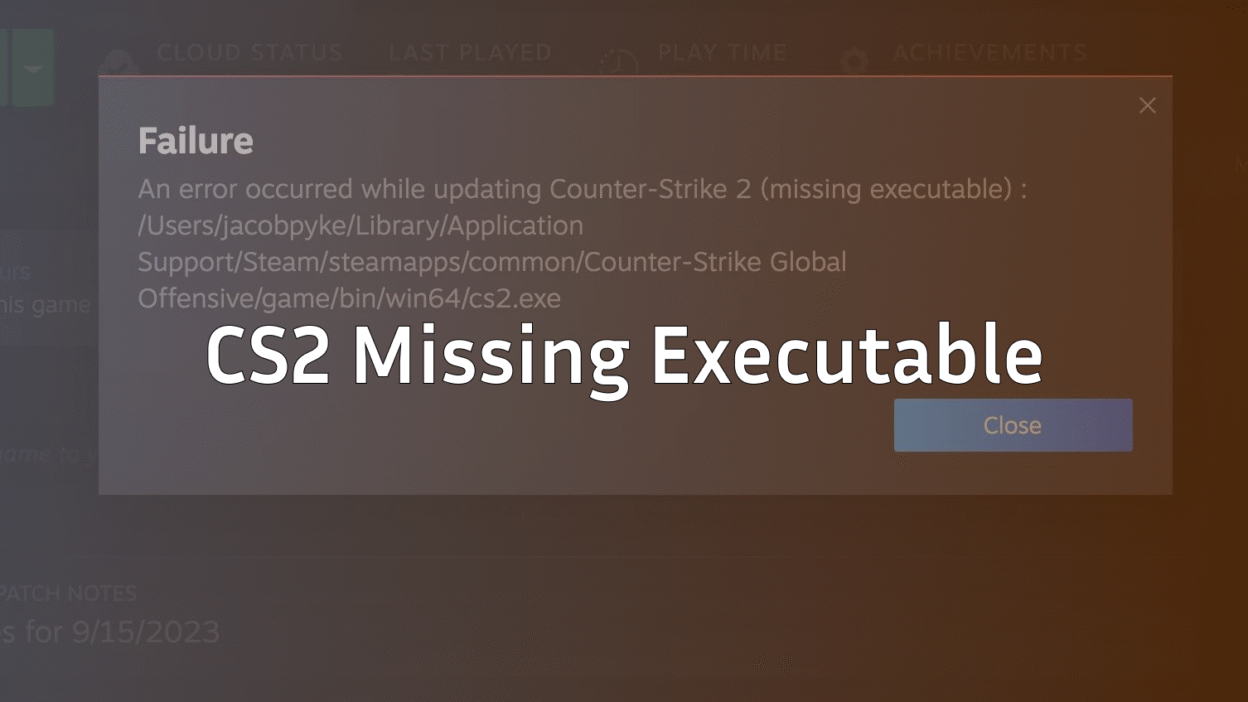
Running into the CS2 missing executable error on macOS can feel super confusing—especially when Steam refuses to launch Counter-Strike 2 and throws vague errors. You’re not alone, and the good news is: this issue is fixable.
In this guide, I’ll walk you through why CS2.exe doesn’t exist on Mac, where the CS2 executable actually is, and step-by-step fixes that work..
What Does CS2 Missing Executable Mean on Mac?
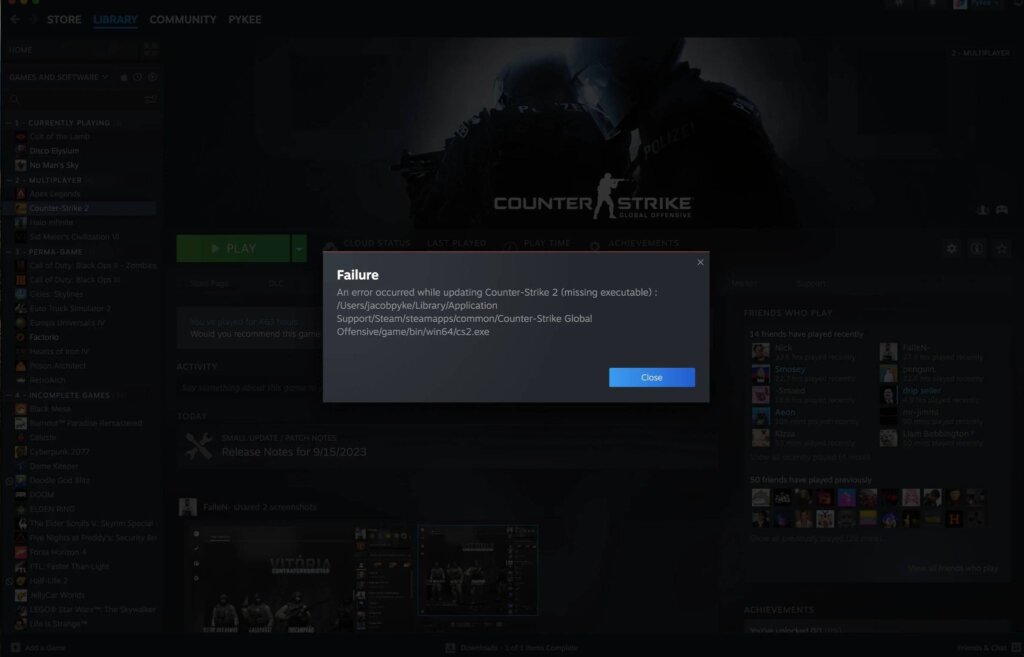
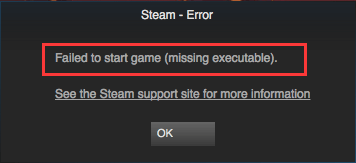
The error usually appears when Steam tries to launch CS2 but can’t find the game’s executable file.
On Windows, this file is called:
- cs2.exe
But here’s the important part
There Is NO cs2.exe on macOS
macOS does not use .exe files at all. That’s why many Mac users get confused when searching for:
- where is cs2 exe
- cs2 exe location
- cs2.exe
On Mac, Counter-Strike 2 runs using a different binary structure, not a Windows executable.
Where Is the CS2 Executable on Mac?
Instead of cs2.exe, macOS uses an app bundle and binary files.
Default CS2 location on Mac:
~/Library/Application Support/Steam/steamapps/common/Counter-Strike Global Offensive/
Inside this folder, CS2 runs via internal binaries—not a visible .exe file.
This is normal behavior and not a bug by itself.
Why This Error Happens on macOS
Here are the most common reasons Mac users see the CS2 missing executable error:
| Cause | Why It Happens |
| Incomplete CS2 download | Files failed to install properly |
| Steam cache corruption | Steam can’t locate binaries |
| macOS permission issues | Game files blocked |
| Wrong launch options | Steam looks for cs2.exe |
| Unsupported macOS version | CS2 fails to initialize |
How to Fix CS2 Missing Executable on Mac (Step-by-Step)
1. Verify CS2 Game Files
This fixes 90% of cases.
Steps:
- Open Steam
- Go to Library
- Right-click Counter-Strike 2
- Click Properties
- Go to Installed Files
- Click Verify integrity of game files
Steam will re-download missing or broken files automatically.
2. Remove Windows-Only Launch Options
If you previously used Windows launch options, Steam may look for cs2.exe.
Fix:
- CS2 → Properties
- Clear everything under Launch Options
- Restart Steam
If you want Mac-safe launch tweaks later, check this guide:
CS2 Launch Options
3. Fully Reinstall CS2 (Clean Install)
If verification doesn’t work, do a clean reinstall.
Steps:
- Uninstall CS2 from Steam
- Restart your Mac
- Delete this folder manually:
~/Library/Application Support/Steam/steamapps/common/Counter-Strike Global Offensive/
- Reinstall CS2
This removes leftover corrupted binaries.
4. Check macOS Permissions (Often Overlooked)
macOS can block game execution silently.
Do this:
- Open System Settings
- Go to Privacy & Security
- Allow Steam under:
- Files & Folders
- Full Disk Access
- Restart Steam
5. Make Sure Your Mac Actually Supports CS2
CS2 has higher requirements than CS:GO.
Before reinstalling again, confirm your system meets the minimum specs:
CS2 System Requirements
If your Mac is too old, Steam may install partial files—leading to the missing executable error.
Advanced Fix (Terminal – Optional)
If Steam still fails to detect CS2 binaries:
- Open Terminal
- Paste:
chmod -R 755 ~/Library/Application\ Support/Steam
- Restart Steam
This resets file execution permissions.
Frequently Asked Questions (FAQs)
Is cs2.exe supposed to exist on Mac?
No. .exe files are Windows-only. macOS uses app bundles and binaries instead.
Why does Steam say “missing executable” then?
Steam sometimes displays Windows-style errors even on macOS when files are missing or unreadable.
Can I manually download cs2.exe?
No—and you shouldn’t. CS2 on Mac does not use cs2.exe at all.
Does this error affect gameplay or skins?
Yes. You won’t be able to play, open cases, or access inventories until it’s fixed.
If you’re into skins, you might enjoy:
Final Thoughts
The CS2 missing executable on Mac error looks scary—but it’s usually caused by corrupt files, bad launch options, or permissions, not a missing cs2.exe.
Quick fix summary:
- Verify game files
- Remove Windows launch options
- Reinstall CS2 cleanly
- Check macOS permissions
Once fixed, you’re good to jump back into matchmaking, custom servers, or even explore:
CS2 Custom Maps