If you trade skins, cases, or items on Steam—especially for CS2—knowing how to check your Steam trade history is extremely valuable. Whether you’re looking for a missing item, confirming a past trade, or grabbing your Steam Trade URL, this guide covers everything clearly and step-by-step.
While managing your items, you may also find our guides on Steam Trade URL or How to Remove Trade Hold on Steam useful.
Why Checking Your Trade History Matters
Inventory clarity
See exactly what you traded, when you traded it, and which items went in or out of your inventory.
Security & scam detection
If you notice trades you don’t recognize, your account may be compromised—Steam history helps you catch this early. Make sure you also understand Steam Guard since it’s essential for account safety.
Shareable Trade URL
Some communities require your trade URL. Reviewing your trade history often leads you to the right menu to find it.
Better trading habits
Understanding your previous trades helps you evaluate wins/losses and improve future trading decisions.
How to Check Your Steam Trade History (Step-by-Step)
1. Open Steam and Log In
You can use the desktop client or the Steam web version.
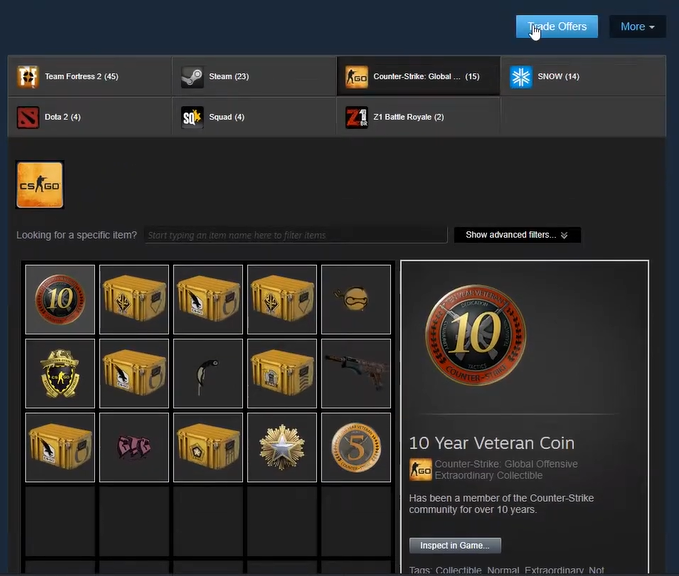
2. Go to Your Inventory
- Click your Profile Name at the top.
- Select Inventory.
Here you can view all your CS2 skins, cases, stickers, and other game items.
3. Access Inventory History
Inside the Inventory page:
- Look for a More button or three-dots menu (top-right area).
- Click View Inventory History.
This opens your complete list of past trades with:
- Date & time
- Who you traded with
- Items sent (marked with “–”)
- Items received (marked with “+”)
Note: Steam only shows your trade history. You cannot view other users’ full histories.
4. Review Trade Details
Scroll through the timeline to find:
- Specific CS2 skins you traded
- When items left or entered your inventory
- The exact player involved
If an item is missing or you suspect a compromise, cross-checking with this page is essential.
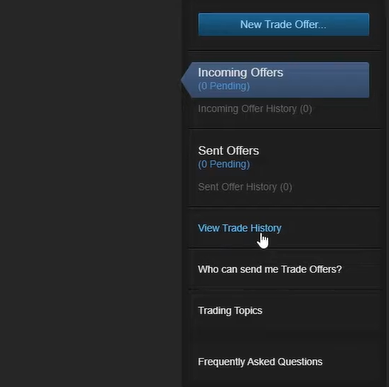
5. (Optional) Find Your Trade URL
To get your Steam Trade Link:
- Open Inventory
- Click Trade Offers
- Select Who can send me Trade Offers?
- Copy your Trade URL
You can also use our quick guide here:
Steam Trade URL Guide
6. Using a Browser for Full Access
The Steam mobile app does not show complete history details.
For full visibility, use:
- Steam Desktop App
- Browser version of Steam
Steam Trade History — What You Can & Can’t Do
| Action | Can You Do It? | Notes |
| View your full trade history | Yes | Found in Inventory → More → Inventory History |
| See items traded away/received | Yes | Shows “–” for sent and “+” for received |
| Filter/search by item or date | Limited | Steam offers no advanced filtering |
| View other users’ trade history | No | Private for security reasons |
| Get your trade URL | Yes | Found under Trade Offers settings |
| Use trade history as proof | Yes | Useful for dispute resolution |
If you’re into CS2 trading, also check:
CS2 Trade Up Calculator
Most Expensive CS2 Skins
Extra Tips for Safer Steam Trading
Check regularly
Active traders should review their history weekly.
Secure your account
If you notice suspicious trades, immediately:
- Change your password
- Enable Steam Guard
- Revoke all active API keys
- Report to Steam Support
Use third-party tools cautiously
Some allow filtering/exporting trade history—only use trusted, community-verified platforms.
Back up high-value trades
For rare skins (e.g., expensive knives), keep manual screenshots or notes.
Protect your Trade URL
Do not share it publicly—only give it to trusted traders.
Frequently Asked Questions (FAQs)
1. How do I check my trade history on Steam?
Go to Inventory → More → View Inventory History.
You’ll see every past trade, including items sent and received.
2. Can I view someone else’s trade history?
No. Steam keeps trade histories private for safety and privacy.
3. Where is my Steam Trade URL?
Go to:
Inventory → Trade Offers → Who can send me Trade Offers?
Your Trade URL is shown there.
Steam Trade URL
4. Why can’t I see my full trade history on mobile?
The Steam app has limited inventory functions.
Use the desktop client or web browser for complete details.
5. What should I do if I see a trade I didn’t make?
Immediately:
- Change your password
- Enable Steam Guard
- Revoke API keys
- Contact Steam Support